Deliver a client gallery
A gallery is a private link with the photos you approved. Proofing galleries collect favourites, approvals, redo requests and comments; final galleries are for viewing and downloading. You choose who can download, whether a PIN is needed and how long it stays up.
- Included in every plan
- Computer or phone
Make and share a gallery
-
Start a new gallery
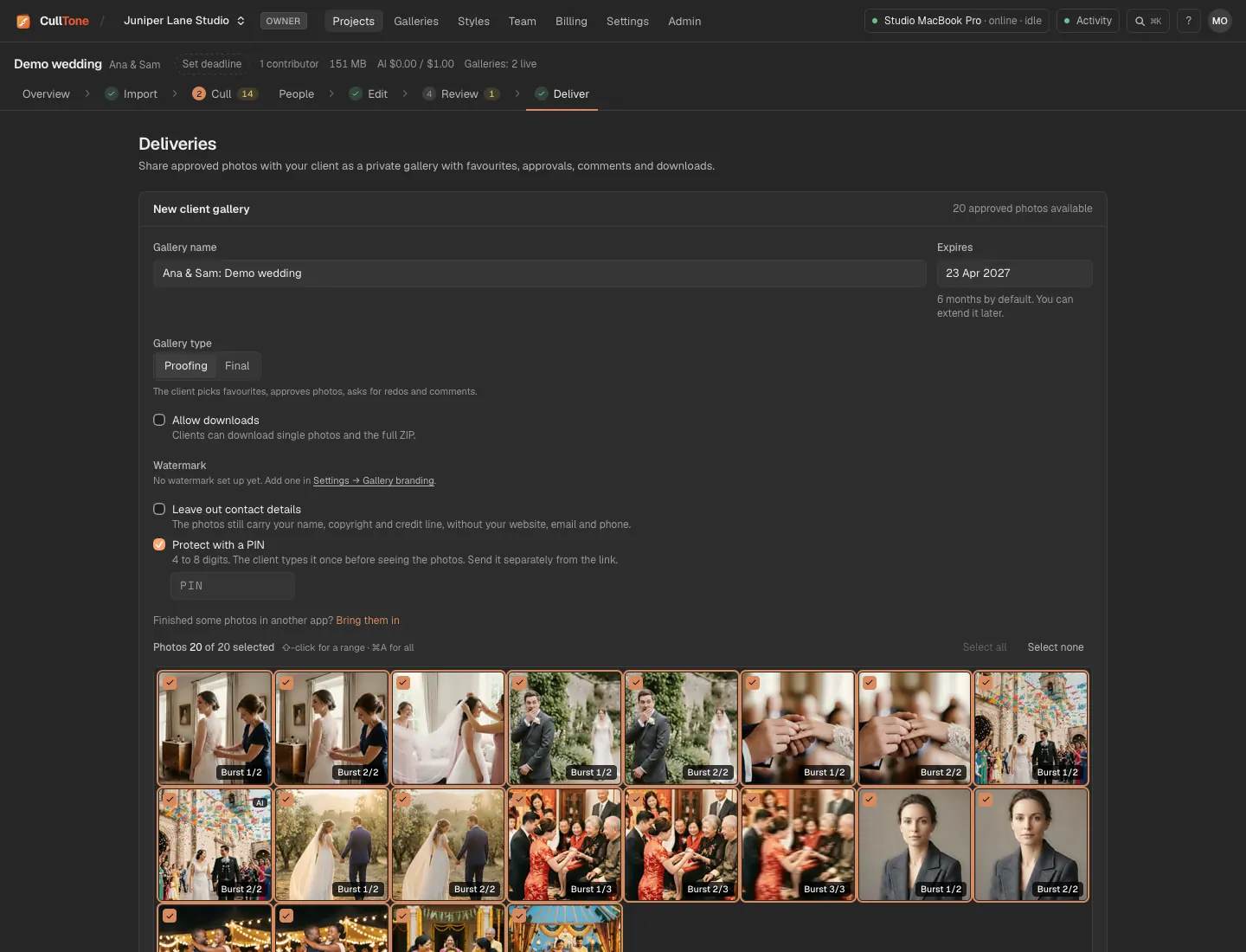
On Deliver press New gallery. Name it, set the expiry (6 months by default), choose Proofing or Final, and decide on downloads and a PIN of 4 to 8 digits.
-
A project with events
Choose All events for one gallery with a tab per event, or Choose events for a gallery of some of them. Download all can then put each event in its own folder (01 Haldi, 02 Sangeet and so on). More in Deliver event by event.
-
Share the link
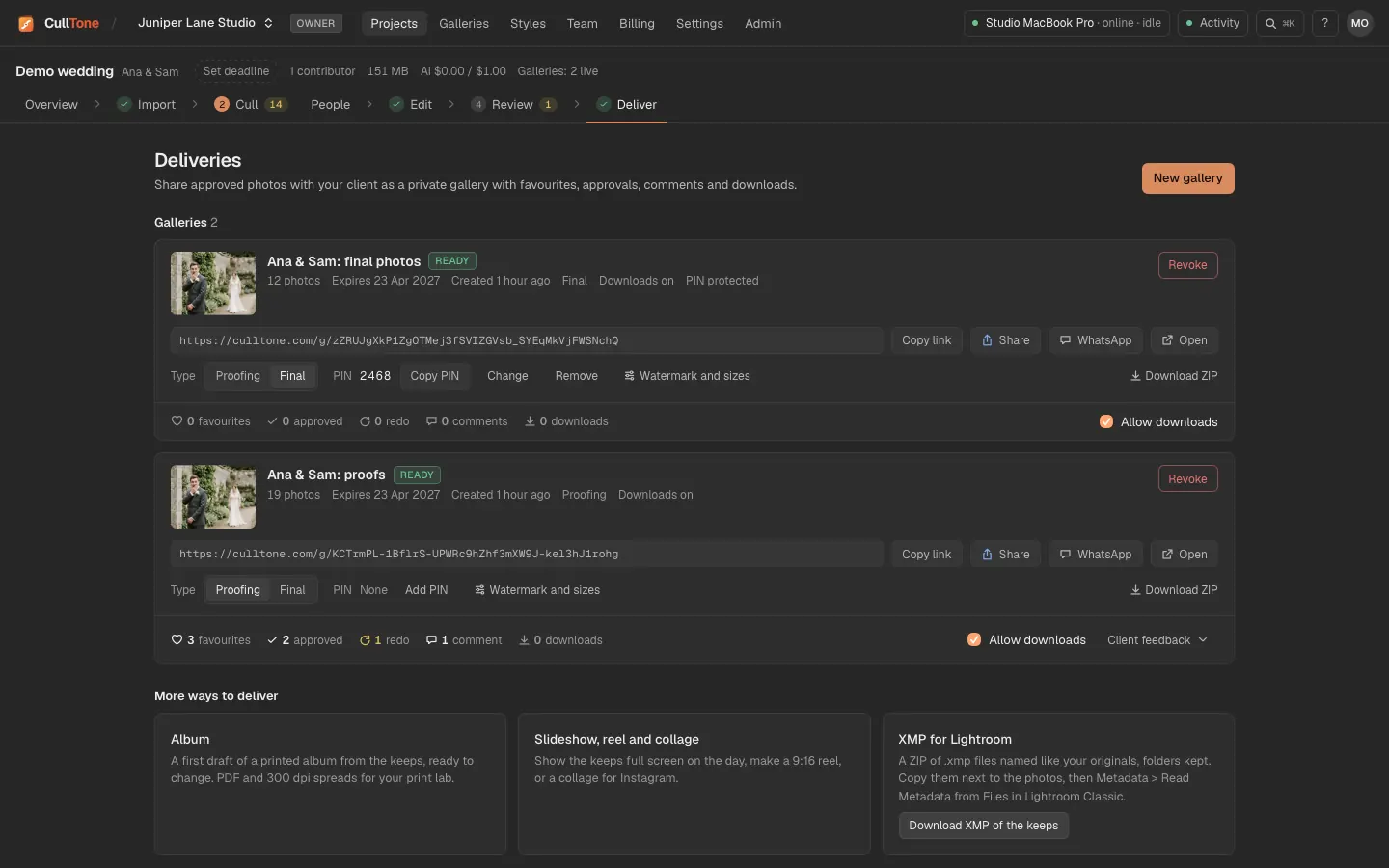
When it is ready, Copy link (it looks like culltone.com/g/ followed by a long private code) and send it to your client yourself (CullTone does not send email yet). Send the PIN separately. Open shows the gallery as the client sees it.
-
Read the feedback
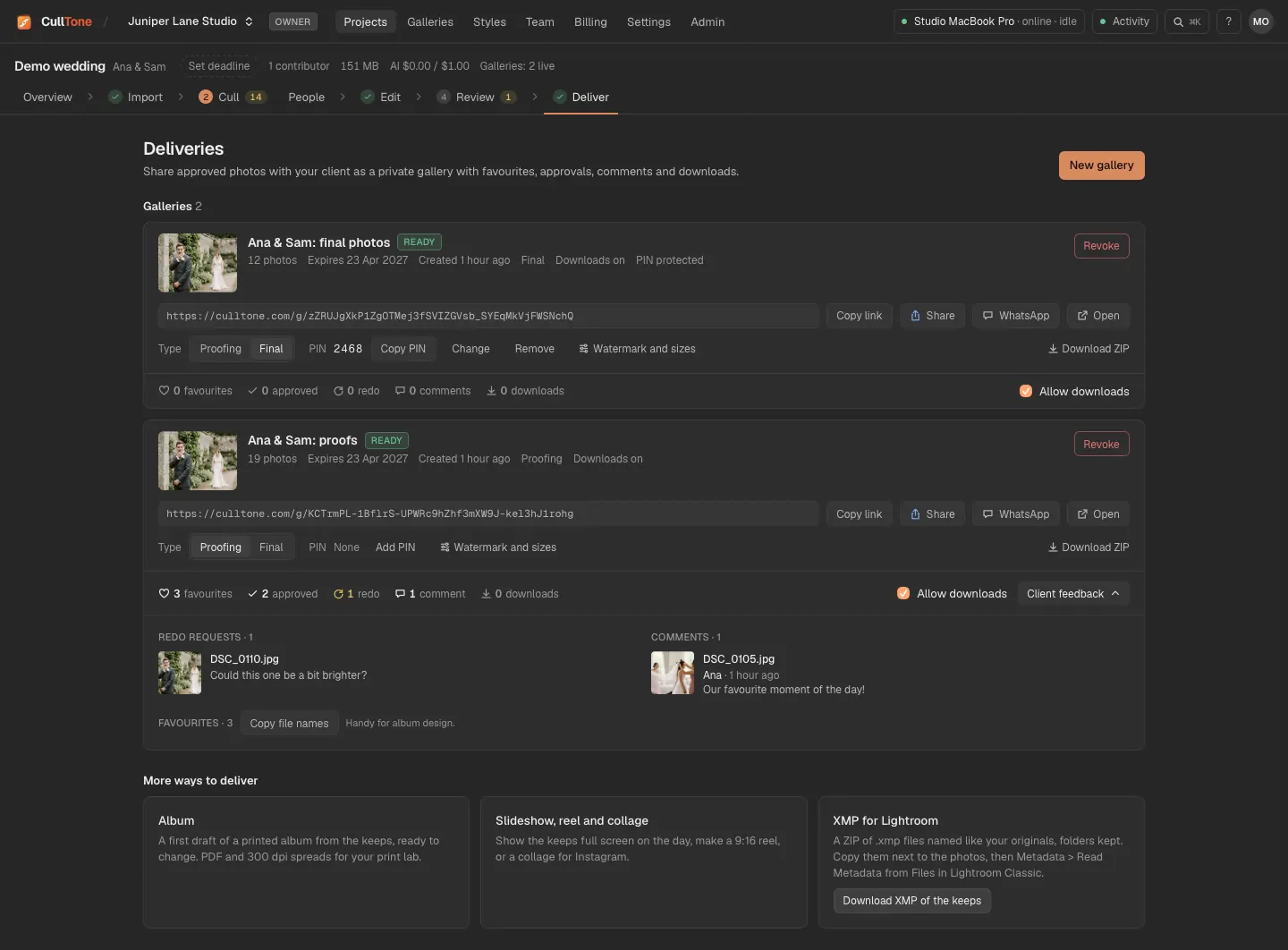
Client feedback lists favourites, approvals, redo requests and comments. Copy file names gives you the favourites for an album.
-
Change it later
Switch Proofing and Final, add or change the PIN, turn downloads on or off, extend the expiry, or Revoke the link. Files of an expired or revoked gallery are removed 30 days later; your edits stay in the project.
Your branding, watermark and sizes
- Settings → Gallery branding (owners): the studio name on galleries, your logo, an accent colour, a credit line under the photos, a watermark (text or your logo), and Show "Delivered with CullTone", off by default. The credit and copyright written into the files are set there too: see credit and copyright.
- Per gallery, Watermark and sizes: no watermark, on the viewing images only, or on every file, and extra sizes for clients: web, Instagram (4:5), Story (9:16) and WhatsApp. Change them and the gallery is built again.
- Galleries in the top bar lists every gallery of every project, with its state and link.
- A gallery link shared in WhatsApp or a message shows a preview card with the cover, never for a gallery with a PIN.
- Download ZIP on a gallery card is your own copy: choose the size, one folder or folders by favourites or by named person, and for a watermarked gallery the files without the watermark. It does not count as a client download.
Finish a project
- When the job is done, press Finish project in Project settings. The project moves to Projects → Finished and its photos and edits can't be changed by mistake. Galleries keep working and you can still export.
- Reopen it any time to change something.
- 30 days after you finish, CullTone removes old versions of each photo by itself (never the delivered or approved ones). CullTone Desktop also offers to free up space on the computer.
XMP files for Lightroom Classic
CullTone gives every culled photo an XMP file: its stars (Keep 4, Review 2, Archive 0), a colour label (green, yellow, red), the reason in the caption and your edit as Develop settings. Each file has the same name as its photo, so DSC0001.ARW gets DSC0001.xmp, and folders are kept, so two cameras that both shot DSC0001 stay apart.
-
Download the XMP files
On the Deliver tab press Download XMP of the keeps, or on the Cull tab open Export and choose XMP for Lightroom (keeps) or (every photo). For one photo, open it in the Edit tab and choose More > Download XMP for Lightroom. The files use your latest decisions and saved edits.
-
Put them next to the originals
Unzip the download and copy each
.xmpfile into the folder that holds its photo, next to it. A ZIP with folders has the same folders as your photos (a second card or computer gets a folder with its name). -
Read them in Lightroom Classic
In the Library, select the photos and choose Metadata > Read Metadata from Files. Lightroom shows the stars and labels; filter by the green label or 4 stars to see your keeps. Reading metadata replaces what Lightroom had for those photos, so do it before you edit them in Lightroom.
- The edit in the XMP is a close match, not the same pixels: Lightroom renders it with its own engine. Face retouch, masks and the camera match are not in the file.
- Projects set to Edits: None get stars, labels and reasons only.
- In CullTone Desktop, Cull → Export → Send keeps to Lightroom… writes the stars for you: into
.xmpfiles next to your RAWs (never into the RAWs), or with the final JPEGs into a folder Lightroom watches. It uses Keep 5, Review 3 and Archive 1 stars, which you can change. An XMP you already have gets only new stars and a label, after you say yes. See Culling. - On the Cull tab, Export also gives
decisions.csvandreview.json.
Album draft for print
On the Deliver tab, Album makes a first draft of a printed album from the keeps. It is a start: change anything after.
- Choose the album size and the style. Photo book and lay-flat sizes come first (8 × 8, 10 × 10 and 12 × 12 in square pages, 11 × 14 in, A4 and A3 landscape), then the usual Indian album spreads (12 × 36, 12 × 30, 10 × 30, 12 × 24, 10 × 24 and 17 × 24 in), or a custom size. Standard puts each moment on its own spreads with the best frames; Indian wedding album keeps every ceremony in order and gathers group photos on family pages.
- The best photo of your key people opens the album, each moment's best photo gets the large place, and a burst gives its best frame.
- Tap a photo and then another to swap them, or a keep at the bottom to put it in. Change a spread's layout, move it up or down, add or delete spreads. Changes save by themselves.
- A project with events: the draft has a chapter per event, in event order, with photos not sorted last as Other photos. Tick Start each chapter with a chapter page for a spread with the event's name and day. The Chapters panel above the spreads jumps to a chapter and moves a whole chapter Earlier or Later; Add chapter pages and Take chapter pages out work any time. A chapter page prints with the same bleed and colour rules as the other spreads.
- Print guides on each spread show the bleed (a faint band that the lab cuts off), the trim line, the safe zone (a dashed line inside the trim) and the fold. A badge says when a face sits in the fold or near the edge; Move faces out of the fold shifts the crop for you. Nothing moves until you click it.
- Export for print shows the trim size, the bleed (3 mm unless you change it), the pixels at 300 dpi and the colour space. PDF for print gives one page per spread with trim and bleed boxes, crop marks if you turn them on; Spreads (JPEG ZIP) gives a JPEG per spread and a print notes file. Photos at the page edge reach into the bleed. Every file is sRGB with the profile embedded: most photo labs want sRGB JPEGs, and if yours asks for CMYK, ask them for their profile. Check your lab's spec sheet for its bleed, safe zone and gutter.
- A photo marked Preview only has no render yet: render it first, or it prints from the small preview.
- Covers, text pages, captions, page colours and the client's approval: see Album cover, text and approval.
Slideshow, reel and collage
On the Deliver tab, Slideshow, reel and collage works from the keeps you choose.
- Slideshow plays full screen with slow zoom and pan, and loops: good for a screen at the reception. Your client's gallery has a Slideshow button too.
- A project with events: pick an event in the chips under the header to play only its keeps, or All with A title card before each event (the event's name and day before its photos, in event order). The reel records the title cards too.
- Reel 9:16 records the same show at 1080 × 1920 for Instagram Reels, Stories and WhatsApp Status. Safari and recent Chrome save an MP4, other browsers a WebM. It records in real time, so keep the tab open. Or download the photos as numbered 9:16 stills for a video app, made by CullTone Desktop like the collage.
- Collage makes a grid of 2 to 9 photos as a square, an Instagram 4:5 post or a 9:16 story, as a JPEG. CullTone Desktop makes it on one of your computers and keeps a copy in the project's Album folder.
- CullTone has no music. You can add your own audio file to the slideshow and the reel; use music you have the rights to. The file stays in your browser.
On a phone
-
Share from the phone
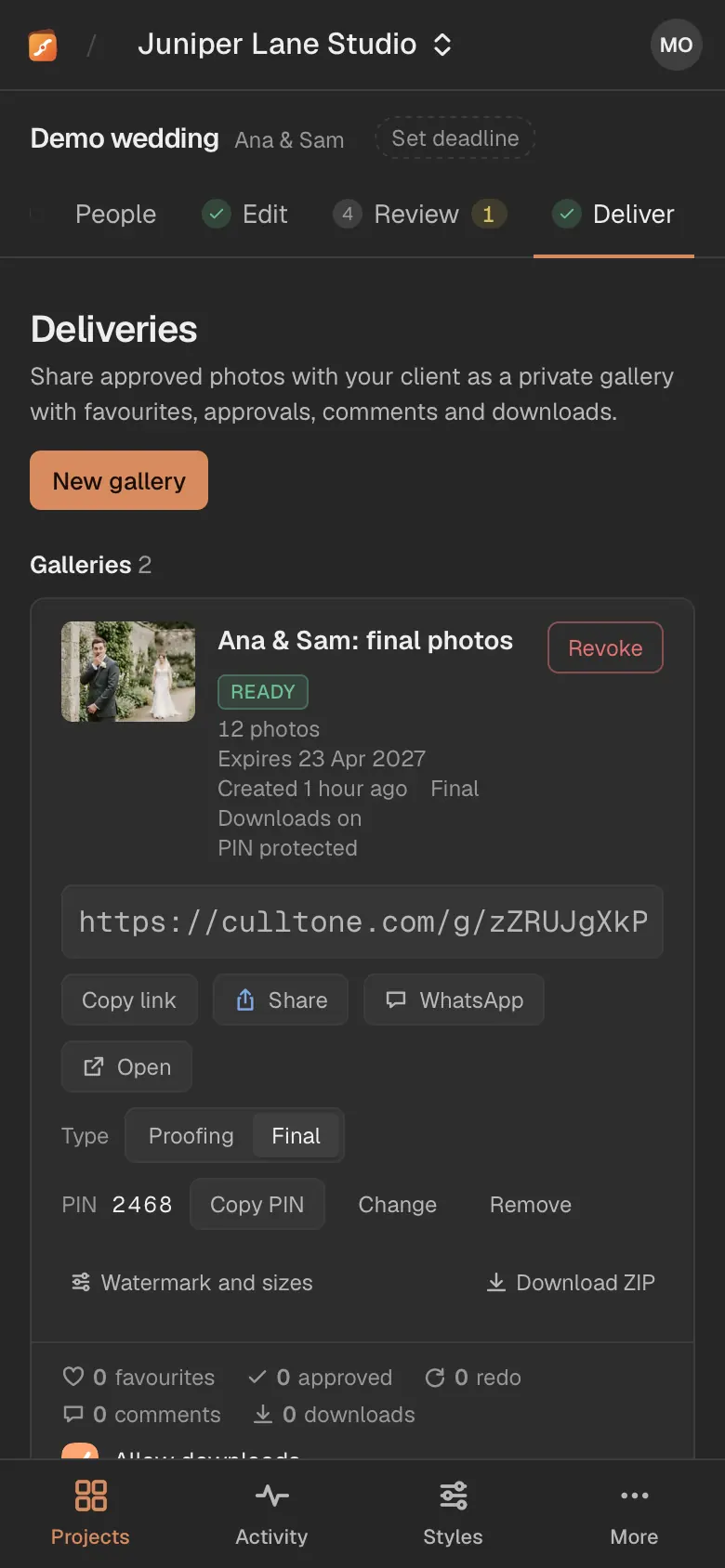
The Deliver tab works on a phone: copy or share the link and read the feedback.
What is free and what is not
- Galleries are included in every plan, with no charge per photo or per download.
- Gallery photos count toward your studio's cloud storage. At the plan's limit, new galleries wait; existing ones stay up.