Events in one project
A wedding is often several events: a haldi in the morning, a sangeet at night, the ceremony the next day and a reception after. A conference runs over three days. In CullTone the project stays the whole job, and its photos go into events inside it: you say which event each card is from when you import it. CullTone never sorts photos by itself. A project without events works exactly as before.
- Free
- Optional
Add the events
-
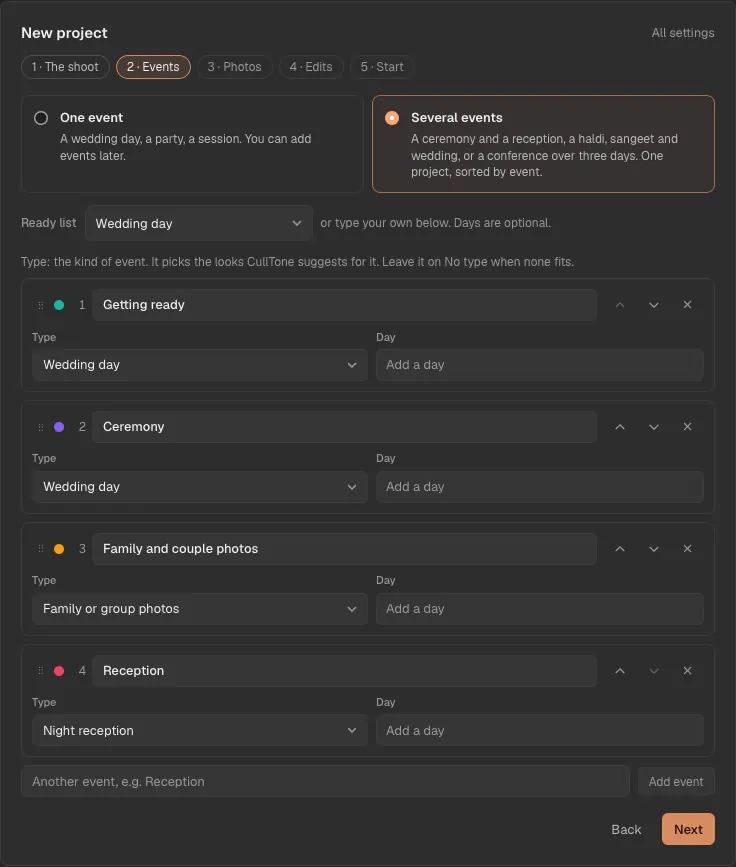
Choose Several events when you make the project
In the new project steps, the Events step asks One event or several?. Pick Several events, then start from a ready list (a wedding day, a church wedding, a nikah, a destination wedding, a conference or a festival, then Indian weddings by region: Telugu, Tamil, Kannada, Malayali, Marathi, Gujarati, Punjabi, Bengali, Rajasthani, North Indian and Muslim weddings) or type your own. Days are optional.
-
Or add them later
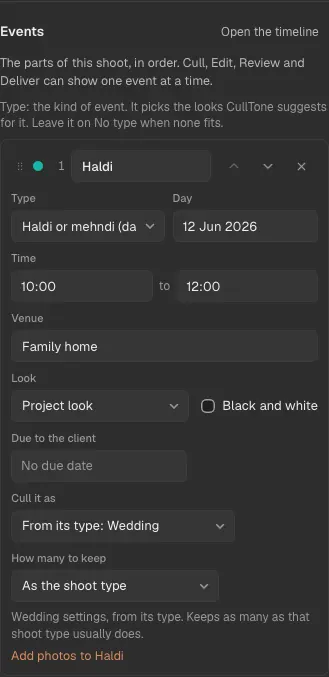
On the project's Overview, open Project settings and find Events. Add, rename, set the type (it picks the looks suggested for that event; leave it on No type when none fits), day, times and venue, and put them in order by dragging or with the ↑ and ↓ buttons. Deleting an event moves its photos to Not sorted; no photo is ever deleted.
Import each card into its event
-
Import as usual
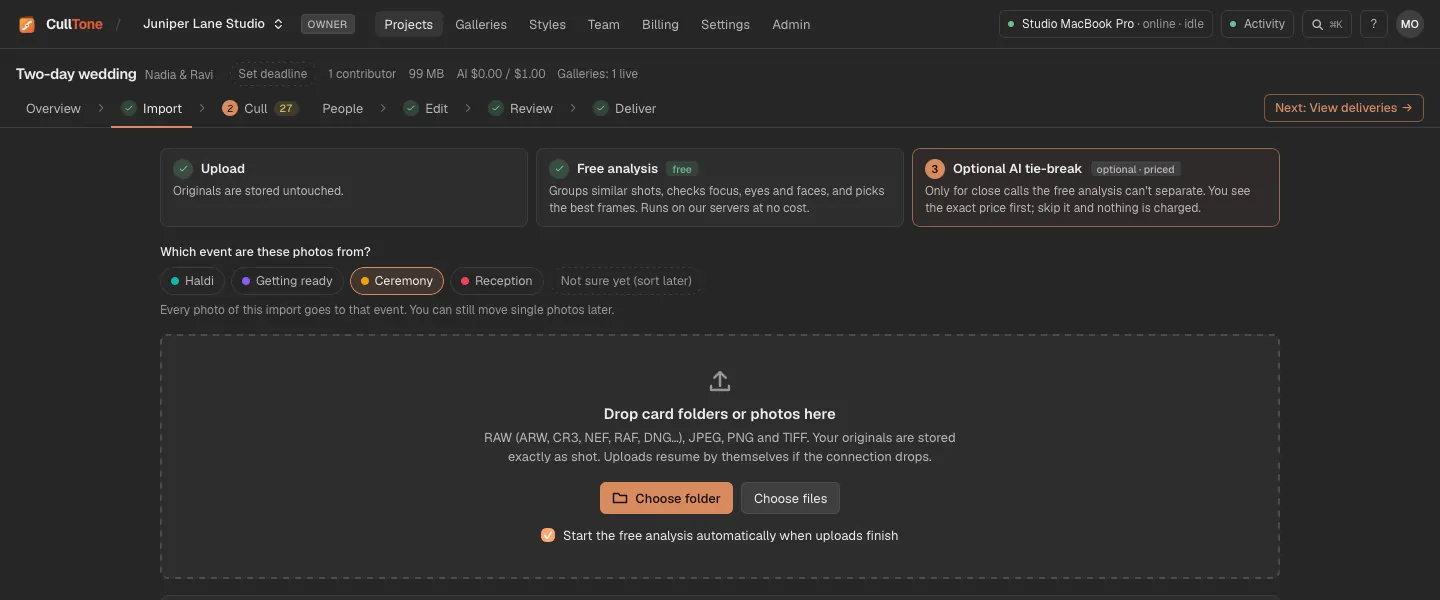
In a project with events, every import asks Which event are these photos from?: the card, folder or camera in CullTone Desktop, and photos uploaded in the browser. Pick the event, or Not sure yet (sort later).
-
Or start from the event
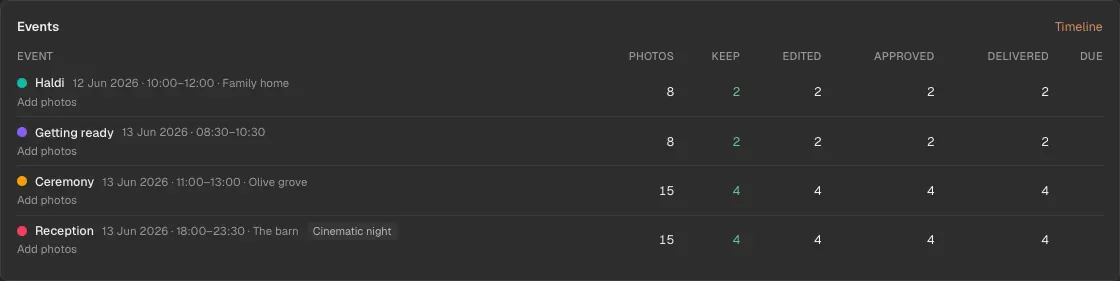
On the Overview's Events block, and in Project settings under Events, each event has Add photos. It opens the import with that event already chosen.
-
Every photo of that card goes there
The photo location (the card or folder) is tagged with the event, so every photo from it lands in that event, also photos read before the tag reached CullTone. Change a card's event later in Project settings under Photo locations: its photos follow, except the ones you moved by hand.
-
Photos in no event
When some photos are in no event, Cull says how many in a quiet line. Press Show them (when another event is chosen), select them and press Move to event, or open the timeline.
One card, several events: the timeline
-
Open the timeline
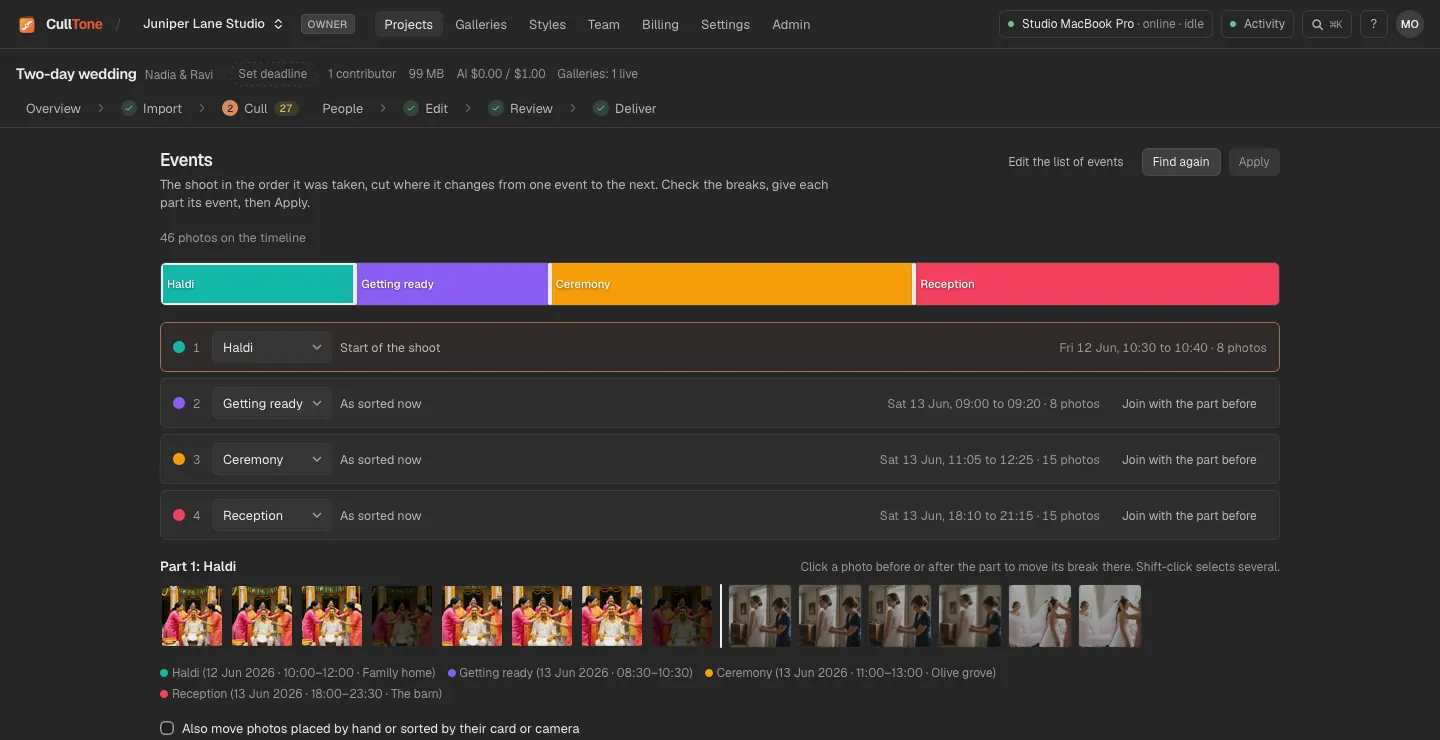
When one card holds several events, press Timeline on the Overview's Events block, next to the event chips, or in Project settings. The bar is the whole shoot in the order it was taken, with the clocks of every camera lined up. The timeline is a tool you use by hand: it never runs by itself.
-
Find events
Press Find events. CullTone looks for a new day (a day runs from 5 in the morning, so a reception after midnight stays on its day), long gaps between photos and a clear change of light, such as moving indoors at night. Each part says why it starts there, for example "2 h 10 min gap". A break never falls inside a burst or a scene.
-
Check the parts
Each part is matched to one of your events: by day when your events have days; else in order, by the time of day an event usually happens (a reception or a sangeet in the evening, getting ready or a haldi by day), so a morning part never goes to an evening event. A day far from the rest of the shoot is labelled with its day ("Day 2 · 1 Sep 2021") and suggested as a new event, and so is a part no event fits. Drag a break on the bar, or focus it and use the arrow keys (Shift moves 10 photos). Click a photo just before or after a part to move its break there, join a part with the one before, or pick New event for a part.
-
Apply
Find only suggests: until you press Apply nothing moves and the event counts stay as they are; the timeline says so above the bar. Press Apply and the photos go to their events. Photos you moved by hand and photos sorted by their card or camera stay where they are, unless you tick Also move photos placed by hand or sorted by their card or camera. Photos without a shot time stay as they are. When the timeline says the last suggestion can't be shown (the photos changed since it was made), press Find again.
Work one event at a time
-
Pick an event above the photos
The chips under the project's steps show All, each event with its photo count and Not sorted when some photos are in no event. Here only the Ceremony is shown in Cull. Timeline at the end of the row opens the timeline.
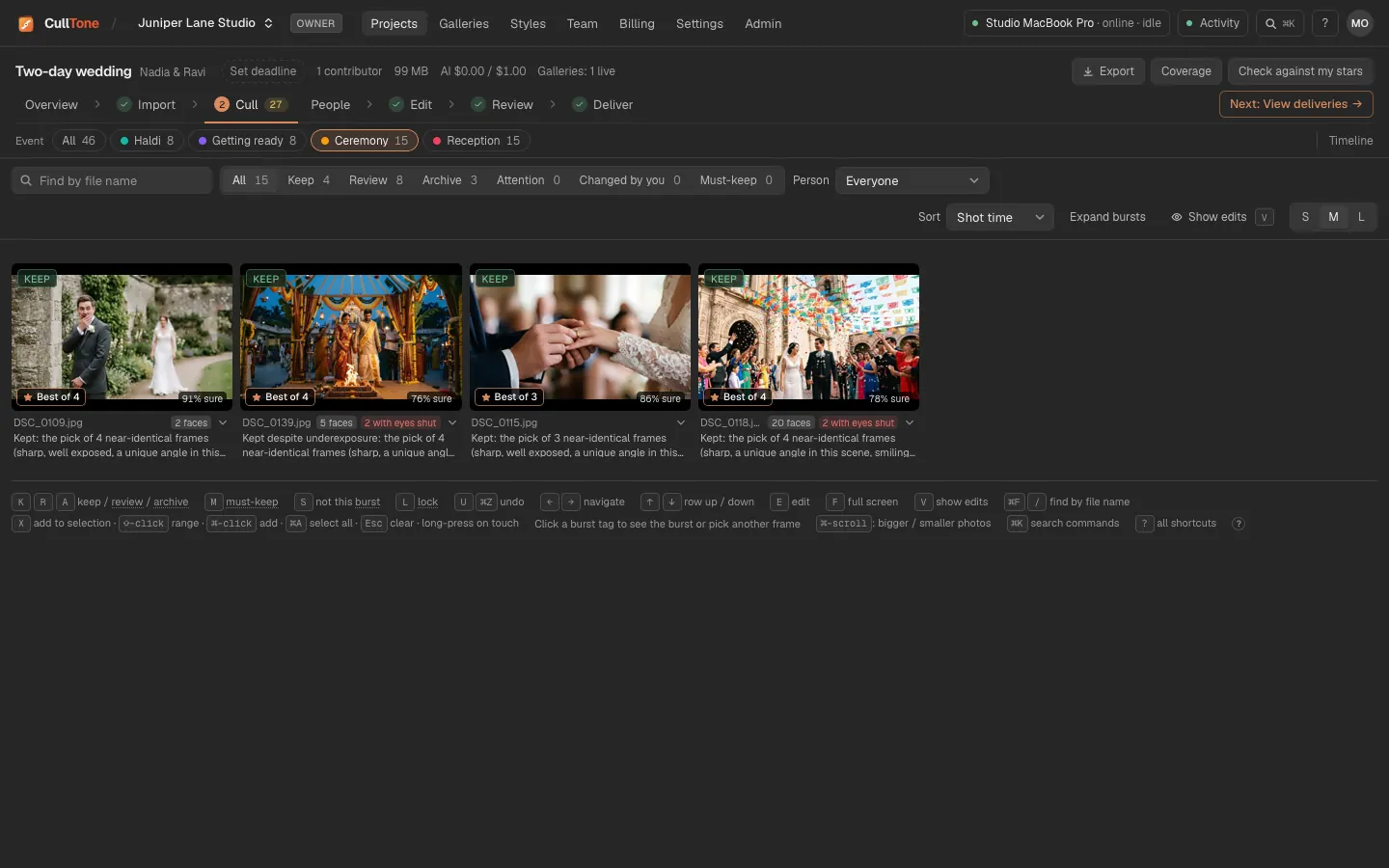
- Under the project tabs, Cull, Edit, Review and Deliver show the event chips: All, each event with its photo count, and Not sorted. Pick one to see only its photos; the choice stays as you move between the tabs.
- To move photos by hand, select them in Cull or on the timeline and press Move to event. In Cull, a burst shown as its best frame moves with all its frames, so a burst never ends up in two events.
- With an event chosen, Render changes and Re-render event in the studio work on that event's keeps only, and the confirm names the event. Its other choice renders every keep with that event first. With All they work on every keep, in the order of the events.
- The Overview lists each event with its photos, keeps, edited, approved and delivered photos so far.
- With a keyboard, the command box has Show only each event and Open the events timeline.
On a phone
-
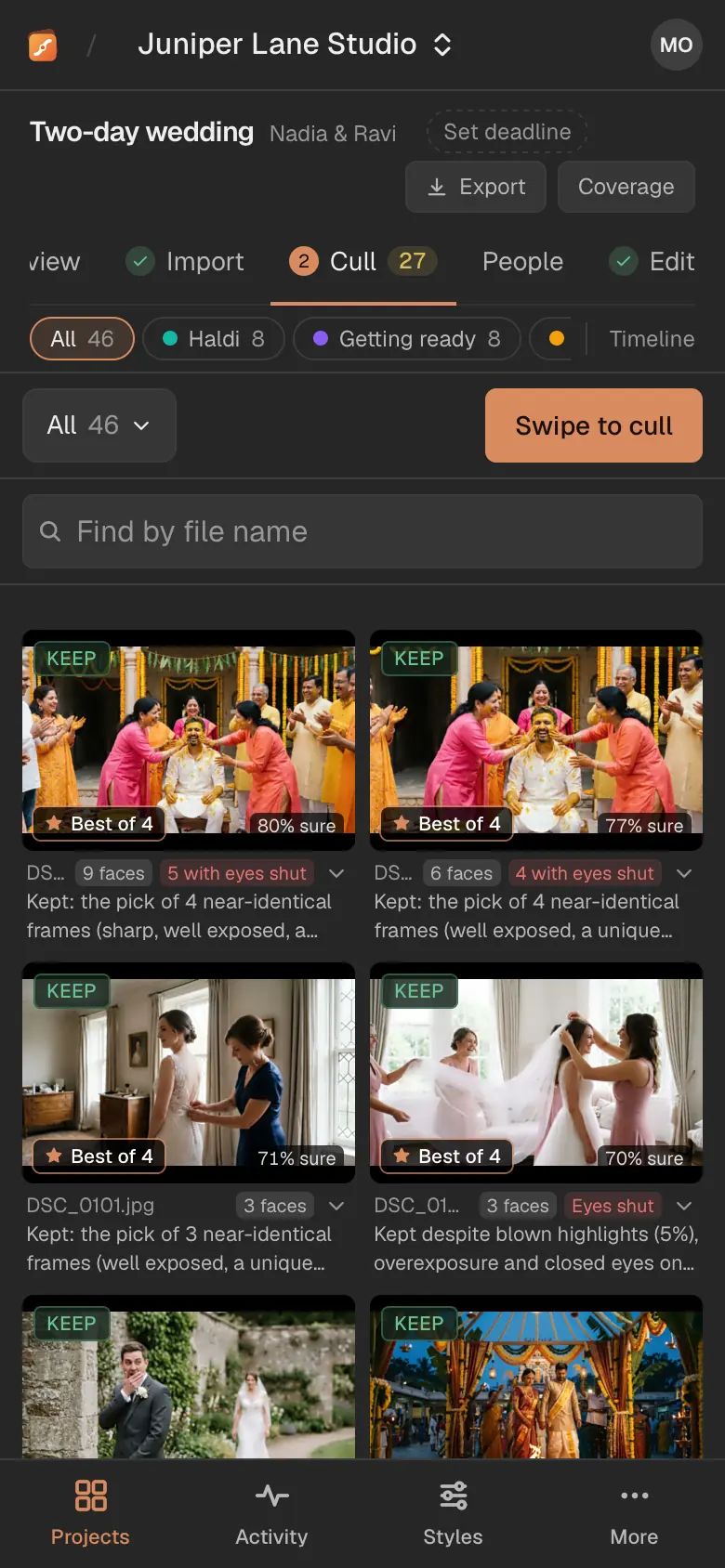
The event chips scroll sideways
On a phone the chips sit in one row under the steps: swipe it to reach every event, then tap one. The choice stays as you move between Cull, Edit, Review and Deliver.
Deliver event by event
-
Make a gallery of some events
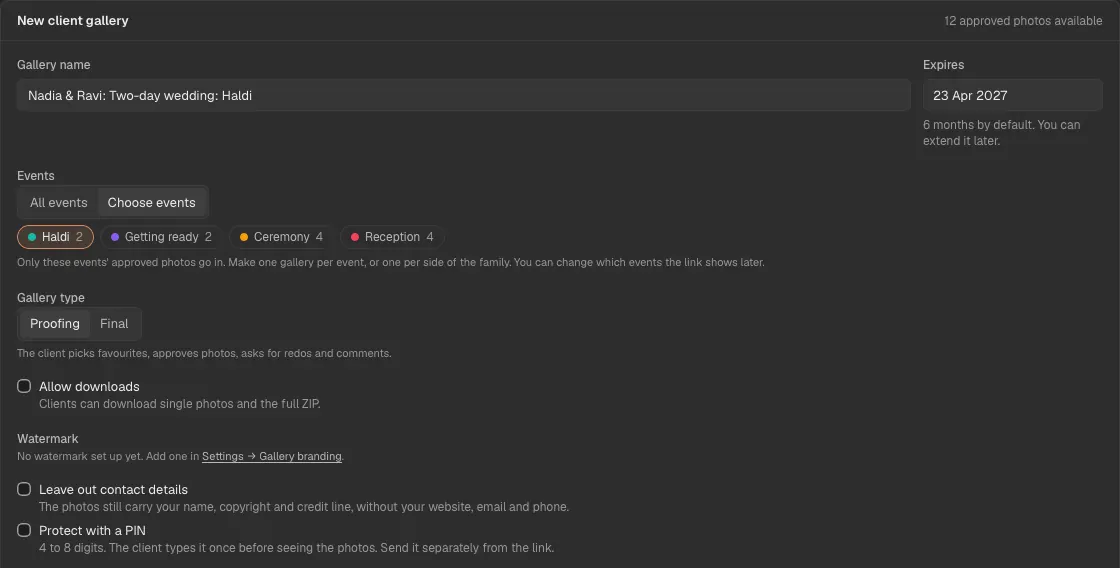
On Deliver, New gallery asks All events or Choose events. Pick the events to put in, for example the Haldi for a sneak peek; the gallery's name follows.
-
Mark each event delivered
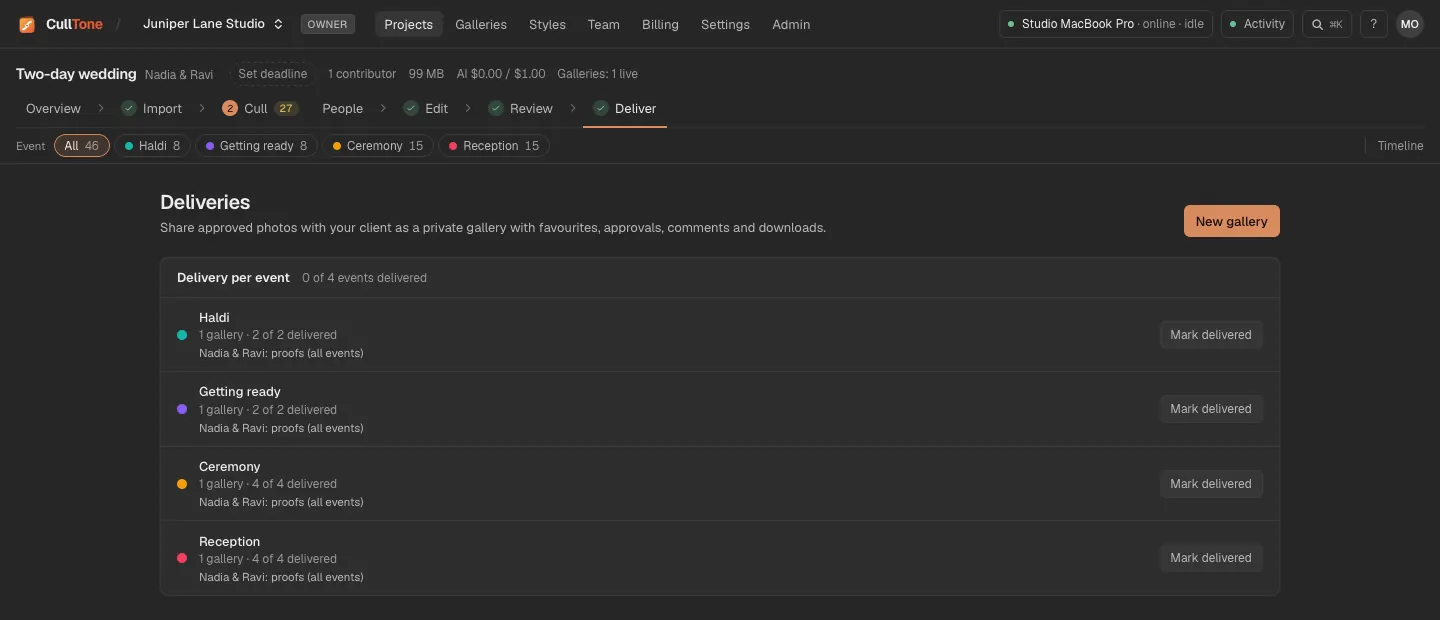
Delivery per event lists every event with the galleries that show it and how many of its photos are delivered. Press Mark delivered when an event is with the client.
-
Your client sees a tab per event
The gallery has All first and a tab for each event, and in All each event has its own heading.
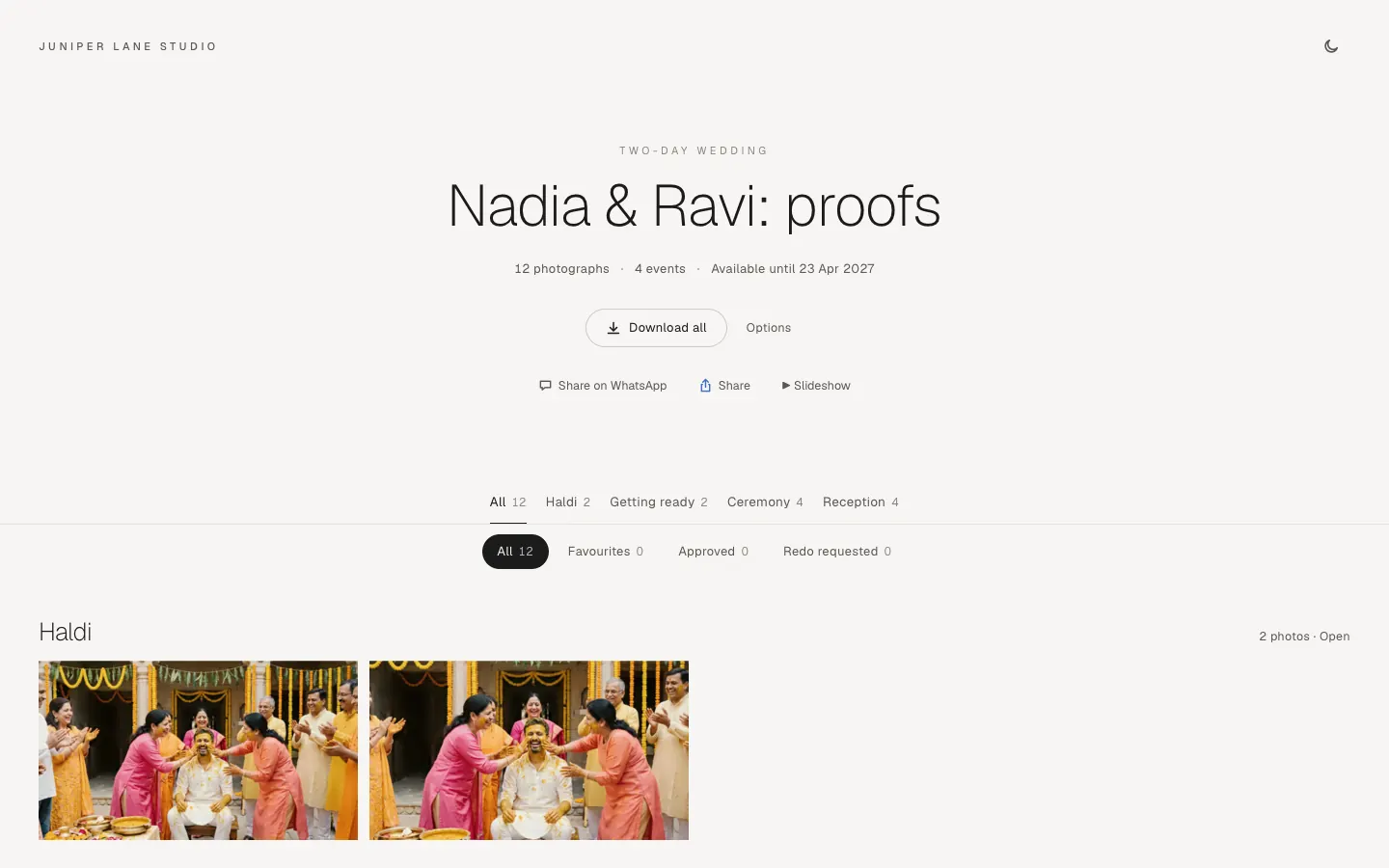
- A gallery of a project with events has a tab per event for your client, in event order, with All first and Other photos last for photos not sorted. In All each event has its own heading.
- On Deliver, New gallery asks All events or Choose events. Choose one event for a sneak peek the next day (a Haldi gallery while you edit the rest), or one gallery per side of the family. Only the chosen events' approved photos go in. Pick an event in the chips first and the new gallery starts with only that event.
- Events shown on a gallery card changes which events its link shows, without building it again. The client's page, single downloads, Download all and the preview card of the link then hold only those events' photos. To give the bride's side and the groom's side their own links, make one gallery for each.
- Delivery per event on Deliver lists each event with the galleries that show it. Press Mark delivered when an event's photos are with the client; the event gets a check in the chips and on the Overview. When every event is delivered, CullTone offers Finish project. It never finishes a project by itself.
- Photos moved to another event after a gallery was made follow at the gallery's next build.
- The album gets a chapter per event, and the slideshow can play one event or all of them with a title card before each: see album and slideshow.
A look for each event
- Each event can have its own look and black and white finals: Project settings → Events has a Look and a Black and white choice on every event. Without one, the event uses the project's look.
- Which look a photo gets: a look or slider change you made on that photo wins, then its event's look, then the project's look.
- In the studio, the look in use says Event look for a photo of an event with its own. In Simple mode the panel shows the photo's event, and its type picks the suggested looks.
- From Preview on 12 photos, Apply to this event sets the look for the photo's event and renders its keeps; Set the look, render later only sets it. In Pro, Set for the event sits next to Set for project.
- After an event's look changes, Render changes renders that event's photos and nothing else. Moving a photo to an event with the same look renders nothing again.
- Match across the event works inside each event: a scene shot across two events is matched as two sets, never as one.
- A style learned from your edits can be the project's look only, not one event's.
Finals folders on CullTone Desktop
- On the main computer, each event's finals go in a folder of its own inside the project's Finals folder, numbered in the order of the events: Finals/01 Haldi/DSC_0101.jpg. Photos not sorted into an event stay in Finals itself.
- Rename an event, change the order or move a photo to another event, and its finals move at the next render or gallery build. A final you changed yourself stays where it is.
- Send keeps to Lightroom (delivered JPEGs) and Export this project keep the same event folders.
Cull and check each event on its own
- Due dates. In Project settings → Events, each event row has Due to the client. The project header, the projects list and the Overview show the next one due, such as Haldi due 27 Oct 2026.
- How many to keep. Each event can keep its own share of its photos, from 10% to 80%, or as many as its shoot type usually does. The keep target is worked out per event, so a long reception never pushes out the haldi's keeps.
- Cull it as. An event is culled with the settings of its type's shoot (an engagement shoot as a portrait session, a night reception as a wedding), or the one you pick. Bursts and moments never mix photos of two events.
- One look for every event of a type. Under an event with its own look, Use this look for all 3 events of this type gives it to the other events of that type, for example every night reception.
- Coverage. With an event chosen above the grid, Cull's Coverage counts that event's keeps and moments and shows its must-have shots: tick each one as you find it, add your own, take off what does not apply.
- The Review step. With an event chosen, Review shows who checks its edits and how many are approved; Assign gives every edit of that event to one person. With All, each event's progress is listed. Move to event works there too.
- Changes to the cull settings are used by the next Analyse again. An older CullTone Desktop waits for an update before it culls a project sorted into events.
Two shooters at two events at once
- When the mehndi and the groom's side were shot at the same time in two places, shooting order alone can't tell them apart.
- Under the timeline, Split by camera lists each camera. When two cameras shot at the same time, it says when, and you choose This camera → Mehndi for that window only. Or send all of one camera's photos to one event.
- Photos you moved by hand stay where they are, and the timeline's split leaves the camera's photos alone. Choose By the timeline to undo.
- A second shooter at the same event looks the same, so CullTone only offers this and never sorts by camera by itself. A card or folder can also be given an event in Project settings → Photo locations.