Review: check edits before the client sees them
After a render, each edit gets automatic checks: did skin colour move more than the look explains, are the highlights clipped, is the size right, did the metadata survive. You look, approve, or send the photo back with a note.
- Free
- Computer or phone
Check a set of edits
-
Open the Review step
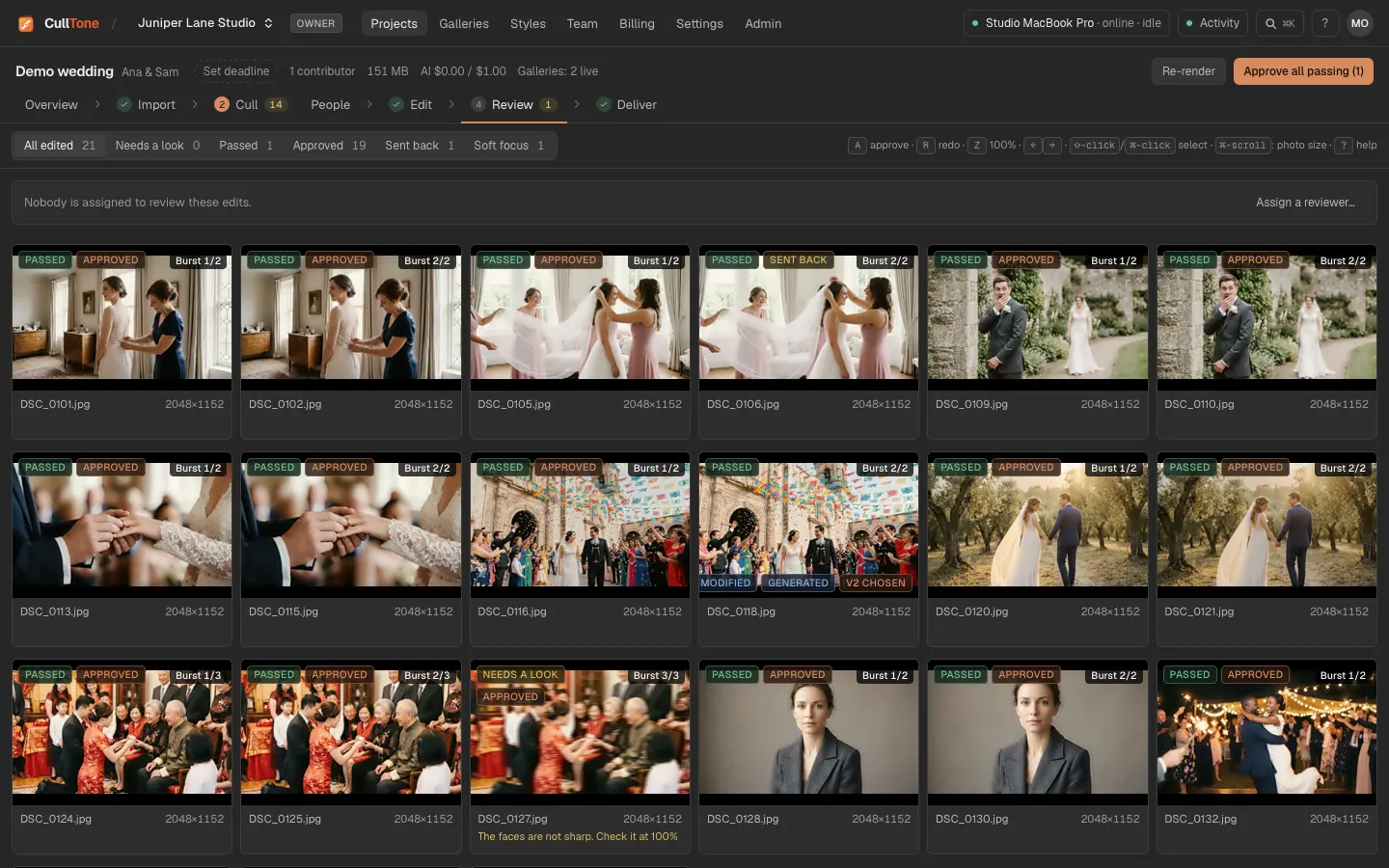
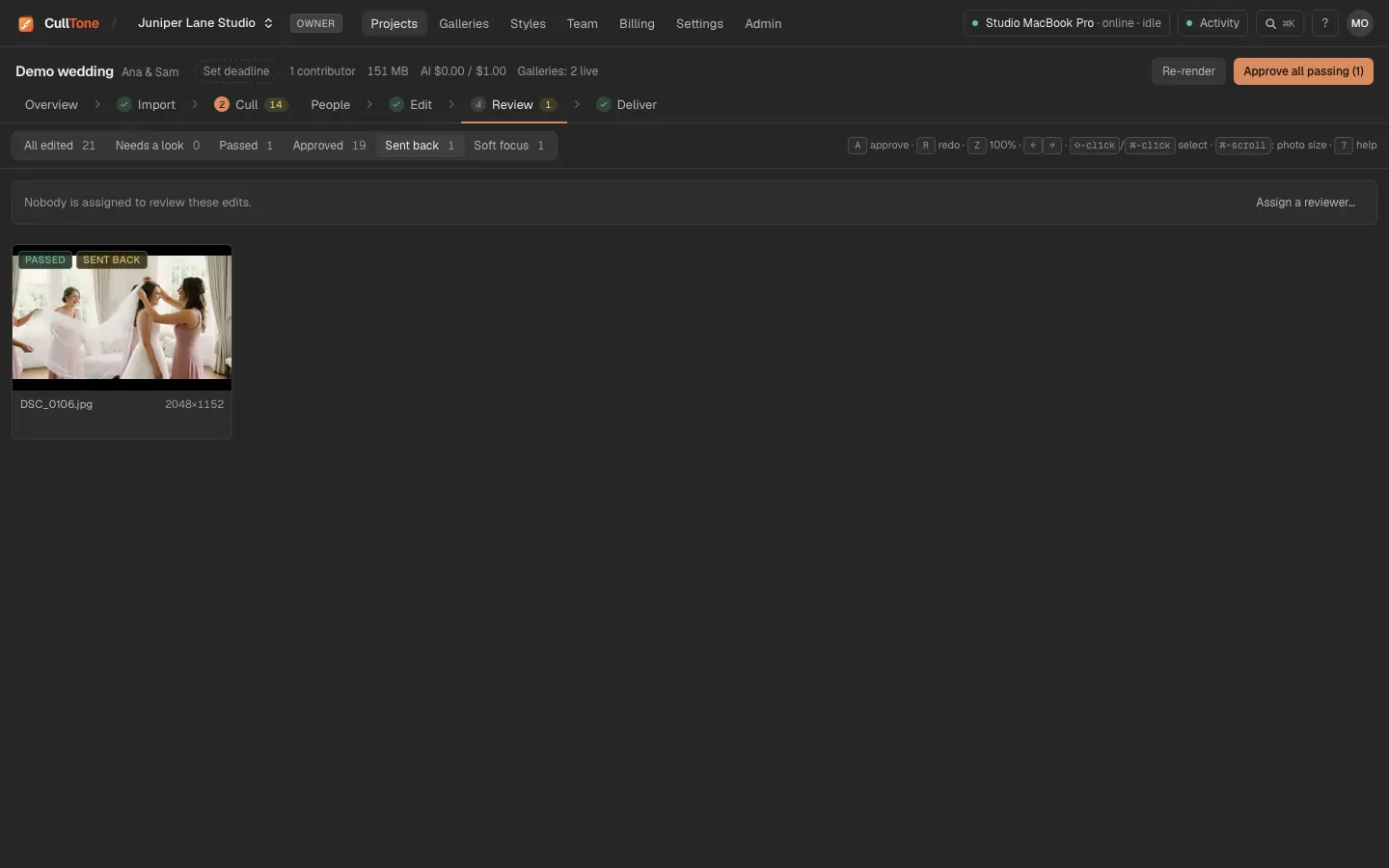
Press Review in the project's steps (Import, Cull, Edit, Review, Deliver). The tabs Needs a look, Passed, Approved and Sent back add up to every edited photo. Start with Needs a look.
-
Compare before and after
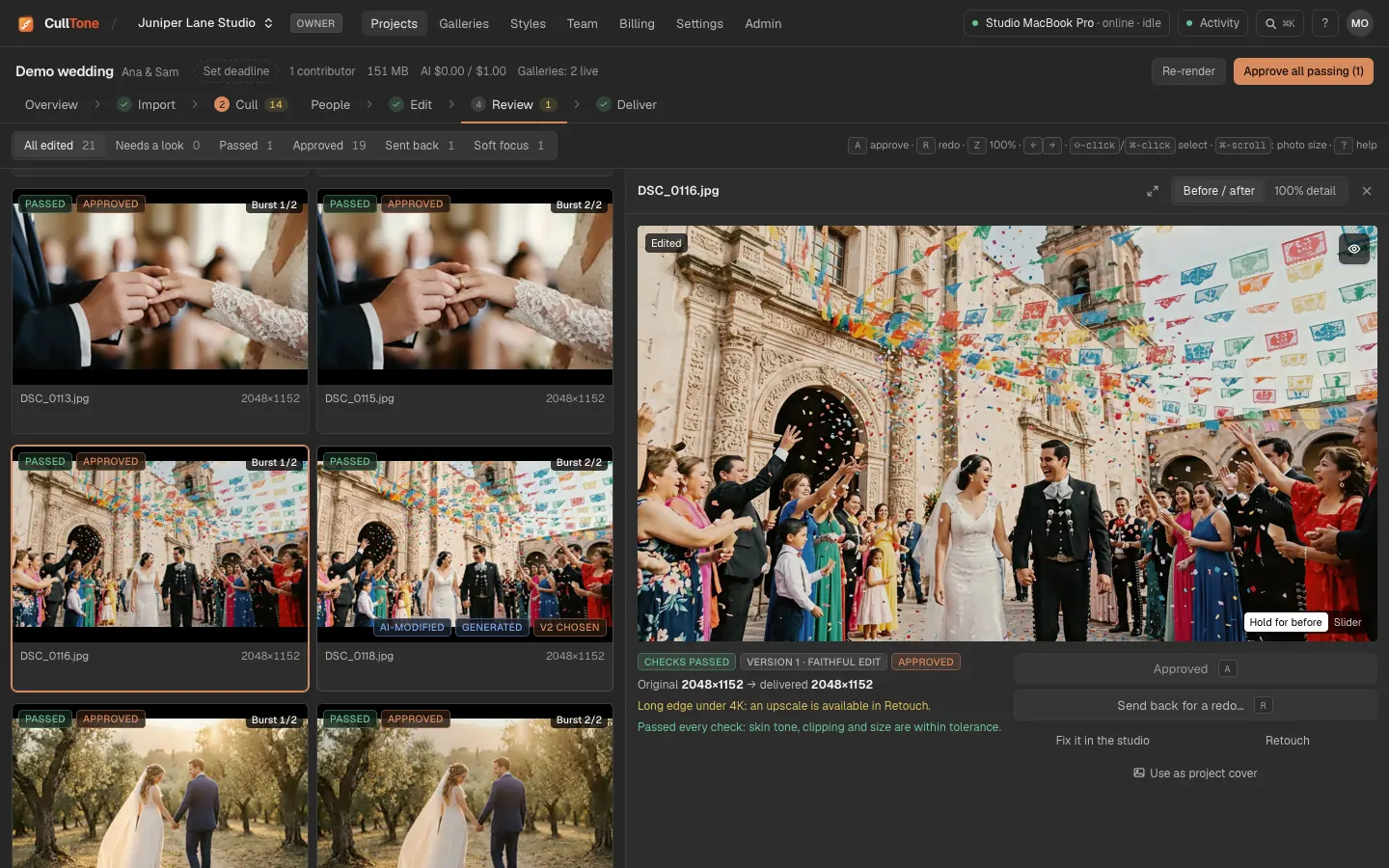
Click a photo. The edit shows large; hold the eye button in its corner (or hold O or \) to see the camera original, or click it to keep the original on until you click again. Prefer a wipe? Choose Slider in the lower corner of the photo and drag the divider; the choice is remembered in this browser. Z shows 100% detail. The checks it passed or failed are listed under the photo.
-
Approve, or send back
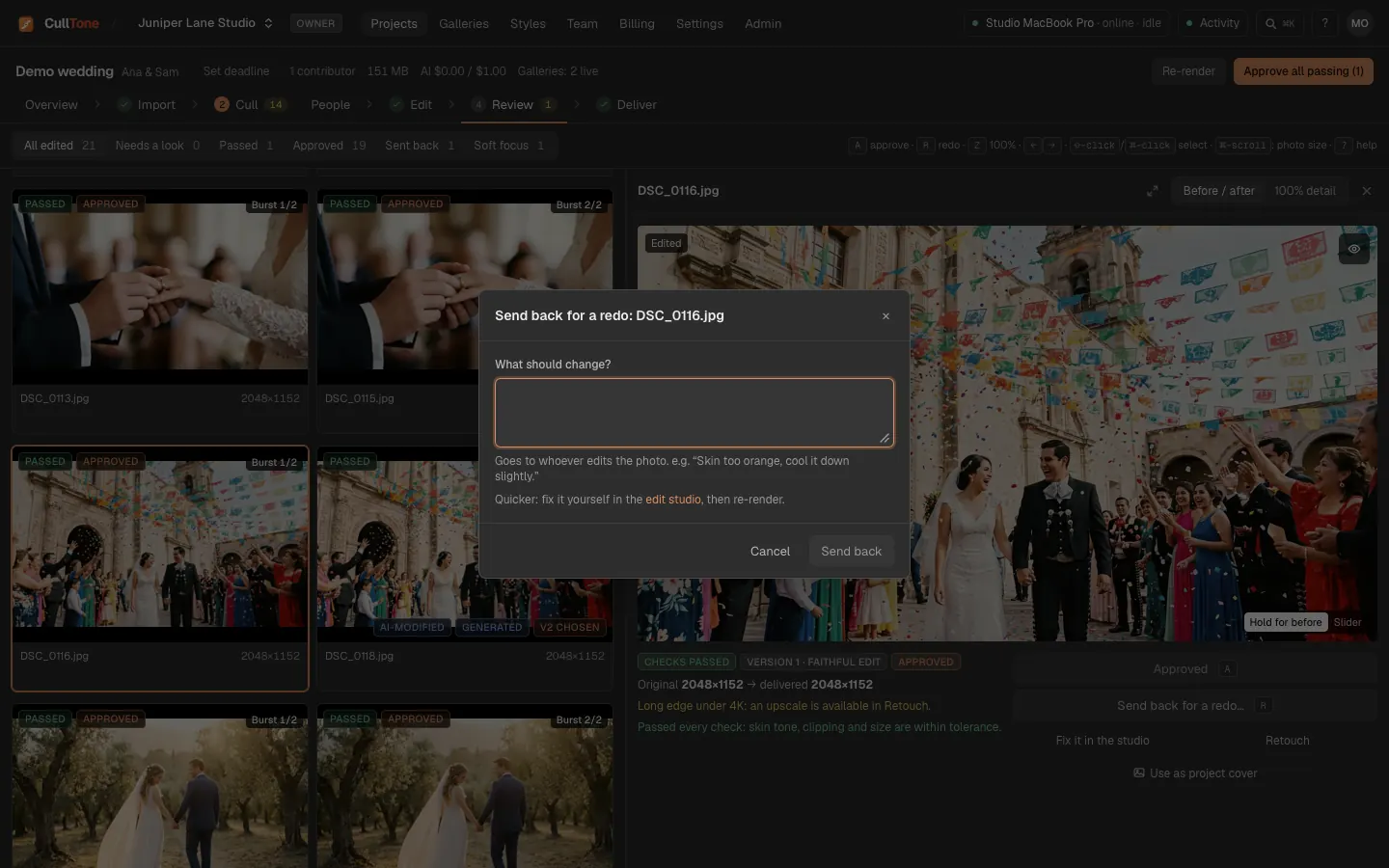
Press A to approve or R to send it back with a note for whoever edits it (or fix it yourself in the studio and render again).
-
Approve the rest in one go
Approve all passing approves every edit that passed its checks. Then Create the client gallery.
On a phone: swipe review
-
Swipe through the edits
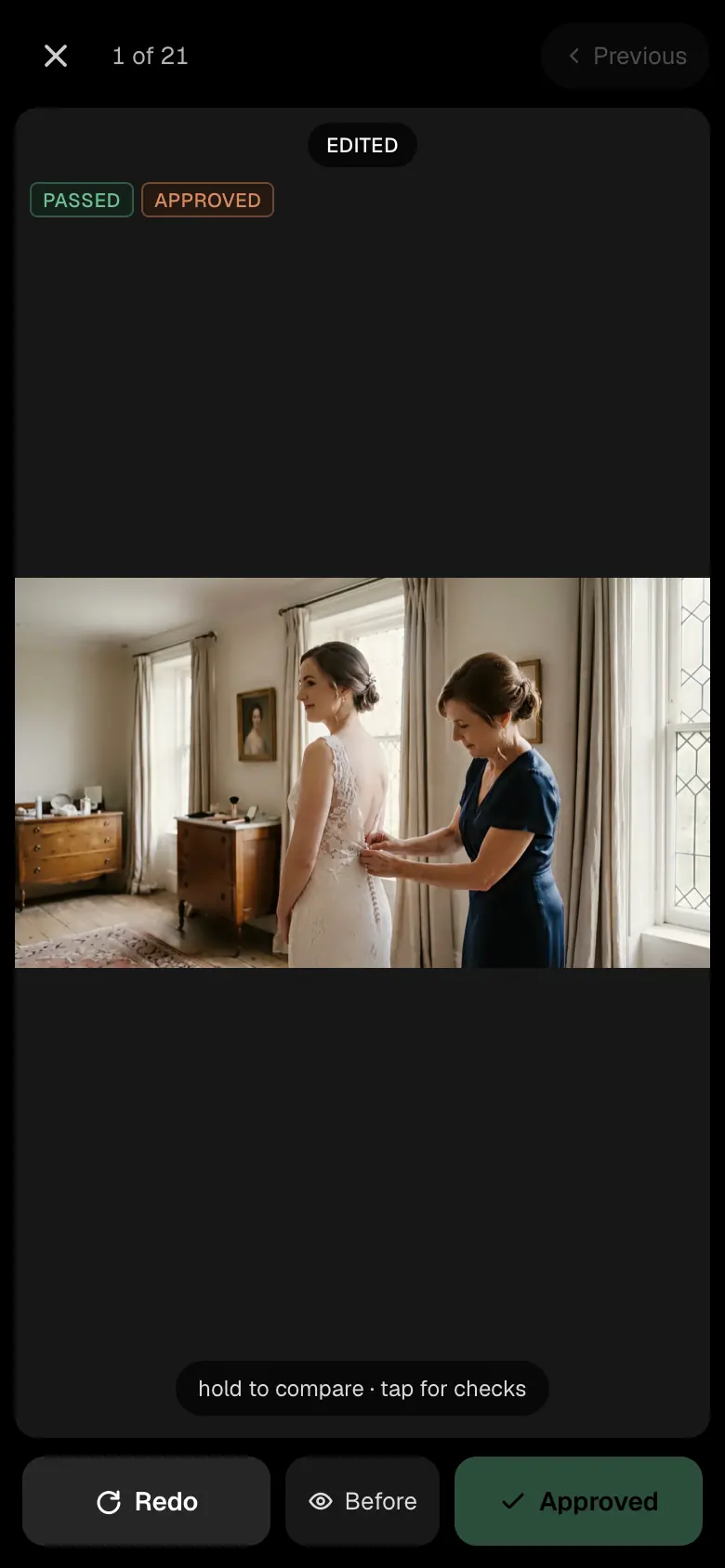
In the Review step, tap Swipe review: approve or send back one photo at a time. Touch and hold the photo or the Before button to see the camera original; tap Before to keep it on.
Tips
- Approving a version makes it the one that goes to the gallery.
- Skin checks allow for the look you chose, so warm looks and darker skin are not flagged for being themselves.
- A face whose skin turned redder or more yellow than in the original, beyond what the look does, is flagged with those words. Compare it with the original before you approve.
- If some keeps could not be rendered because their originals are missing, Review says how many.
- Assign review… (editors) gives every edit, or the ones you selected, to one person. They see Assigned to you on the dashboard, and the Review step shows their progress; Only mine shows just their photos.
- The filters Stands out (a photo darker, brighter, warmer or cooler than the rest of its scene) and Soft focus show when some edit has that flag.
- With an event chosen above the list, Assign gives every edit of that event to one person, and the line shows how many of its edits are approved. Each event can have its own reviewer. Select edits and press Move to event to put them in another event.