How to cull a wedding with CullTone
When the import finishes, every photo already has a decision: Keep, Review or Archive, with one plain sentence saying why. Your job is the Review pile and the frames you disagree with. Nothing is ever deleted, and your decision always wins.
- Free
- Computer or phone
Cull a shoot, step by step
-
Open the Cull tab
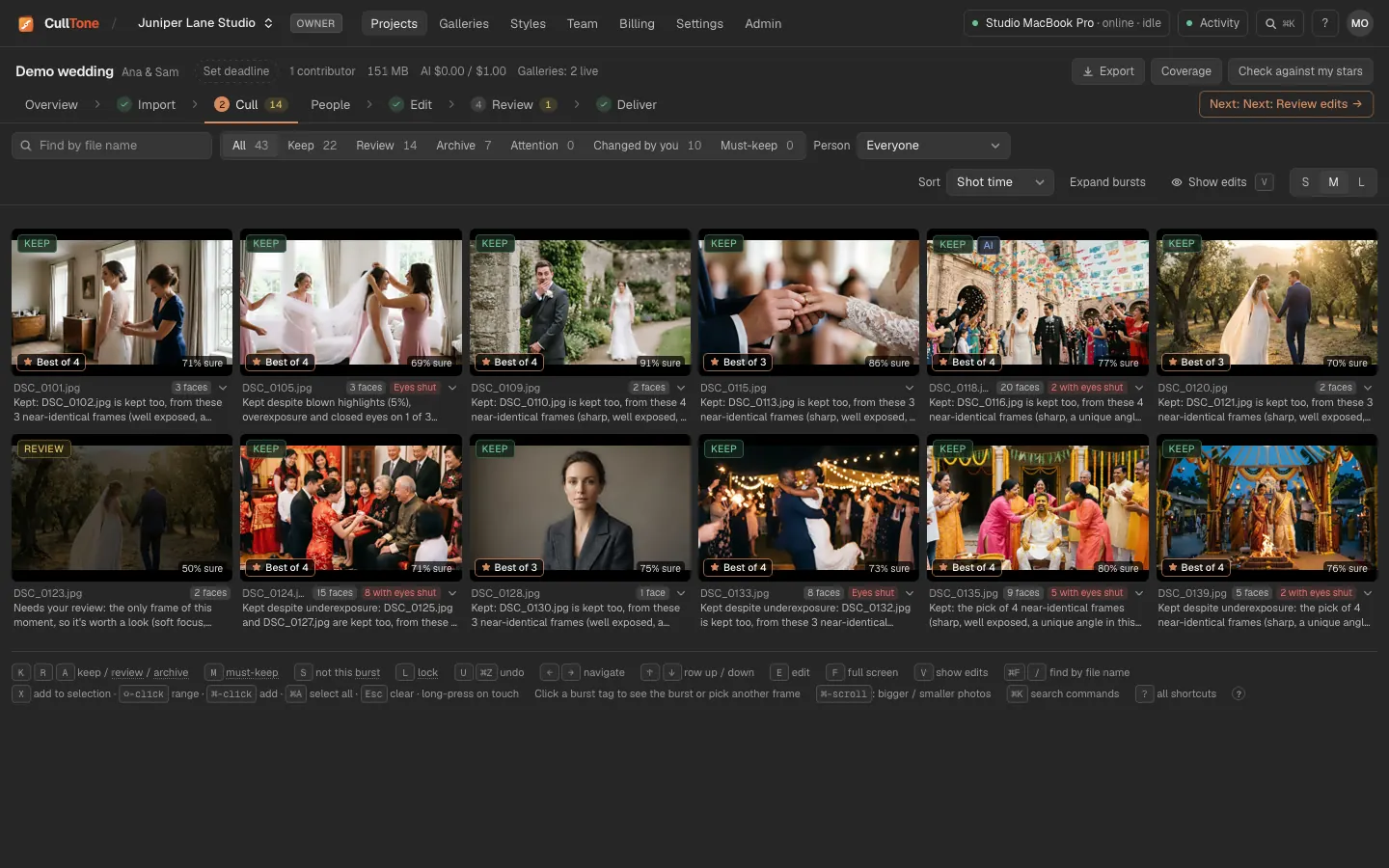
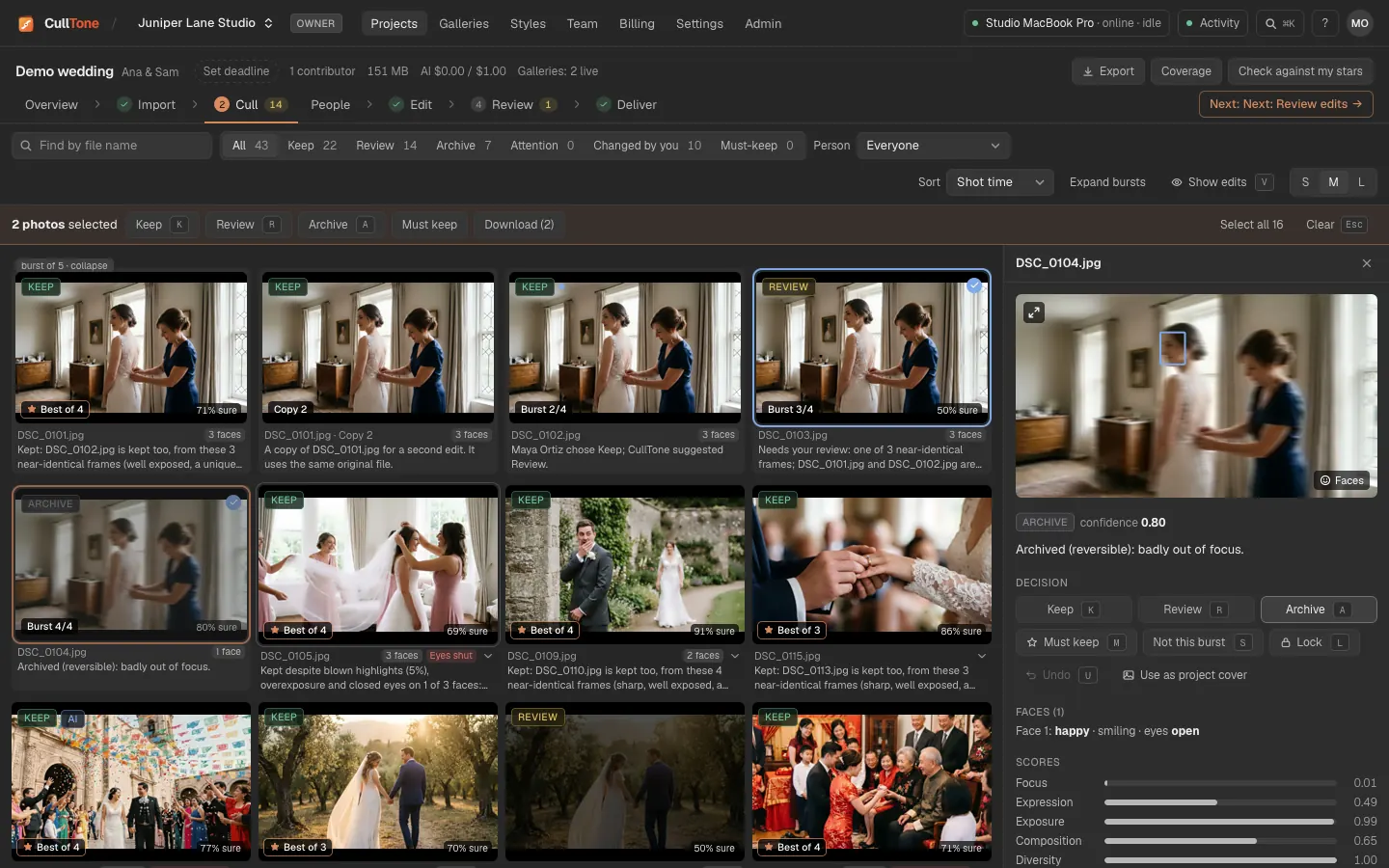
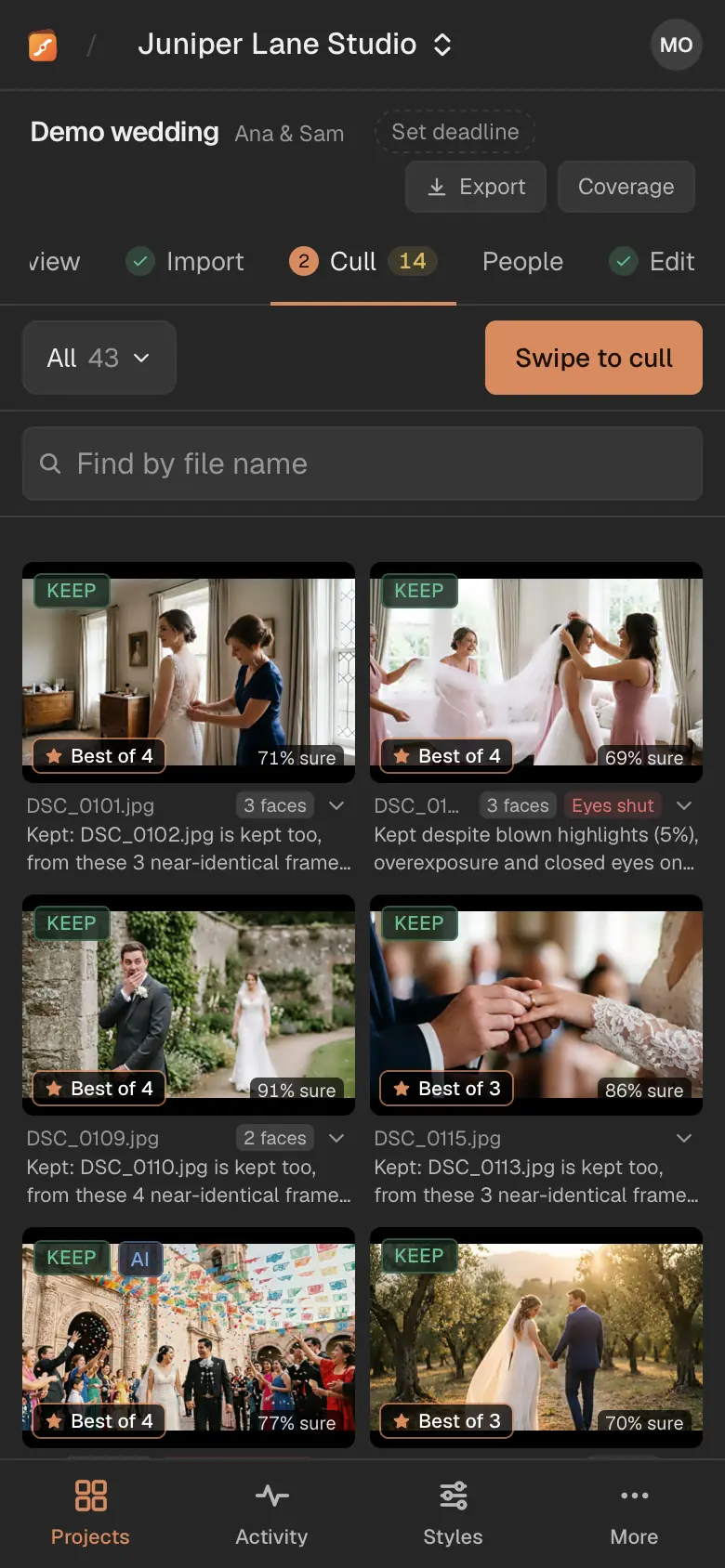
Each tile shows its decision, how sure CullTone is, the faces it found and the reason. Bursts are stacked: the tile on top is the pick, marked ★ Best of 4 when it is kept.
-
Start with the Review pile
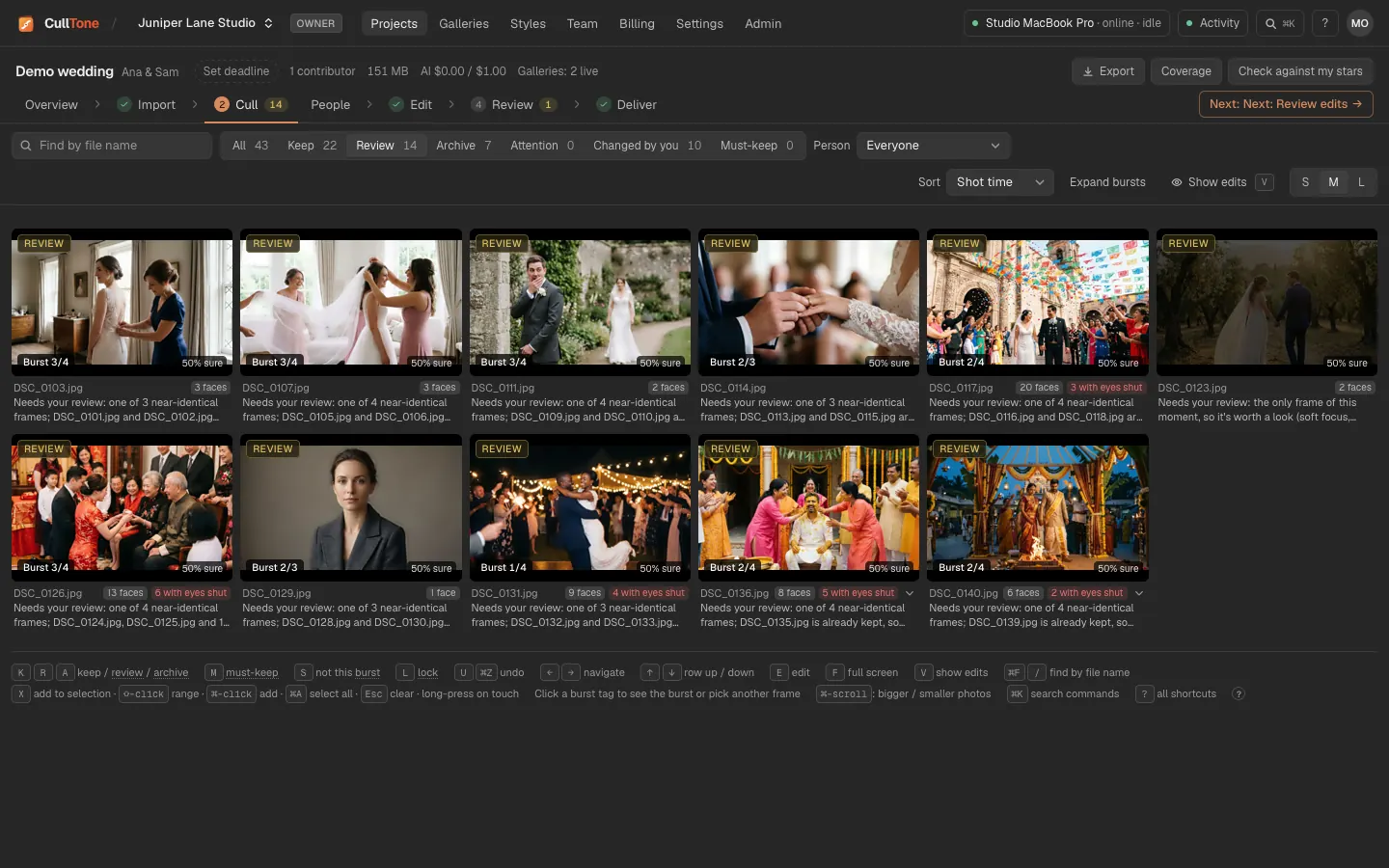
Click Review in the filter bar. These are the frames CullTone could not settle: soft focus, the only frame of a moment, a close call in a burst. The tab's number counts what is left.
-
Read the reason, then decide
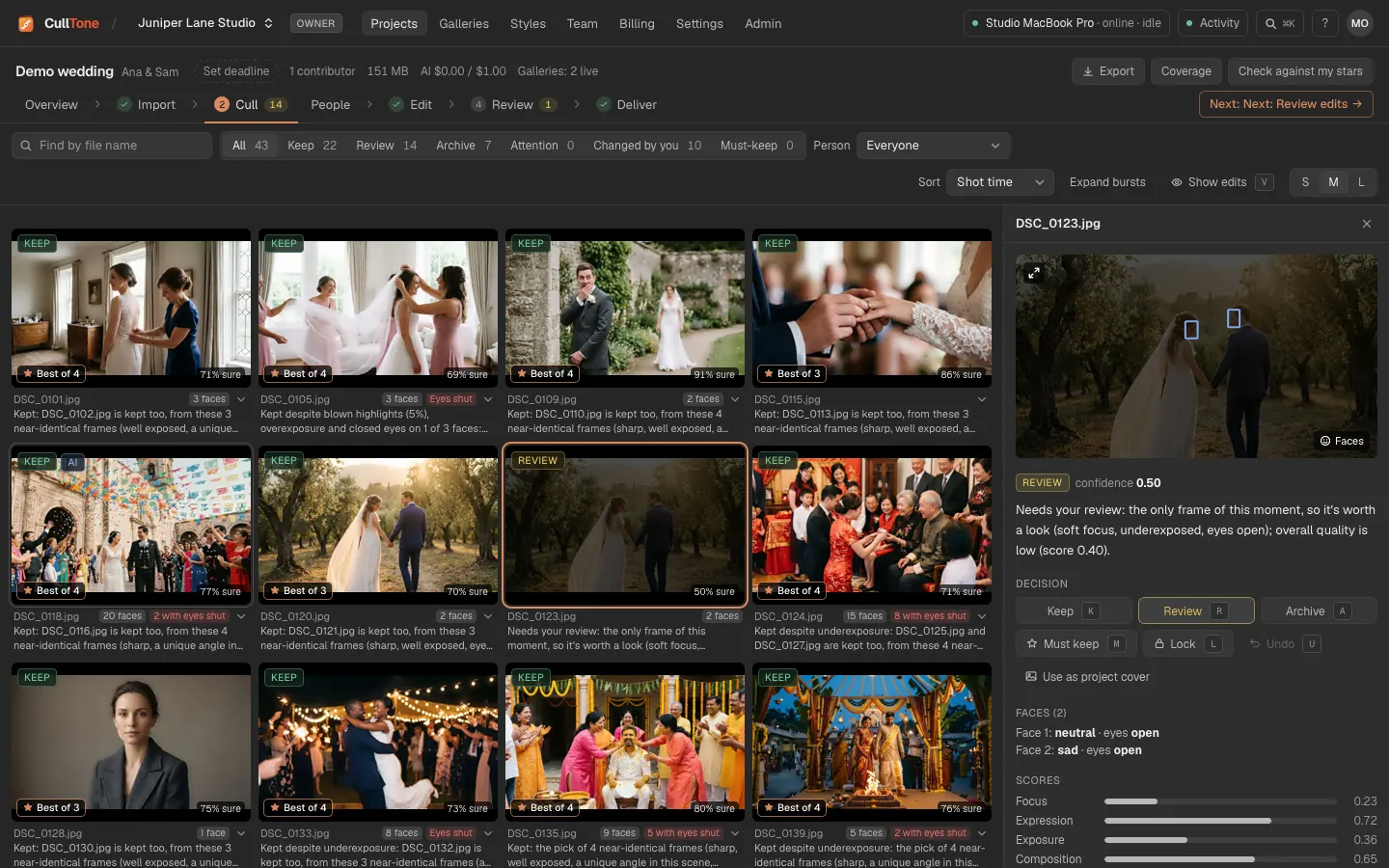
Click a photo for the large preview, the reason, the faces and the scores. Press K keep, R review or A archive, or use the buttons. M adds a must-keep star, L locks the decision and U undoes.
-
Check a burst
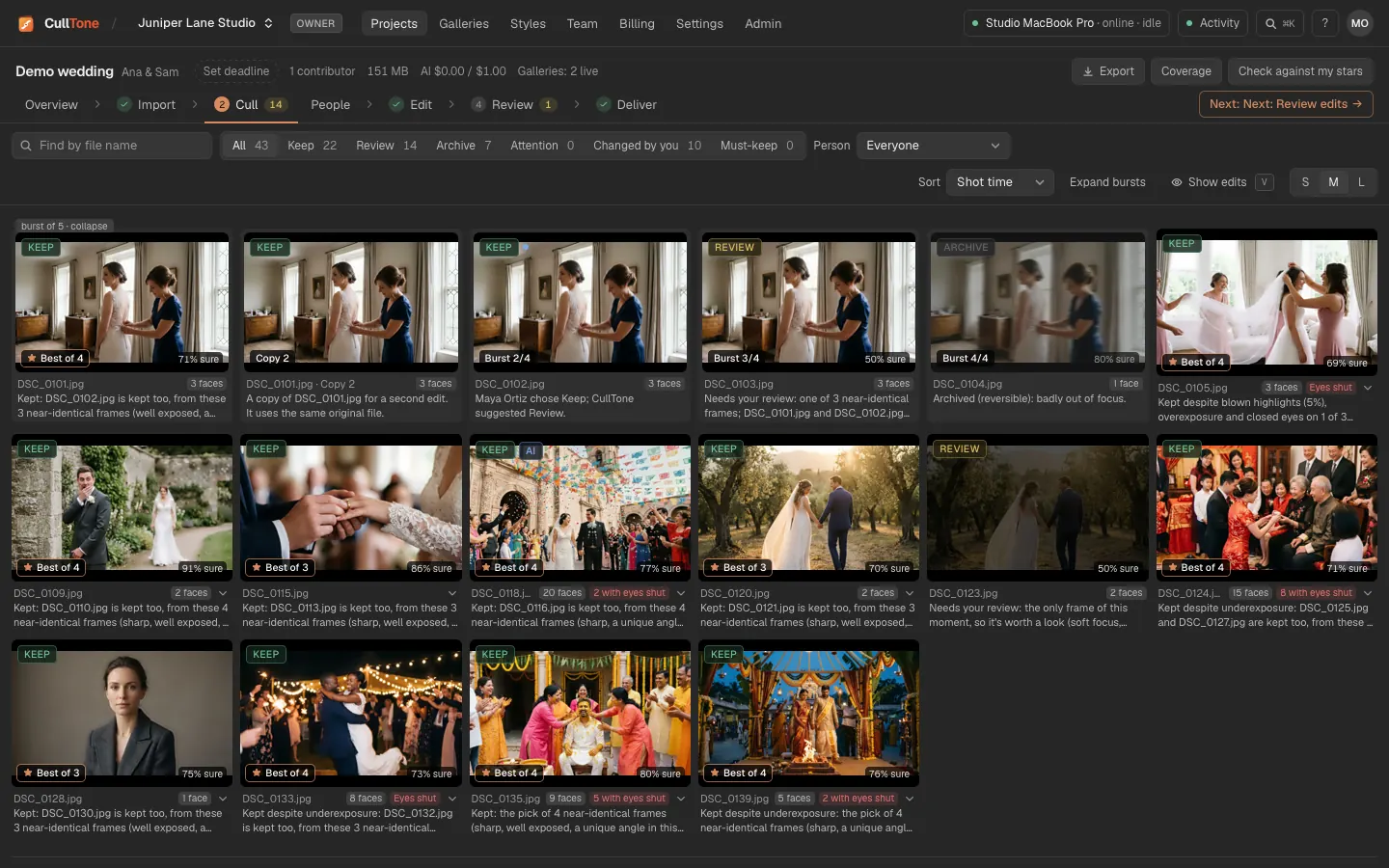
Click a burst tag to see every frame. Make another frame the pick, and the reasons of the others change to match at once.
-
Compare two frames side by side
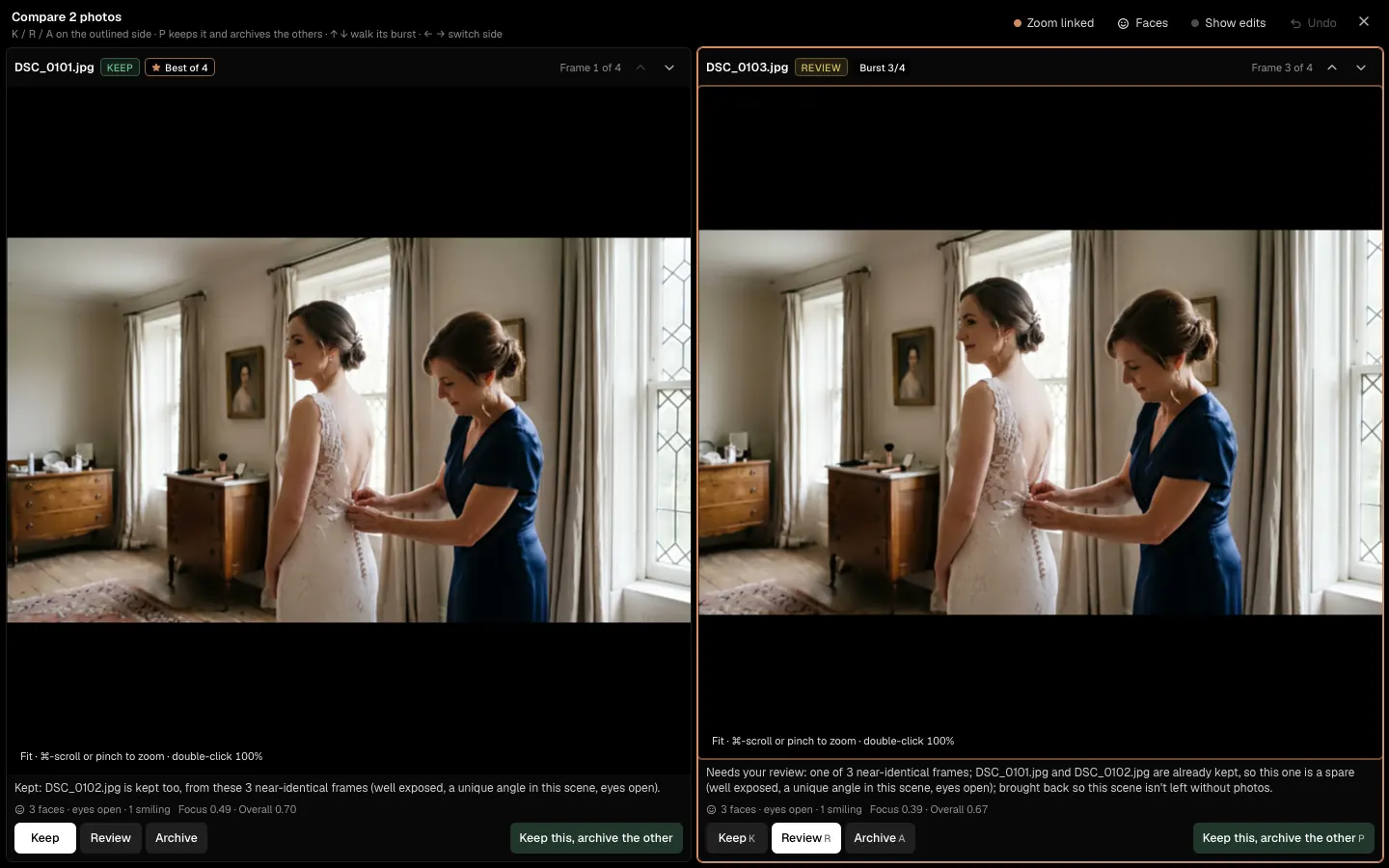
Open a frame and press C, or choose Compare with the pick in the burst tag's menu: the frame and the burst's pick open side by side, zoomed and panned together (Zoom linked turns that off, Faces zooms to the faces). K, R and A decide the outlined side, ← → or Tab move between sides, and ↑ ↓ walk the outlined side through the burst against the pick. Keep this, archive the other (P) does both in one step, and U undoes it. Select two to four photos and press Compare in the bar for a grid of up to four. On a phone the two sit one above the other; tap a side, then its buttons.
-
Look closer
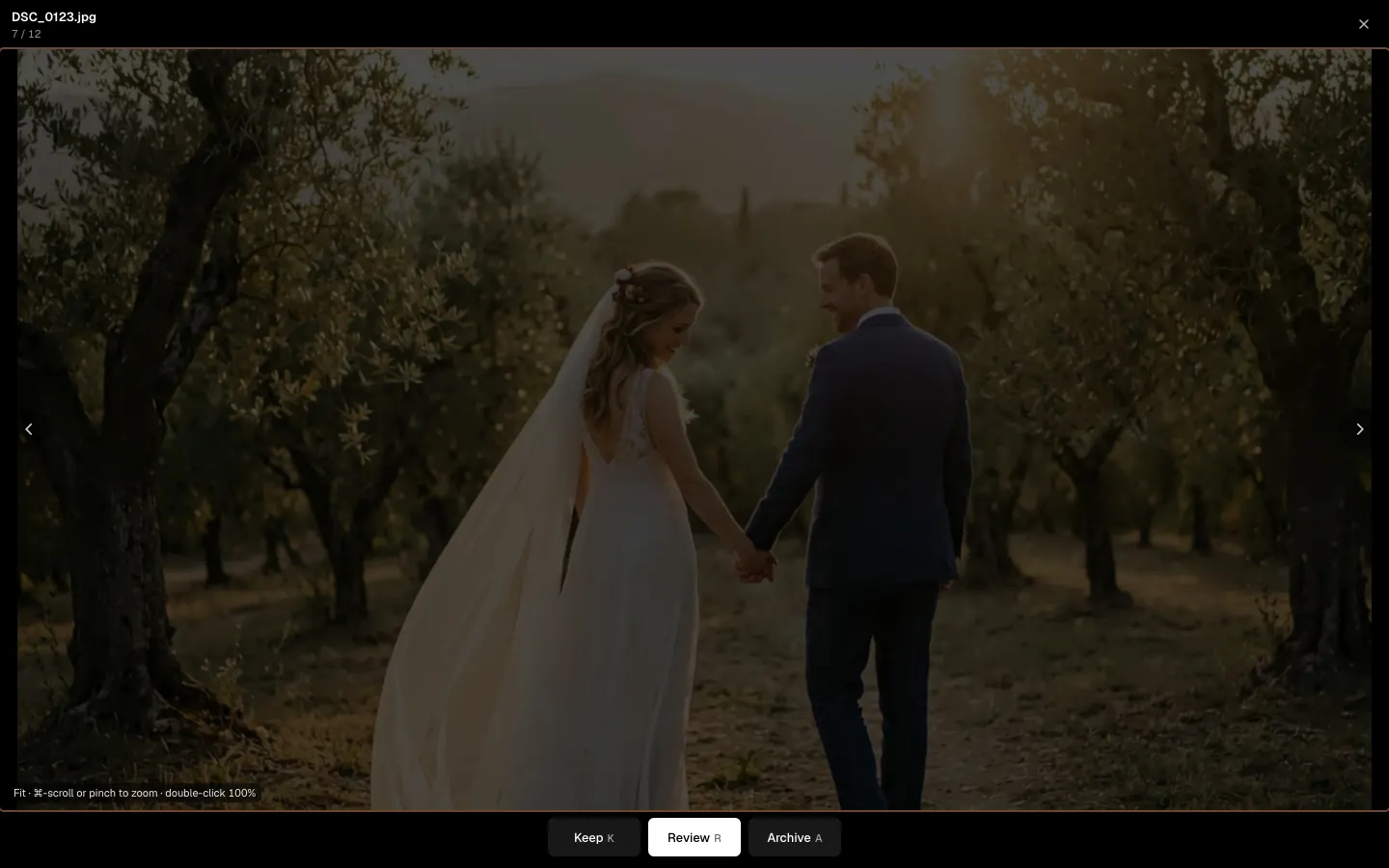
Press F or double-click for full screen. ⌘-scroll or pinch zooms, double-click shows 100%, and the arrows move through the set.
-
Decide for several at once
⌘-click (Ctrl-click on Windows) adds photos, Shift-click selects a range and ⌘A selects all shown. The bar at the top keeps, reviews or archives them together.
-
Find photos by file name
A client sends a list of names? Type or paste them in Find by file name (⌘F, Ctrl+F on Windows, or /). Part of a name such as
0118works, and so does a list. The line under the filters says how many were found and which names were not; Select all found then lets you decide for all of them at once.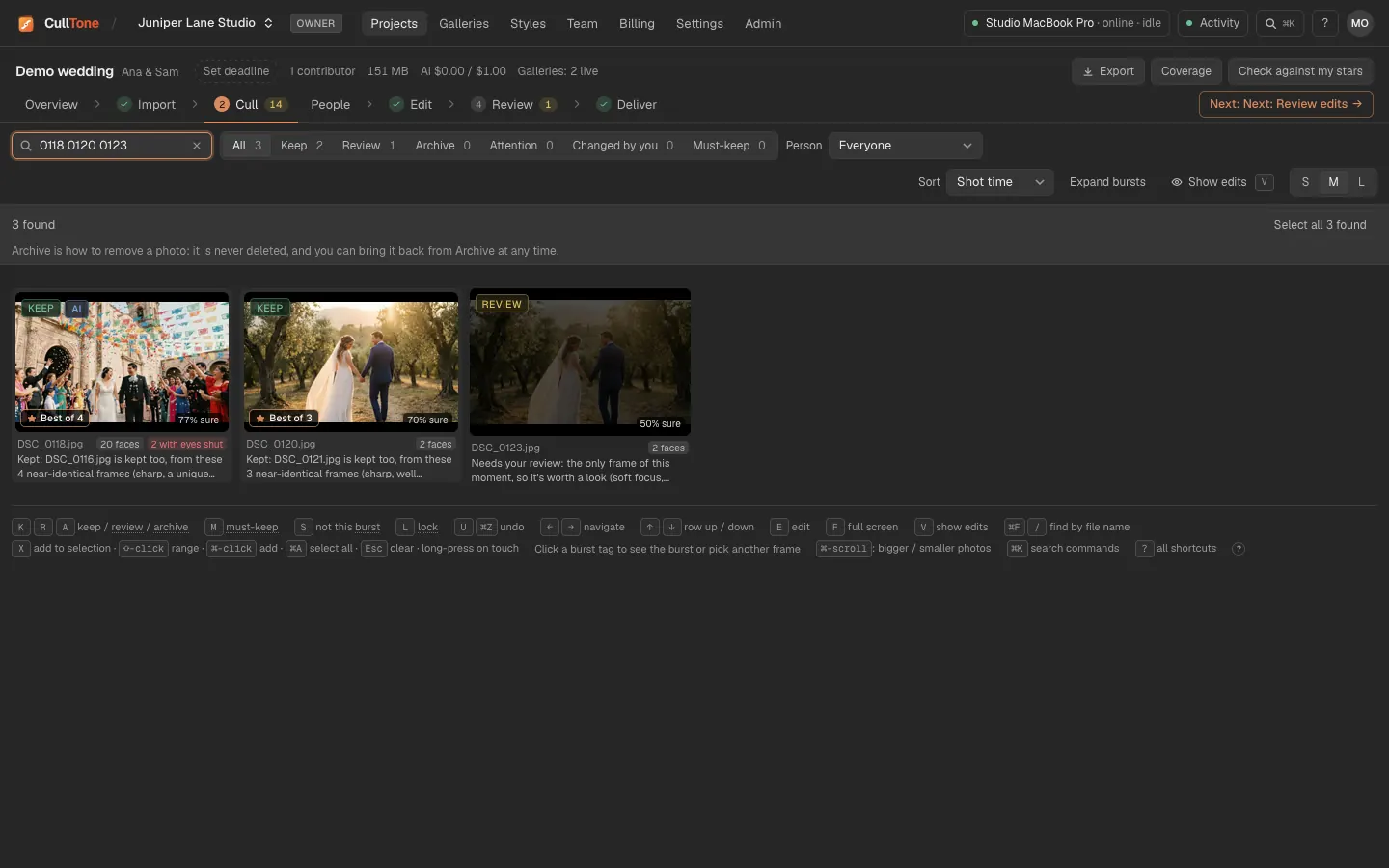
-
Check the coverage
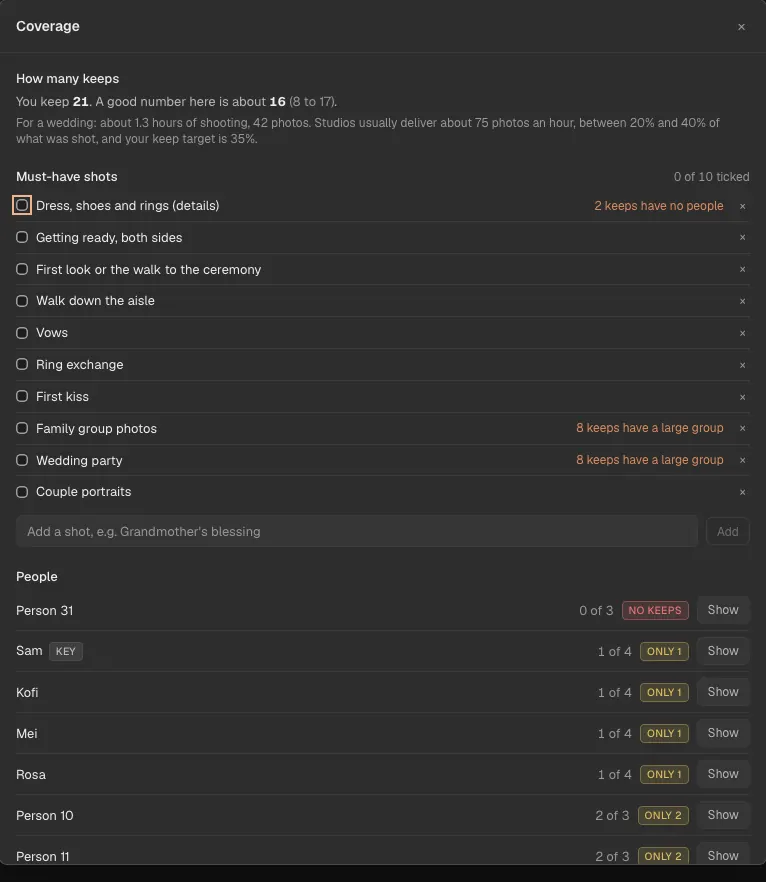
Coverage at the top of Cull lists the people with no keeps or only a few, the moments with no keep, and a suggested number of keeps for this kind of shoot. Show filters the grid to that person; Look opens the moment.
On a phone: swipe
-
Open Swipe to cull
On the Cull tab, tap Swipe to cull.
-
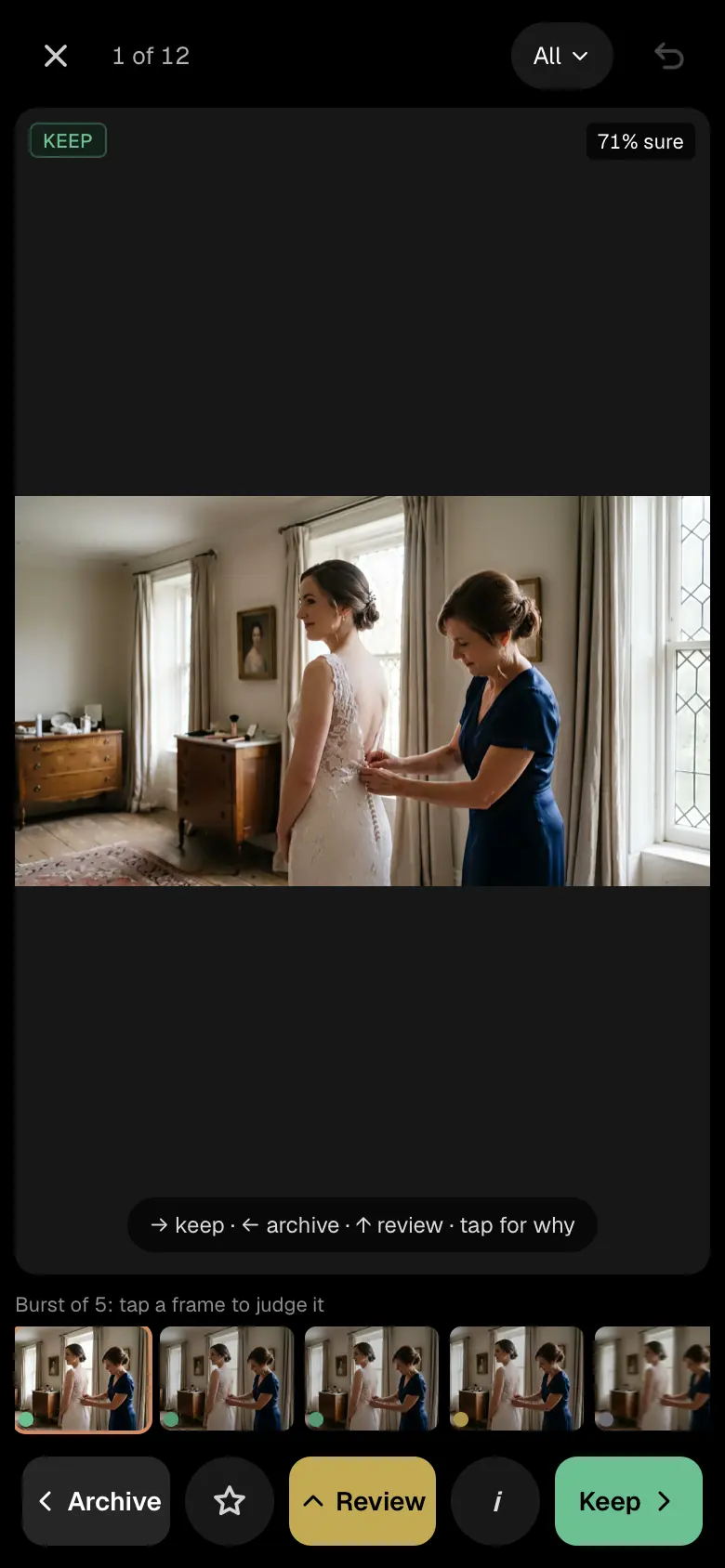
Swipe to decide
Swipe right to keep, left to archive, up for review. The frames of the burst sit under the photo; tap one to judge it.
-
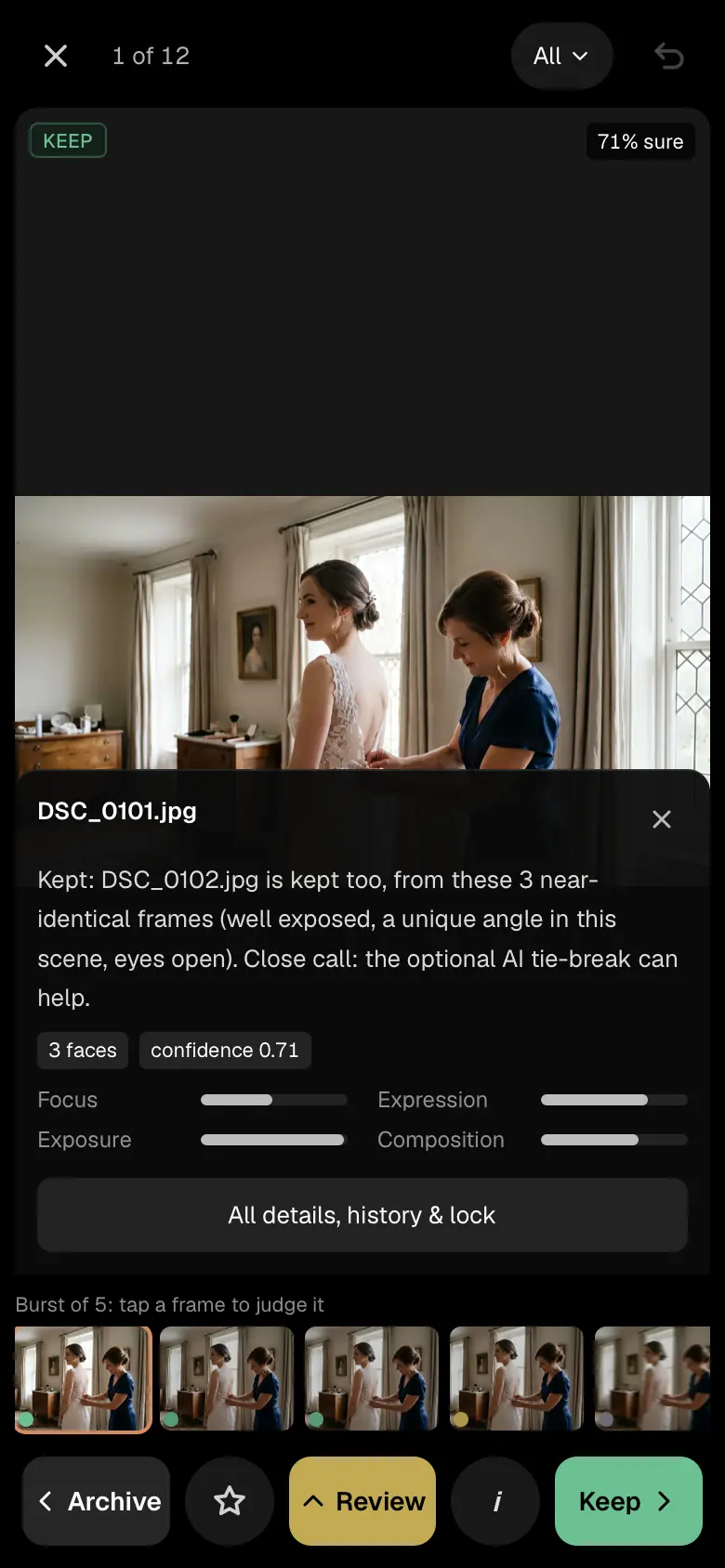
Tap for the reason
Tap the photo, or i, to read why CullTone chose what it did.
Already culled in Photo Mechanic or Lightroom?
-
Answer once
CullTone reads the stars, pick and reject flags and colour labels another app wrote, from the
.xmpfile next to each RAW or from inside the photo. The first time it finds some, Cull asks once and says what would happen: Use them as my picks or No, tags only.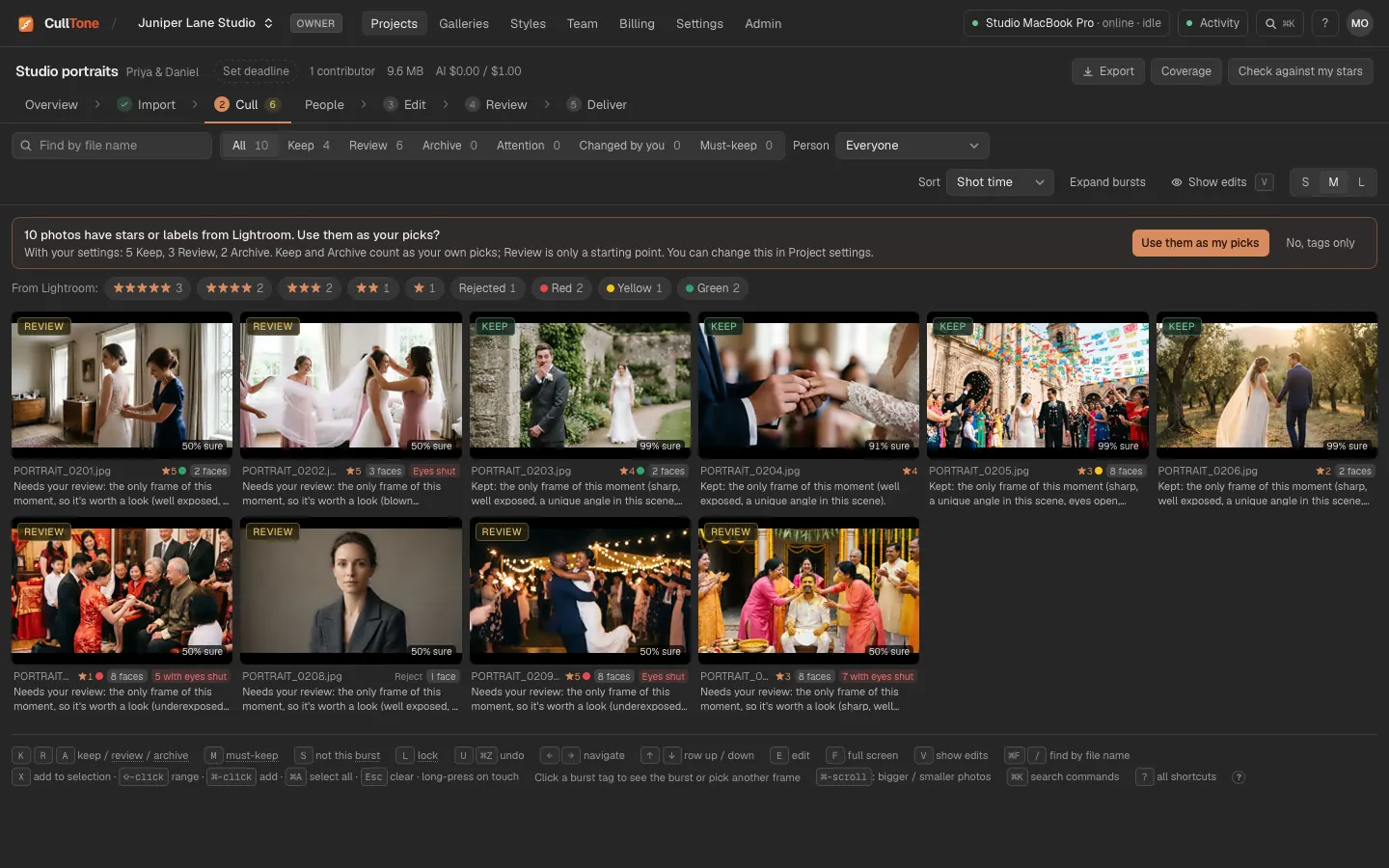
-
Filter by stars and labels
The chips above the grid show only, say, the 5-star photos or the red ones. Each tile shows its stars and its label's colour, and the reason line says where a pick came from, such as “5 stars in Lightroom.”
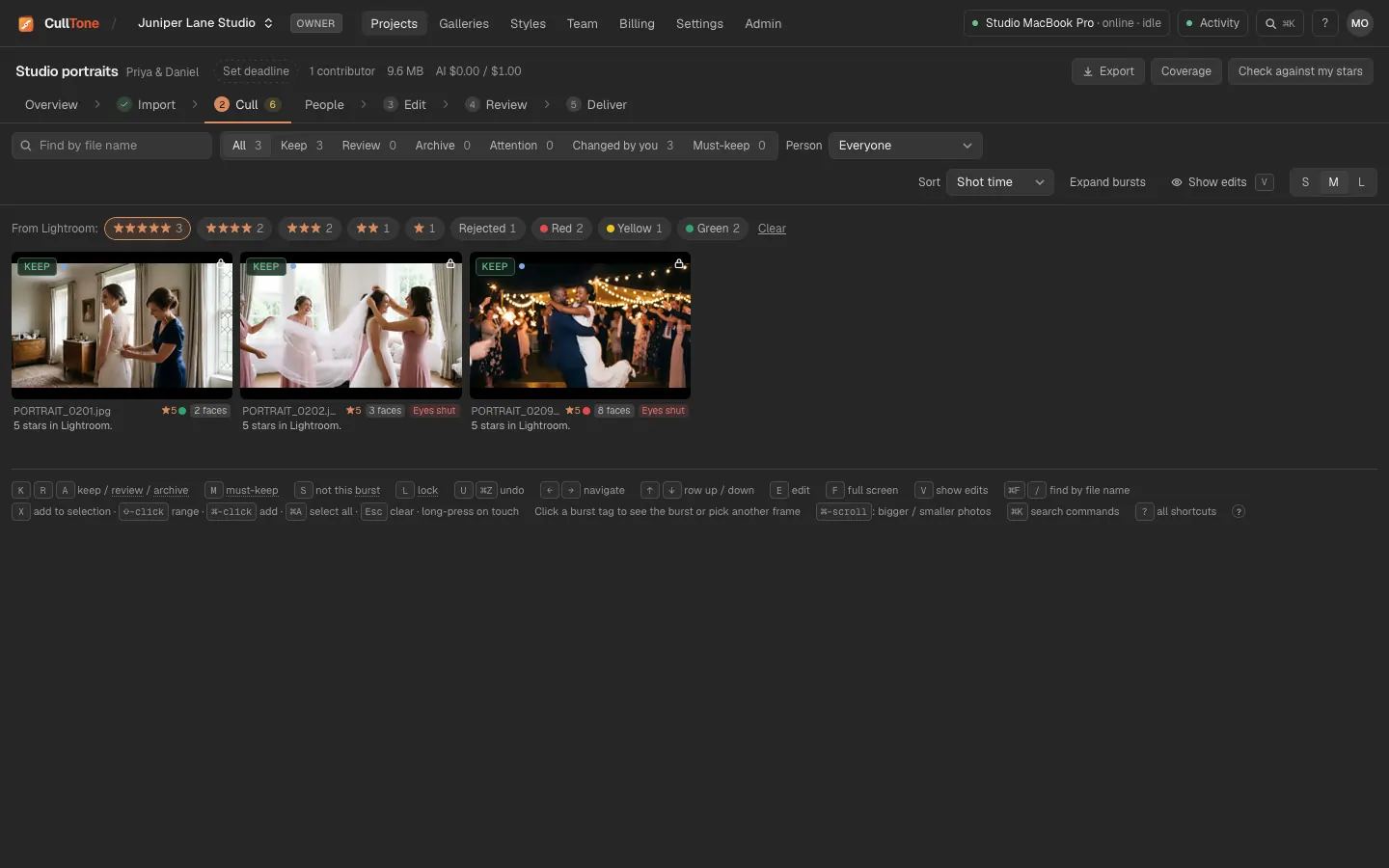
- Colour labels are tags unless you set a colour to a decision. Stars and labels CullTone wrote itself are not read back as another app's.
- By default 4 or 5 stars or a pick become Keep, 1 star or a reject becomes Archive, and 2 or 3 stars put the photo in Review. Keep and Archive count as your own picks, so analysing again never changes them. The reason under the photo says where it came from, such as “4 stars in Lightroom”.
- Change what each star count, flag and colour becomes in Project settings under Ratings and labels from other apps. A colour can become Keep too.
- Changed some stars in the other app later? Press Read ratings again there. CullTone takes the changes, except on photos you picked in CullTone since: those stay as you picked them, and Cull shows them so you can choose Use theirs or Keep mine.
- Lightroom Classic keeps its pick flags in its catalog, not in the files, so only its stars and labels come across. Save metadata to files in Lightroom first (Metadata > Save Metadata to Files).
- Going the other way: Export > Send keeps to Lightroom in CullTone Desktop writes your picks as stars (Keep 5, Review 3, Archive 1) into
.xmpfiles next to your RAWs, or puts the final JPEGs with their stars into a folder Lightroom watches. Your RAWs are never changed, and an XMP you already have only gets new stars after you say yes. In a browser you get the XMP files as a ZIP instead.
Tips
- Closed eyes alone never archive a photo. A frame that is the only one of its moment is kept or sent to Review, with the reason saying so.
- Archive hides a photo from the keeps; it never deletes the file. Archived photos come back with one key.
- Show edits (V) in the bar above the grid shows each photo's latest edit instead of the camera image, tagged Edited. Photos not rendered yet keep the camera image. It only changes what you see: decisions still judge the photo as shot, and face boxes show on the camera image only. On a phone it is in the filter sheet, and this browser remembers it.
- S, M and L at the right of the bar set the size of the photos in the grid; ⌘-scroll (Ctrl-scroll) does the same. Expand bursts shows every frame of every burst in the grid instead of only the pick.
- A client asks to remove some photos? Type or paste their names in Find by file name (⌘F, Ctrl+F on Windows, or /): part of a name such as
7556works, and a list like7556, 7560, 7612shows what was found and which names were not. Then Select all found and Archive. - Every search field, such as Find by file name, has a × at its end once you type: press it, or Esc, to clear the search and show every photo again.
- On People, mark the couple as key people with a minimum number of keepers, and the next analysis makes sure they are covered.
- Several cameras? Use Sort and the Camera and Added by filters, which appear when there is more than one.
- Export gives the cull as
decisions.csvorreview.json. - Check against my stars says how many of the photos you marked must-keep (M) CullTone also kept, and how well it picked within bursts.
- Analyse again (free) on the Overview runs the cull again, for example after adding photos. Once the project has picks, edits or approvals it asks first: your picks, edits, renders and approvals stay; only photos CullTone decided may be decided again.
- Coverage with an event chosen above the grid is about that event only, with a list of its must-have shots to tick: jeelakarra bellam and talambralu at a Telugu muhurtham, shubho drishti and sindoor daan at a Bengali biye, vows, rings and the first kiss at a church wedding. A hint says when keeps may show one (a large group, a photo with no people); you tick it yourself.
What is free and what is not
- The cull is free and runs on your computer.
- The AI tie-break is optional and paid. When the free cull finds bursts it cannot separate, a card on Overview and on Cull shows the price; nothing is sent or charged unless you press Approve. Clear winners never go to AI.
- We have not yet measured the cull against photographers' own picks, so check the Review pile and the keeps before you deliver.