Create a project and import your photos
Each shoot is a project. You name it, pick the kind of shoot and a look, and then CullTone Desktop brings the photos in. The free cull starts by itself as soon as the first files arrive.
- Needs CullTone Desktop
- Free
From new project to first thumbnails
-
Make a new project
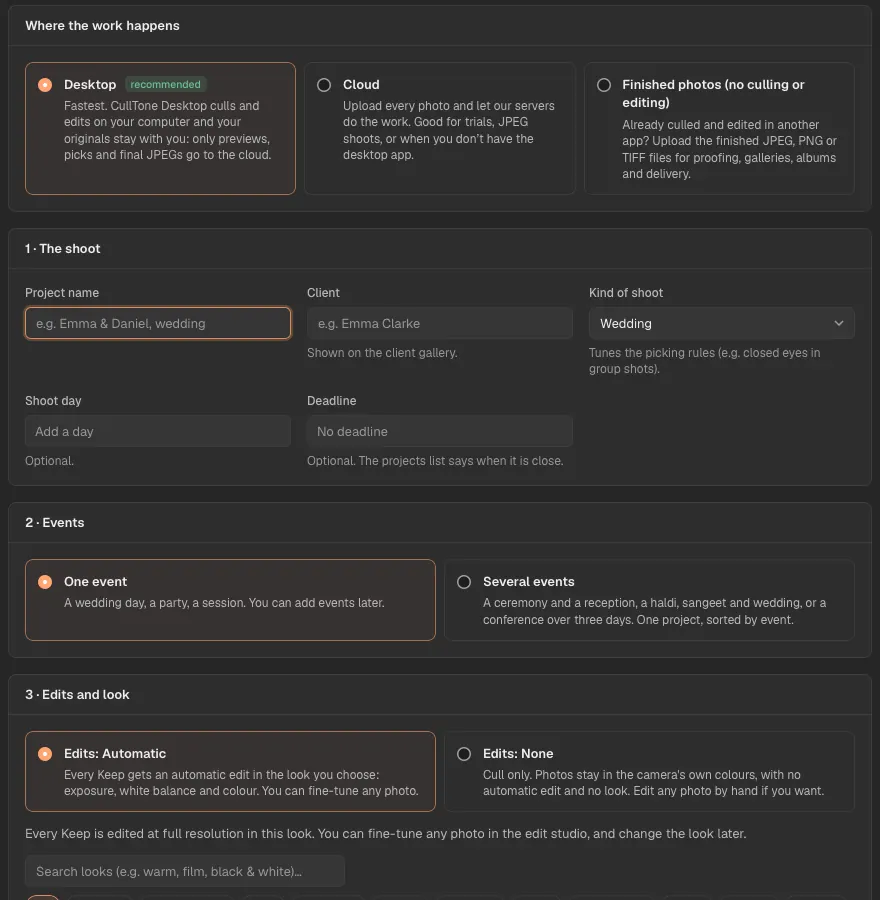
On the Projects screen press New project. The first time, a short wizard asks for the shoot, where the photos are and the Edits choice; All settings opens the full form. Give it a name and the client's names, pick the kind of shoot (wedding, event, portrait and so on), and if you like a shoot day and a deadline: the projects list says Due soon or Overdue until it is delivered. Under Edits choose None if you only want the cull and will edit elsewhere. Under Where the work happens leave Desktop, the default; Finished photos is for a job you already edited (see below).
-
Open the Import tab
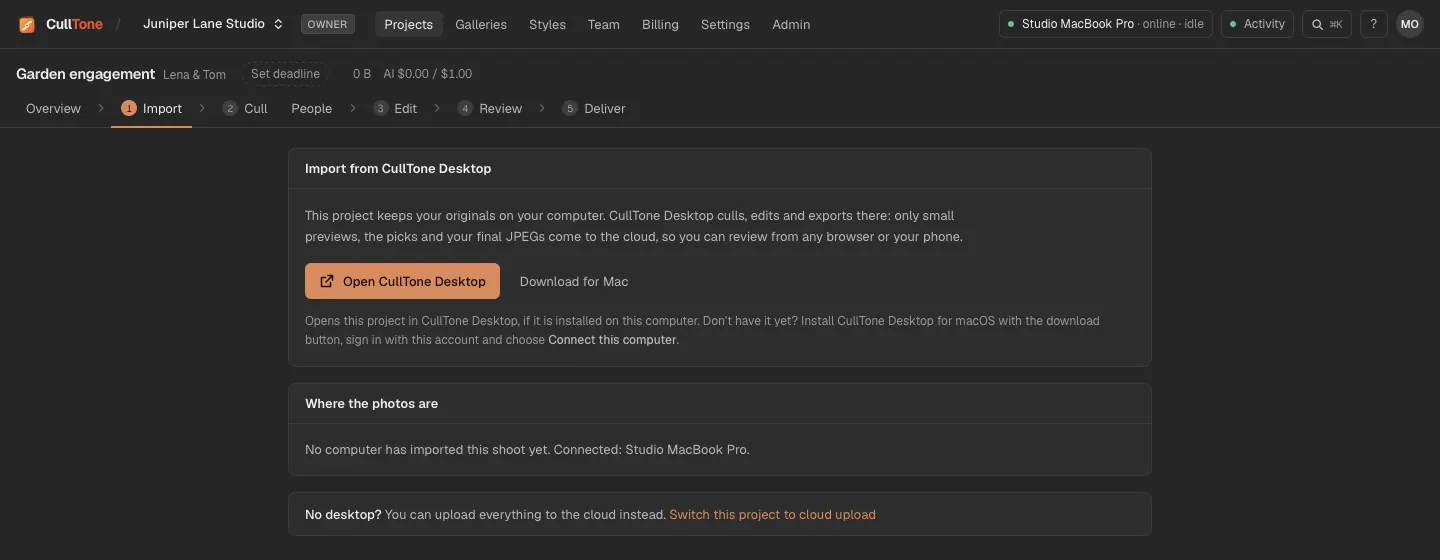
A desktop project's Import tab offers Open CullTone Desktop, which opens the same project in the desktop app on this computer.
-
Choose a card, a folder, or a camera
In CullTone Desktop choose Choose folder or card, or pick a detected card, camera or phone from the list. A memory card is always copied to your CullTone Library (in Pictures) and every file is checked after copying. A folder is read where it is, unless you ask for a copy. CullTone shows how many files are copied and about how long is left.
-
Watch the cull arrive
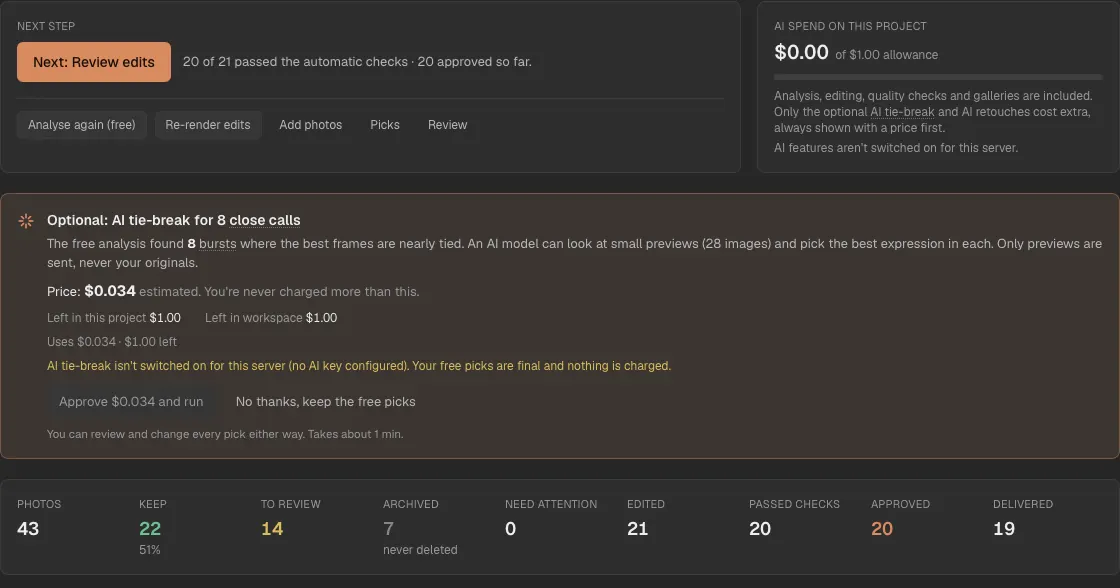
Thumbnails fill the Cull tab while the free analysis runs. The Overview tab shows one clear next step for the project and the jobs that are running.
-
Set the project's look and final size
Further down the Overview, Project settings holds the name and client, the Edits choice (Automatic or None), the editing style for the whole project, the final size of rendered JPEGs (Large 6000 px by default), Output sharpening, Match across the event, the keep target, the AI allowance, camera clocks and the list of photo locations (see below) and the project's Events (see Events in one project).

More cards, a second shooter, one main computer
Each project has one main computer: the first one that imports into it. It keeps the RAWs and runs the cull, renders and gallery builds. Import as many cards as you like on the main computer, at any time.
- More cards, cameras or folders, a second shooter's card copied over, photos added days later: each import adds to the project, and the next cull reads the new photos and keeps every decision you made.
- Photos from every camera are shown in shooting order, with each camera's clock difference corrected.
- A second shooter copies their card to the main computer and imports it there. Another computer can't import into the project: CullTone Desktop says which computer has the photos.
- Everyone else works in the web app on any computer, phone or iPad: picks, edits, the Review step, galleries and people.
- To move a project, open it in CullTone Desktop on the new computer and choose Make this the main computer in Project settings → Photo locations. Then locate or import its photos there; the cull and renders wait until every location is found. Decisions, edits and galleries stay as they are.
- Project settings → Photo locations lists every folder, card and camera, and whether it can be reached.
Project settings for the finals
- Output sharpening: Off, Screen (galleries, social, phones) or Print. It sharpens each finished JPEG for its final size, with less on skin, and the studio shows it. New projects use Screen. It applies at the next render.
- Match across the event (On or Off): evens out brightness and white balance between photos of the same scene, across cameras, so the set looks like one shoot. Flash photos and very different light are left alone. It is hidden when Edits is None.
- Camera clocks: every camera with its photo count and first and last shot, and the difference of its clock. Type an offset (95, +1:35 or 1 h 2 min) or press Apply on a suggestion. The photo order changes at once; bursts and scenes at the next cull.
- Keep target: roughly how much of the shoot you deliver. It applies at the next analysis.
A backup copy while you import
- In CullTone Desktop, tick Also copy to a backup drive when you import a card or a camera, and choose the backup folder once. Each file is written to the library and to the backup in the same pass, and both copies are checked against the card.
- When it is done, CullTone says Safe to format. only when every file of the card is in the library and on the backup, each checked. Otherwise it says Keep the card. and why.
- A backup drive that is missing or full is named before the import starts.
- File types: camera RAWs, JPEG, PNG, TIFF, JPEG XL (.jxl) and iPhone HEIC (.heic, .heif) on CullTone Desktop. HEIC is read by CullTone Desktop on a Mac, which decodes the picture with macOS itself. A cloud project's browser upload does not take JPEG XL or HEIC: export HEIC files as JPEG first.
Cull only, with no edits
Set Edits to None on a new project, or later in Project settings, when you only want the cull and will edit in another app.
- Culling is exactly the same: Keep, Review and Archive with the reasons.
- No automatic edit at all: no exposure, white balance or colour changes, no look and no face retouch. Photos, finals and galleries stay in the camera's own colours.
- The Lightroom sidecars (XMP) carry only stars, colour labels and the reason, so Lightroom opens the RAWs untouched.
- You can still edit any photo by hand in the studio. It starts from the camera's colours, and the studio says No automatic edit (project setting).
- Changing the setting later keeps your hand edits and needs no new cull. The other photos change at the next render.
A project from finished photos
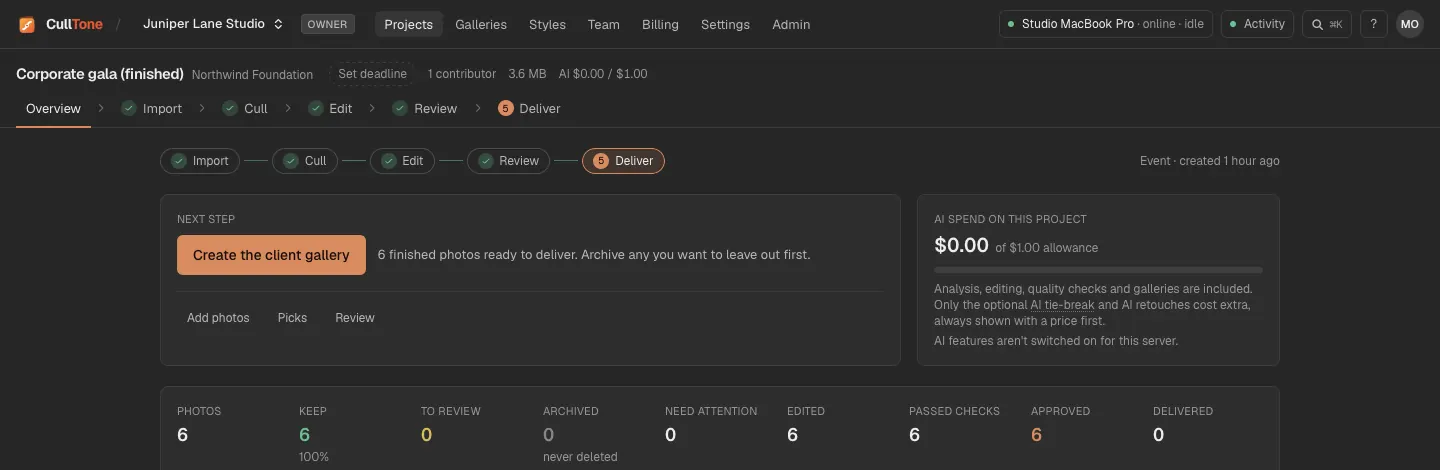
Already culled and edited the job in another app, and only want CullTone for proofing, the gallery, an album and delivery? Make a project from the finished files.
-
Choose Finished photos
In New project, choose Finished photos (no culling or editing). The wizard skips the Edits step.
-
Upload the finished files
Drop or choose the exported JPEG, PNG or TIFF files, in the browser or in CullTone Desktop. Each one is ready to deliver as soon as it is in, exactly as you exported it (PNG and TIFF as a full-quality JPEG). HEIC and RAW files are not taken here.
-
Choose what to deliver
Every photo starts as Keep. In Cull, archive the ones you don’t want in the gallery or the album. Review notes photos that are small for print or have clipped highlights or shadows; checking them is optional.
-
Bring in a changed photo
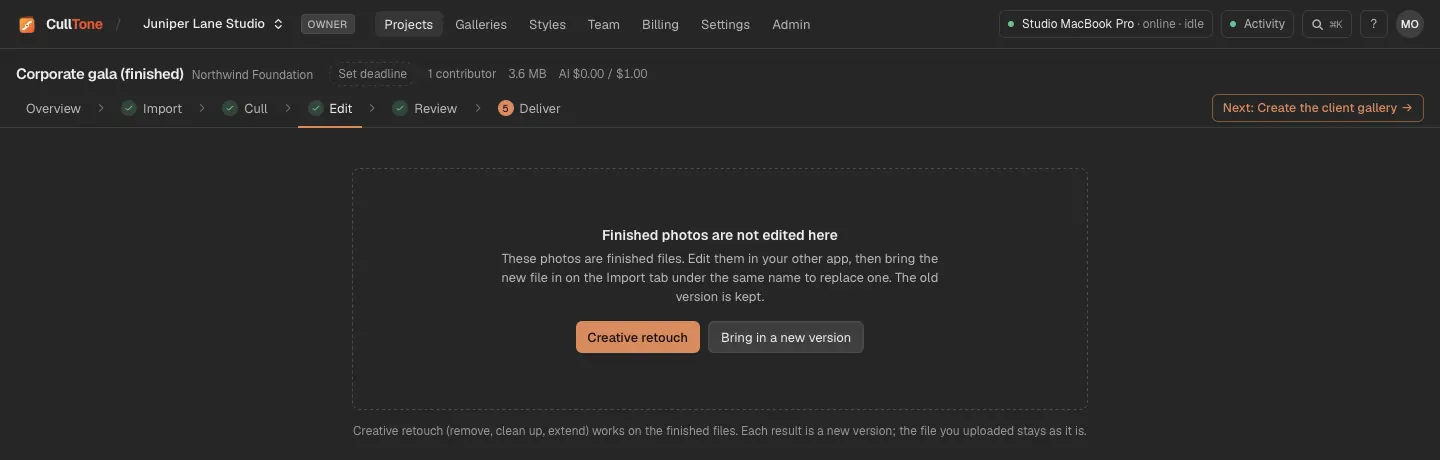
Edit it in your other app and upload it again under the same name. Choose Replace with this version: it becomes a new version and the old one is kept.
-
Deliver
Make a gallery, an album, a collage or a slideshow as in any project. Creative retouch works on the finished files too. There is no analysis, no automatic edit and no XMP download, and People stays off.
On a phone
-
See the project's progress
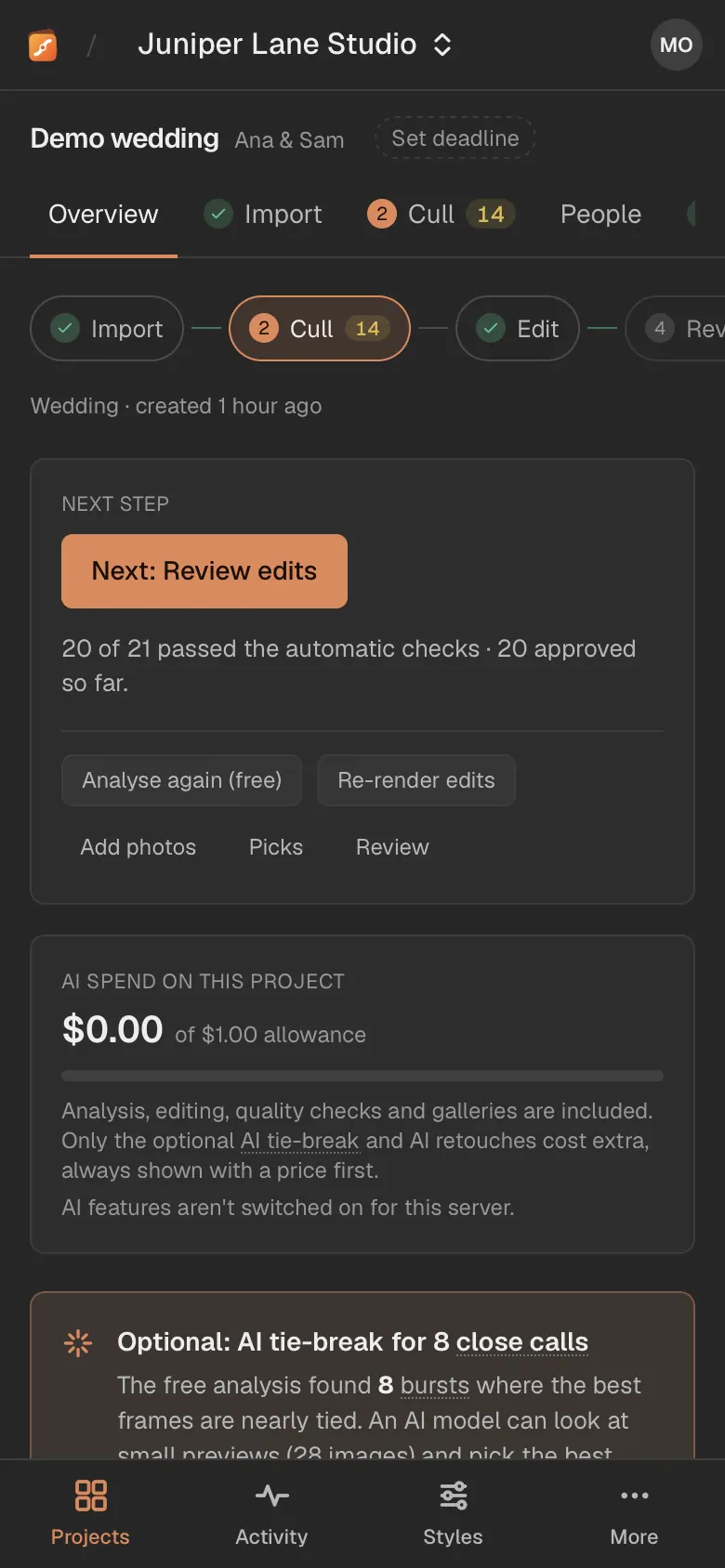
The Overview fits the phone: next step, counts and running jobs.
What is free and what is not
- Importing and the cull are free and run on your computer.
- Camera and phone imports by cable are built but have not yet been tried with a real camera or phone. Copying the card in Finder and choosing the folder always works.
- A cloud project, where the browser uploads the originals, exists for studios without a desktop but is switched off at launch.