Install CullTone Desktop and connect your computer
CullTone Desktop is the part that reads your RAW files. It copies cards, culls, renders and exports on your own computer, then sends small previews and the finished JPEGs up so you and your team can review anywhere. Your originals stay where they are.
- Needs a Mac with Apple silicon
- Free
Install and connect
-
Get the download
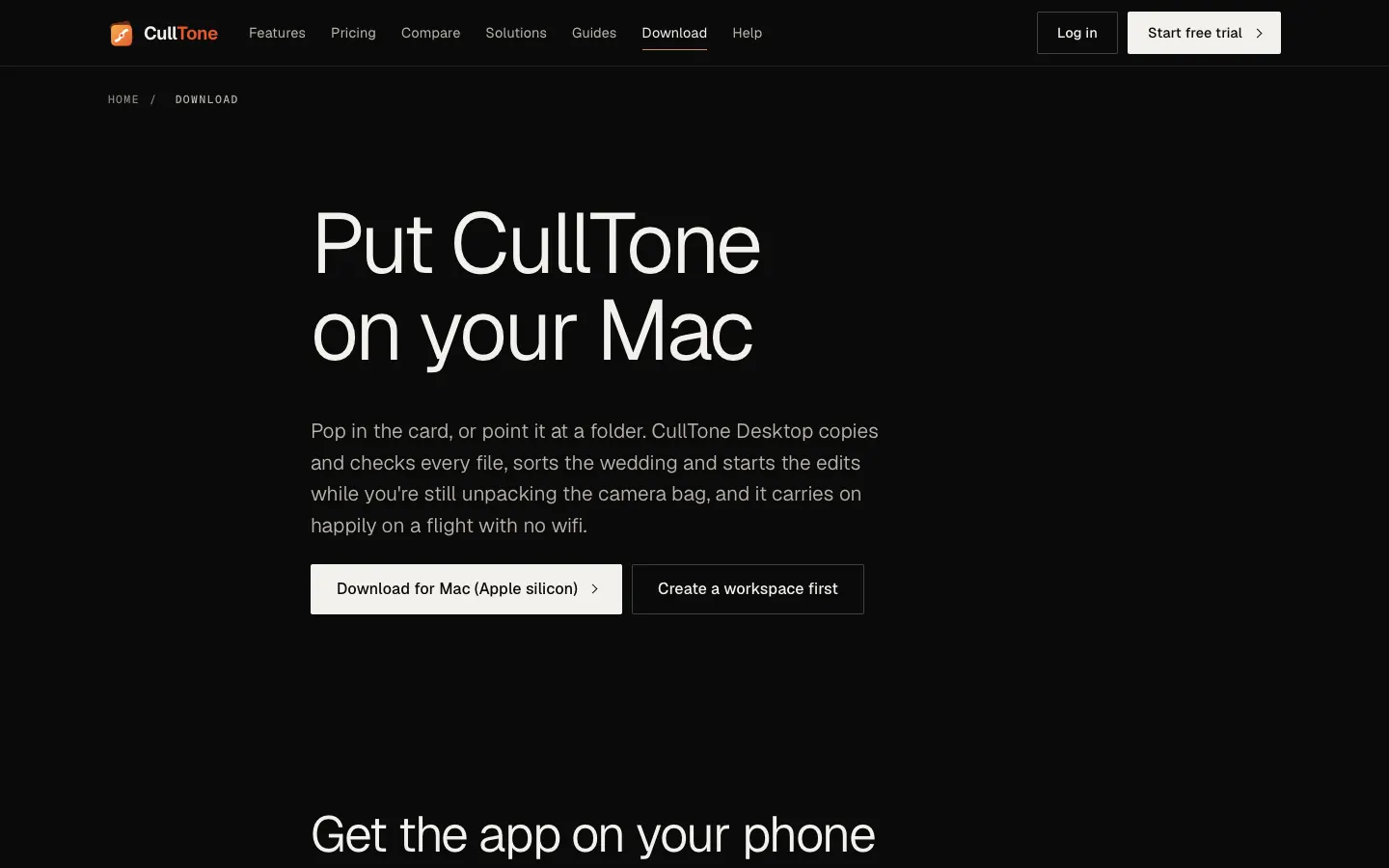
The beta build is not on a public link yet. Open the download page (culltone.com/download), ask for it, and we send it. It runs on Macs with Apple silicon (M1 and later). Intel Macs, Windows and Linux are not available yet.
-
Open it the first time
Drag CullTone to Applications and open it. The beta is not signed by Apple yet, so macOS asks you to allow it in System Settings the first time.
-
Sign in and connect this computer
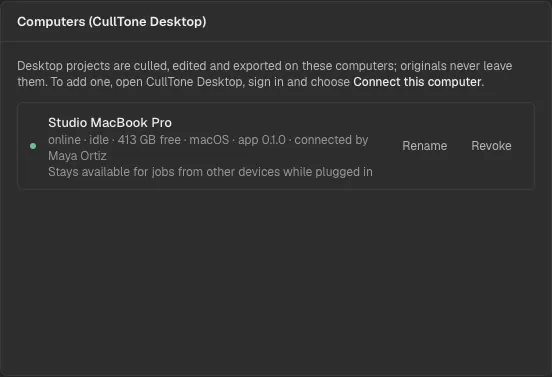
CullTone Desktop shows the same app you use in the browser at culltone.com/app. Sign in, then choose Connect this computer (you need to be an editor or owner). The computer now appears in Settings → Computers with its state.
-
Check it is online
The computer chip in the top bar says online · idle while CullTone Desktop runs, busy while it works and last seen when it is off. Jobs for this computer's projects wait until it is back.
Your phone as the remote
-
Start work from a phone
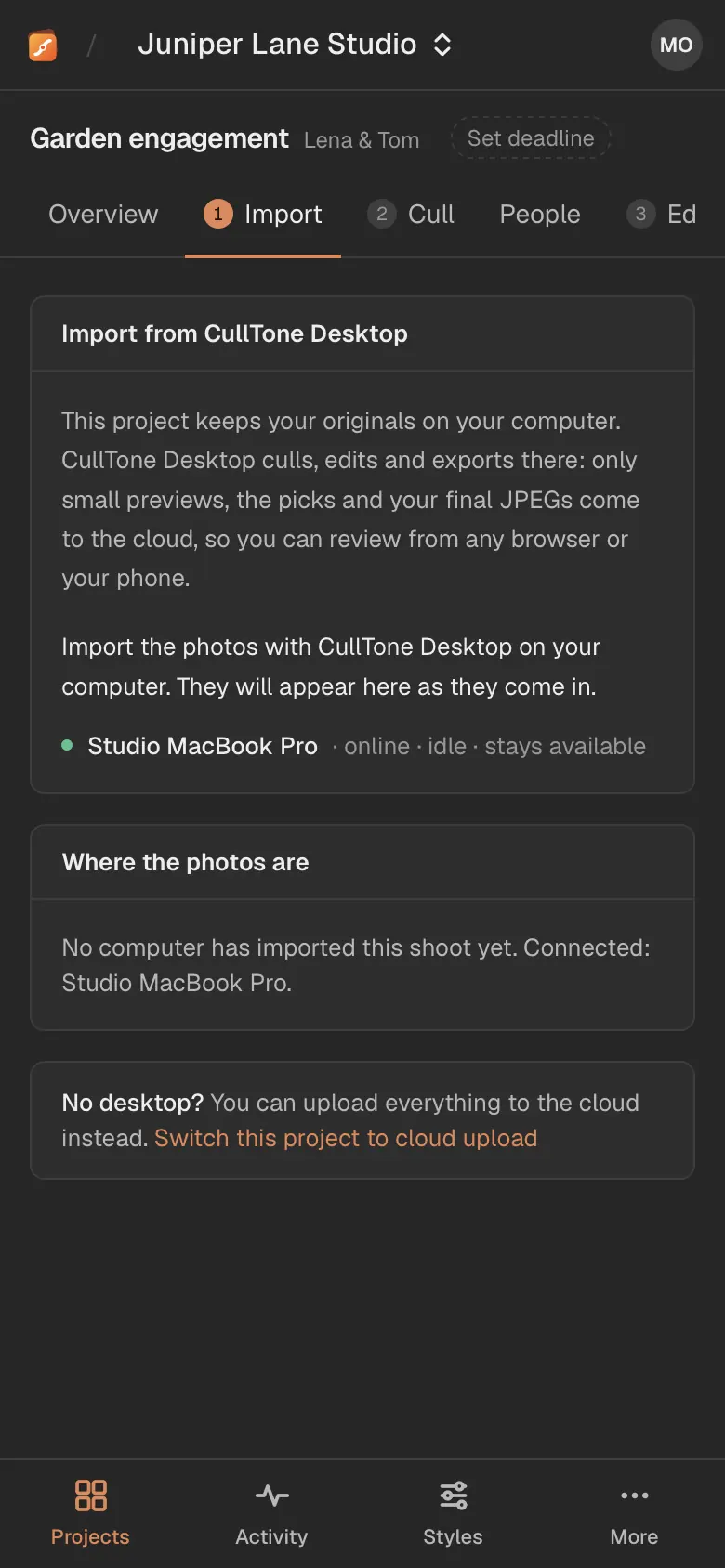
On a phone or tablet, the import page of a desktop project lists your team's computers and whether each is online. Start a cull or render from the phone, and the computer that holds the photos does the work.
Good to know
- Work offline: with no connection, the import and the cull still run, and decisions you make in the offline screen are sent when you are back online.
- Battery: CullTone pauses jobs on battery below 20%.
- Sony ARW files are the best tested. Canon, Nikon, Fujifilm and DNG files open the same way but have had less testing.
- Find a photo's files: in the project header, Show originals and Show finals open the folders, or, while a photo is open in Edit, creative retouch or Cull's detail panel, show that photo's original or final selected in Finder or Explorer. When a file is not there, CullTone says why: not rendered yet, a drive not connected, or the photos are on another computer.
- To stop a computer taking jobs, revoke it in Settings → Computers. A job it was running goes back in the queue.
- Free up space on this computer (Project settings of a finished project, or Settings → This computer) removes previews, masks and other working files the server already has. Your originals and Finals stay; the previews come back from CullTone when you open the project again.