Troubleshooting
Most problems come down to one of three things: the originals are not where CullTone last saw them, the computer that holds them is off, or a job is waiting for something. Each one says what is wrong in plain words.
- Free
"Original missing: not rendered"
The photo's file was moved, renamed or is on a drive that is not plugged in. The photo keeps its decision, preview and edits; it is only skipped when rendering.
-
Plug the drive back in, or find the folder
If the drive is back, the next cull or render clears the badge by itself.
-
Locate originals
If you moved the folder, open the project in CullTone Desktop and choose Locate originals…. Pick the new folder. CullTone checks that it holds at least 95% of the project's photos at the same sizes before switching, and the badges clear at once. Your files are never changed.
-
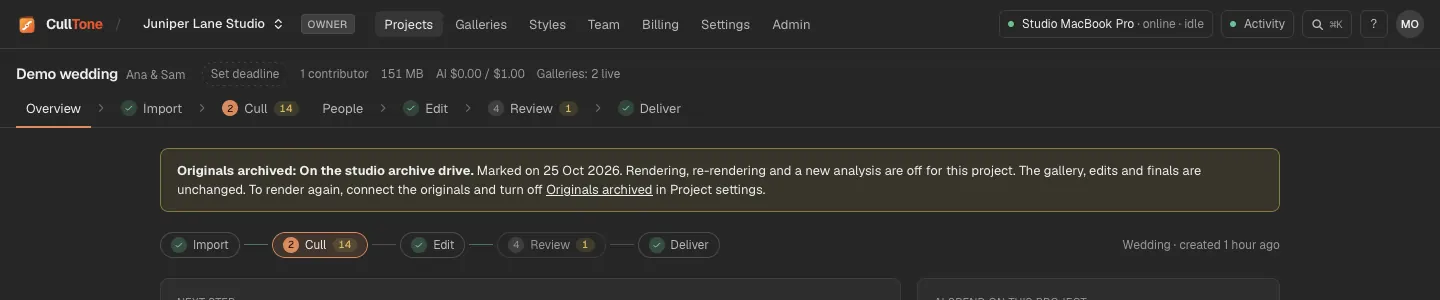
Originals archived on purpose
If you moved a finished shoot off the computer, mark Originals archived in Project settings. Analyse and render are then turned off with the reason; galleries and exports keep working.
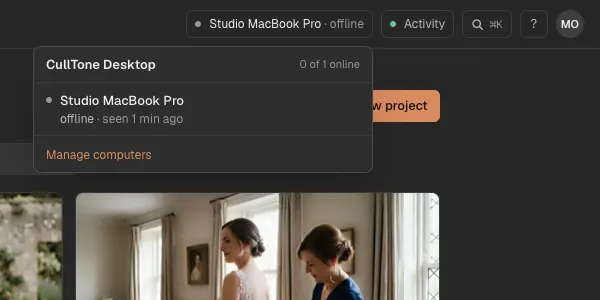
A computer is offline or asleep
-
Read the waiting reason
A job for a desktop project says which computer it waits for and when it was last seen, for example "offline or asleep, last seen 2 hours ago". Wake the computer or open CullTone Desktop on it. The computer chip in the top bar shows each computer and when it was last seen.
-
Keep it available
On a studio Mac that should always take jobs, turn on Stay available for jobs from other devices in the menu bar.
Jobs that wait or fail
- Activity in the top bar lists every job with its progress. Each has Cancel and Retry.
- A free job that failed for a passing reason (network, server) tries again by itself after 30 seconds, then after 2 minutes. Paid jobs never retry without you.
- A computer runs one long job at a time (a cull, render, export, Bring in edited photos or style training) and up to two short ones next to it (a retouch, Clean up or upscale), so a retouch does not wait for a render.
- Waiting for CullTone Desktop. Open it on one of your studio's computers: creative retouch, Clean up, Bring in edited photos and style training run in CullTone Desktop. Open it on a computer of the studio (for a desktop project, the project's main computer) and the job starts. If it says update CullTone Desktop there, choose Check for updates… in that computer's menu bar.
- Failed photos and jobs are listed on the Admin page with Retry.
- View log on a finished job (editors) shows its own lines, cleaned of private paths and keys. Send it to support with your question.
CullTone Desktop problems
- Update needed: the server needs a newer CullTone Desktop before it hands out jobs. Choose Check for updates… in the menu bar, then Restart to update.
- Check needed in the menu bar: a start-up check found a problem (low disk space, a photo location it cannot reach, a missing part). The desktop's Settings say which.
- Sync error, retry on a project: press Sync now. Changes wait on the computer until they are sent.
- A save from another app did not come back: CullTone can't read PSD files, so also save a TIFF or JPEG copy. Save it in the same folder as the working copy, with a name that starts with the working copy's name (DSC_0101-v5-Edit.jpg is fine). Any other file can come in with Bring in edited photos.