Looks and your own style
Every edit starts from the camera's own colours. A look sits on top: film, light and airy, moody, black and white, or a look for a culture or ceremony. You choose it; CullTone never picks a look from the people in the photo.
- Free
- Learning from a brief is paid
Choose and make looks
-
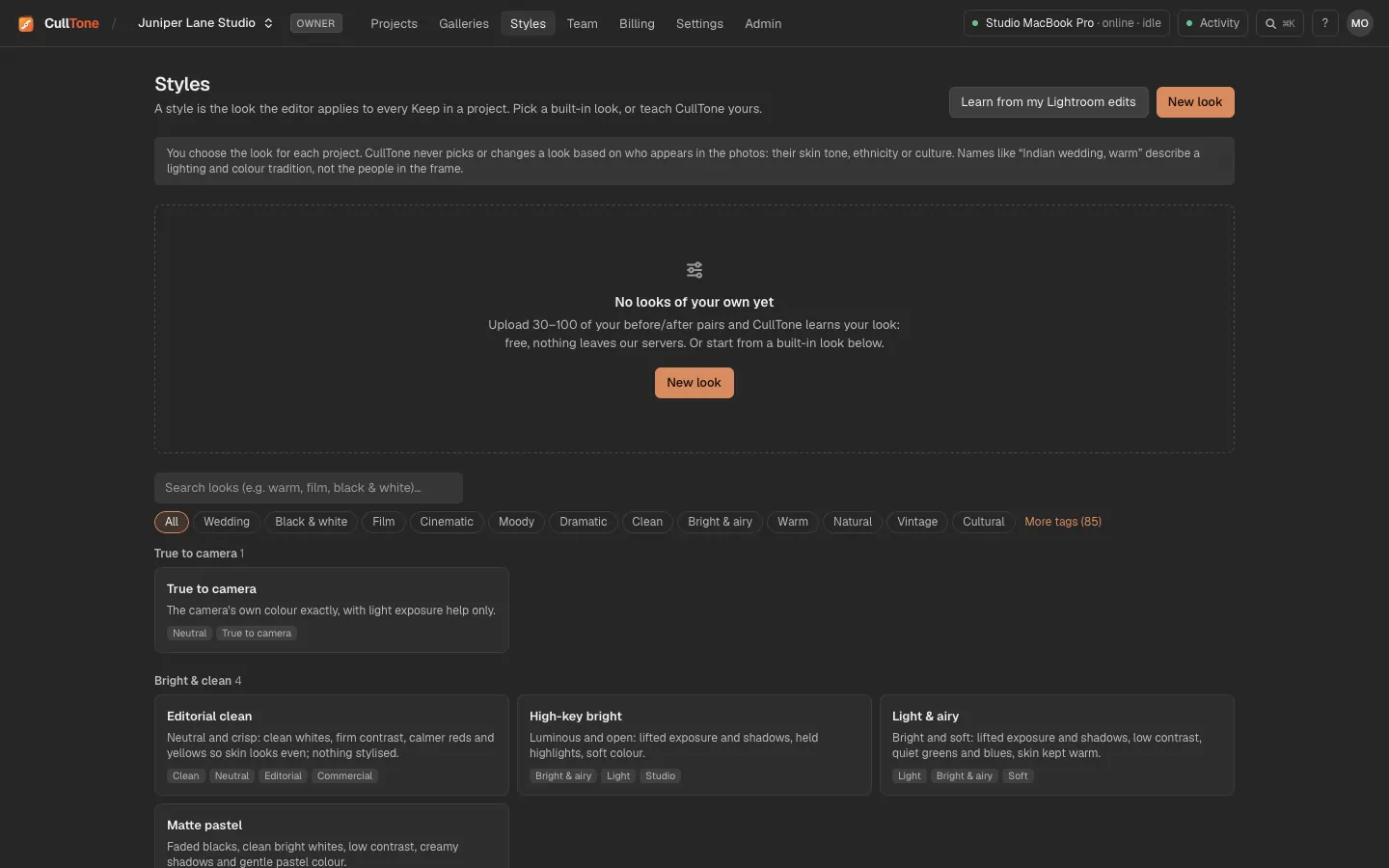
Browse the looks on the Styles screen
Looks are grouped: Bright and clean, Everyday and natural, Film and vintage, Moody and cinematic, Black and white, Made for a genre, Cultures and ceremonies, then Indian weddings by region. You can also see each one on the looks pages.
-
Set a look for the whole project
In Project settings on the Overview tab, choose the Editing style. Every keep is rendered with it.
-
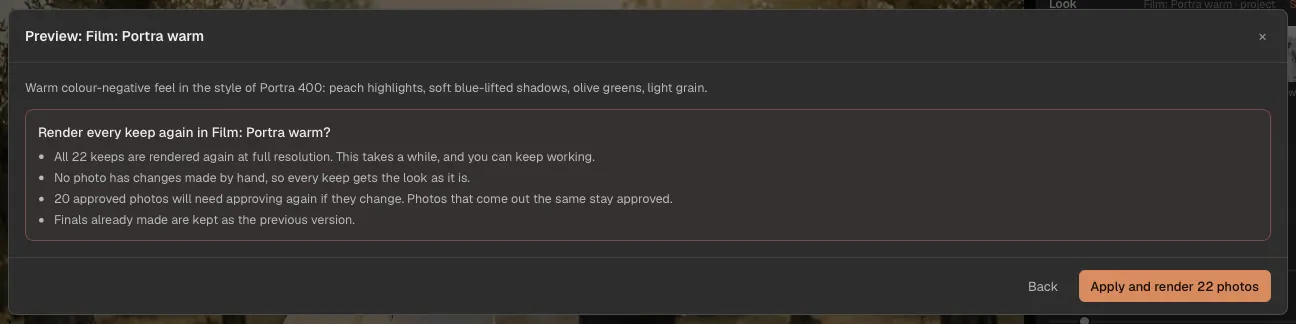
Try a look on several photos, then apply it to all
On a look, press Preview on 12 photos to see it on a varied set of your keeps before anything renders. Apply to all… asks first: it says how many keeps render again, that changes you made by hand stay on top of the new look, that photos with a look of their own keep it and that earlier finals stay as the previous version. Press Apply and render, or Set the look, render later.
-
Change the look of one photo
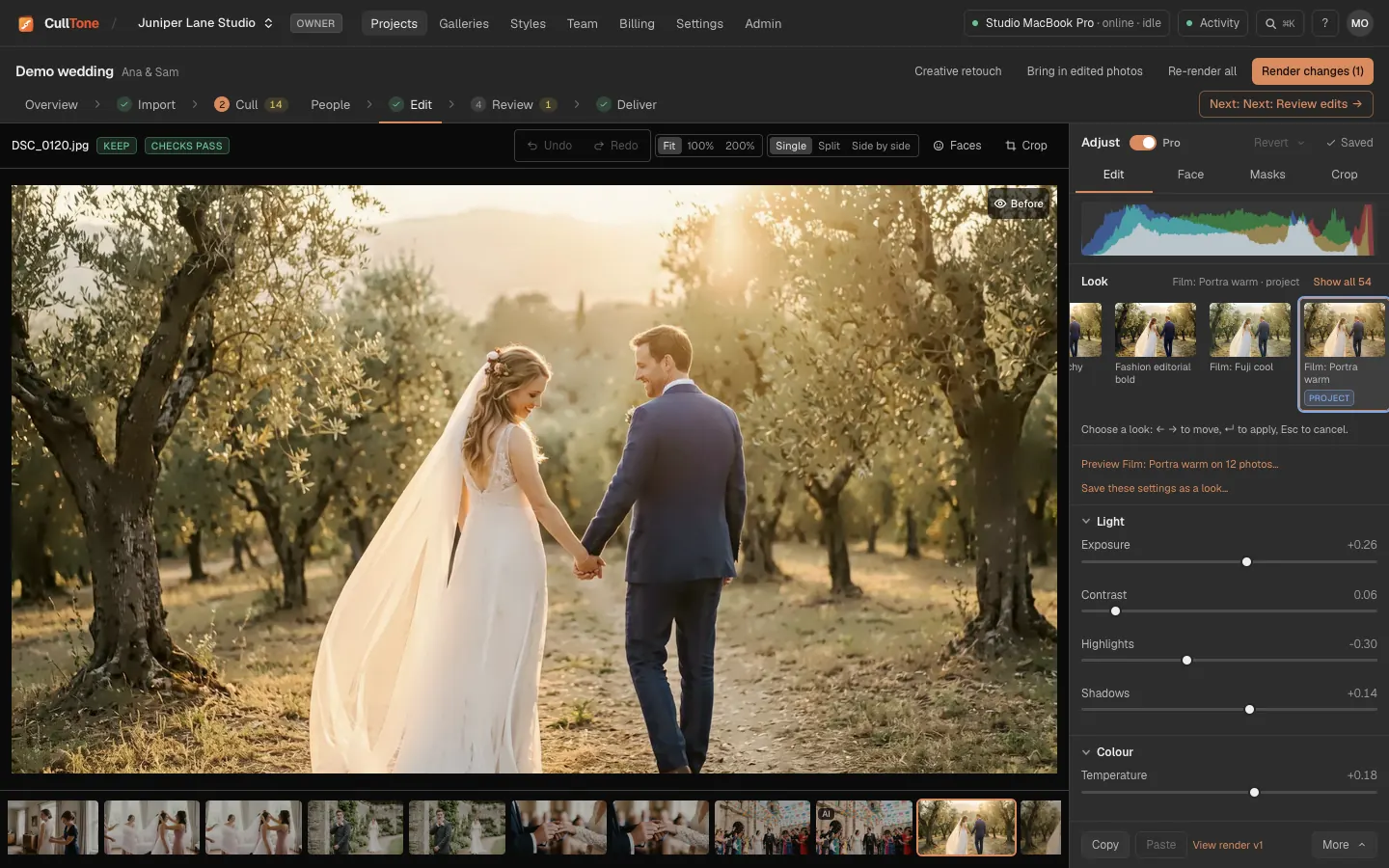
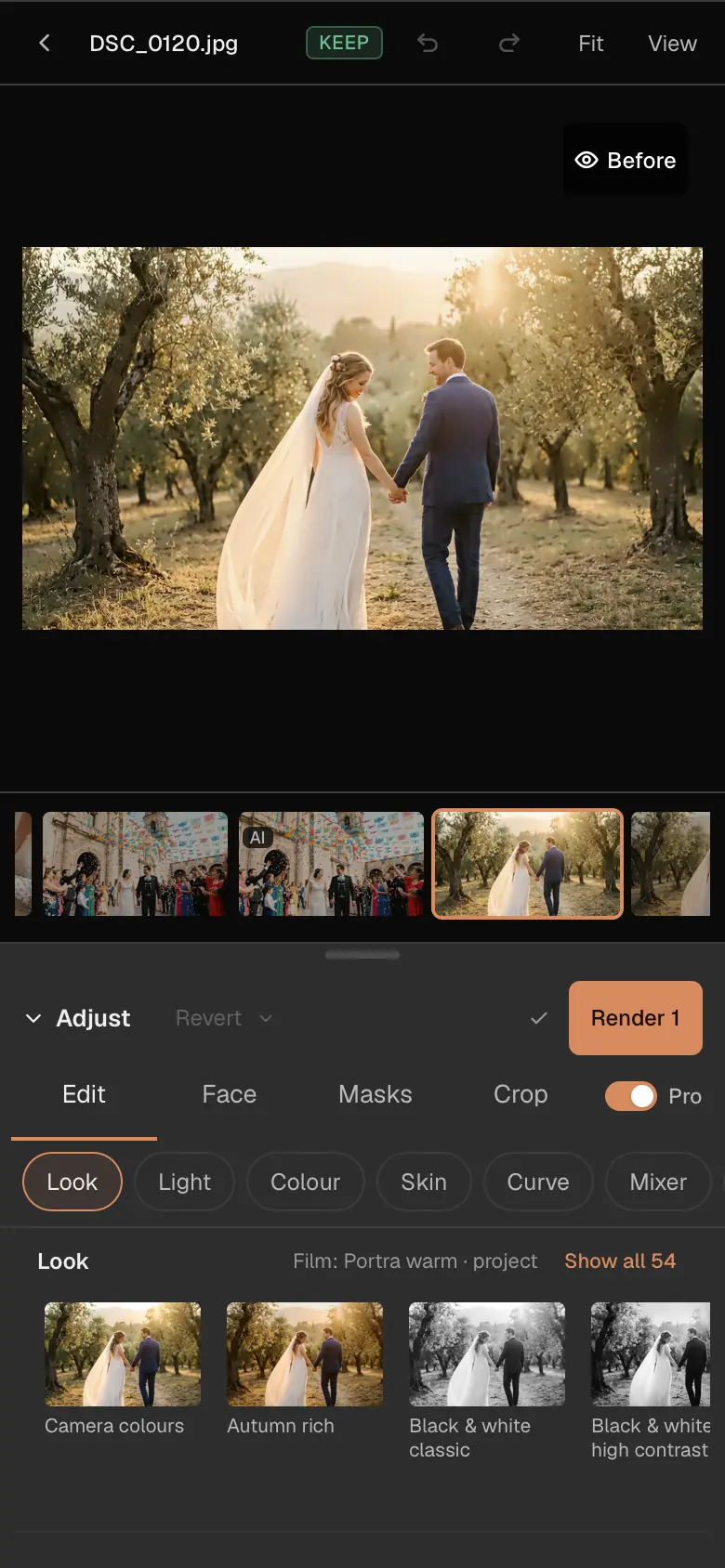
In the edit studio the look strip sits at the top of the Edit tab. Press L to pick by keyboard: arrows to move, Enter to apply. Set the strength from 0 (no look) to 1.5.
-
Save your own
When an edit is right, choose Save these settings as a look… under the look strip. It joins your studio's styles.
-
Teach CullTone your style
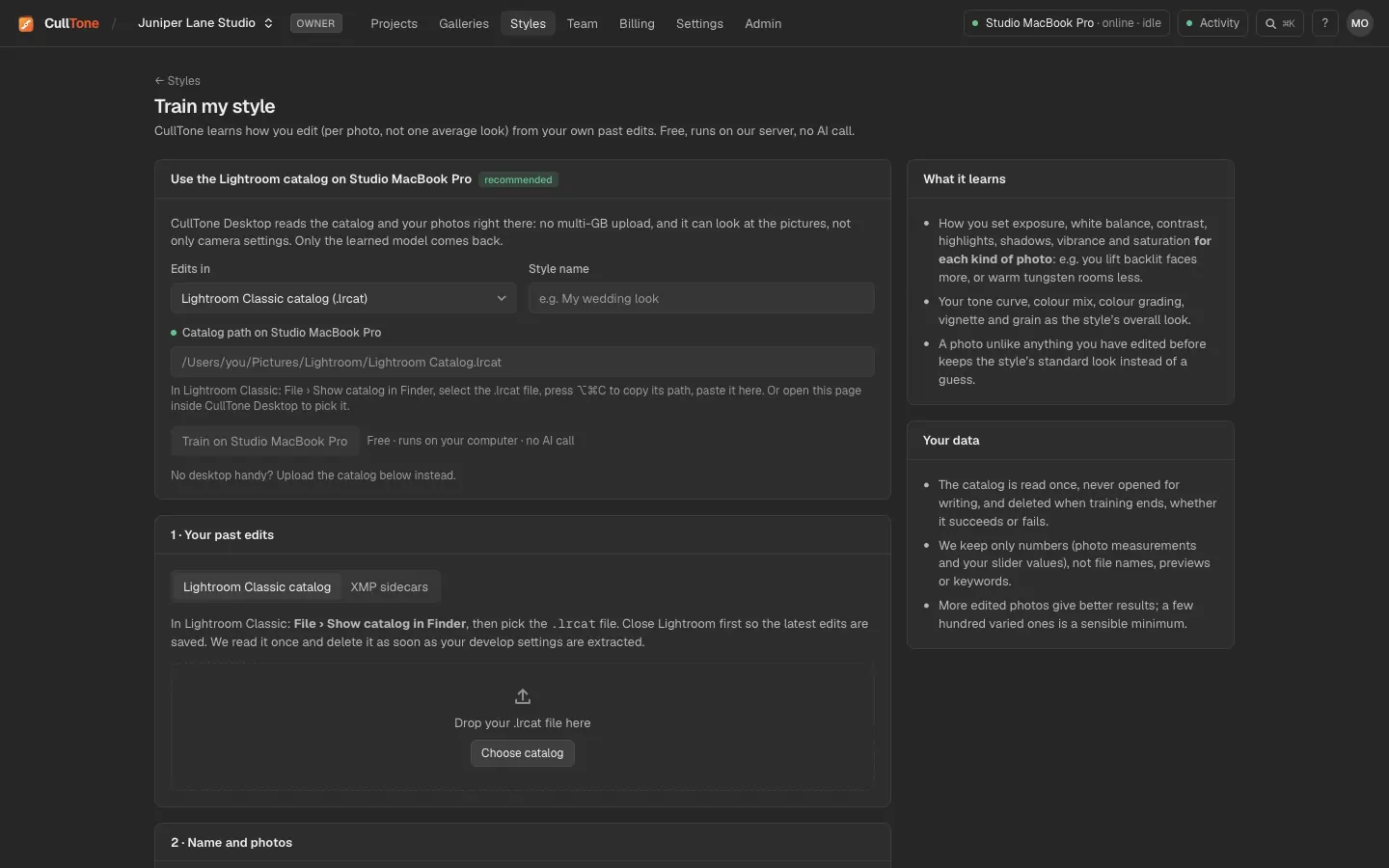
On Styles, start a new style from a short description, from before and after pairs, from your corrections in a finished project, or from a Lightroom Classic catalog or XMP files. Each change makes a new version you try before choosing Use this version.
On a phone
-
The Look chip
In the studio on a phone, the Look chip under the Edit tab jumps to the look strip.
A look per event
- A project with events (haldi, sangeet, reception) can give each event its own look or black and white finals, in Project settings → Events or with Apply to this event from the preview.
- A photo's own look or slider changes win over its event's look, and its event's look over the project's.
- Render changes then renders only the photos whose event changed its look.
What is free and what is not
- All 54 looks, saved looks and learning from pairs, a project or a Lightroom catalog are free. Learning runs in CullTone Desktop on one of your studio's computers (the project's main computer for a project), so keep it open until the style is ready.
- Starting a style from a written description makes one small AI call. It shows the price first.
- Learned styles have been tested on a simulated photographer so far, not on real catalogs.