Editing in the studio
The studio shows one photo at a time with the project's keeps in a strip below. The preview uses the same maths as the final render, so what you see is what gets delivered. Edits are saved per photo and turned into full-size JPEGs when you render.
- Free
- Best on a computer
Edit a photo
-
Open the Edit tab
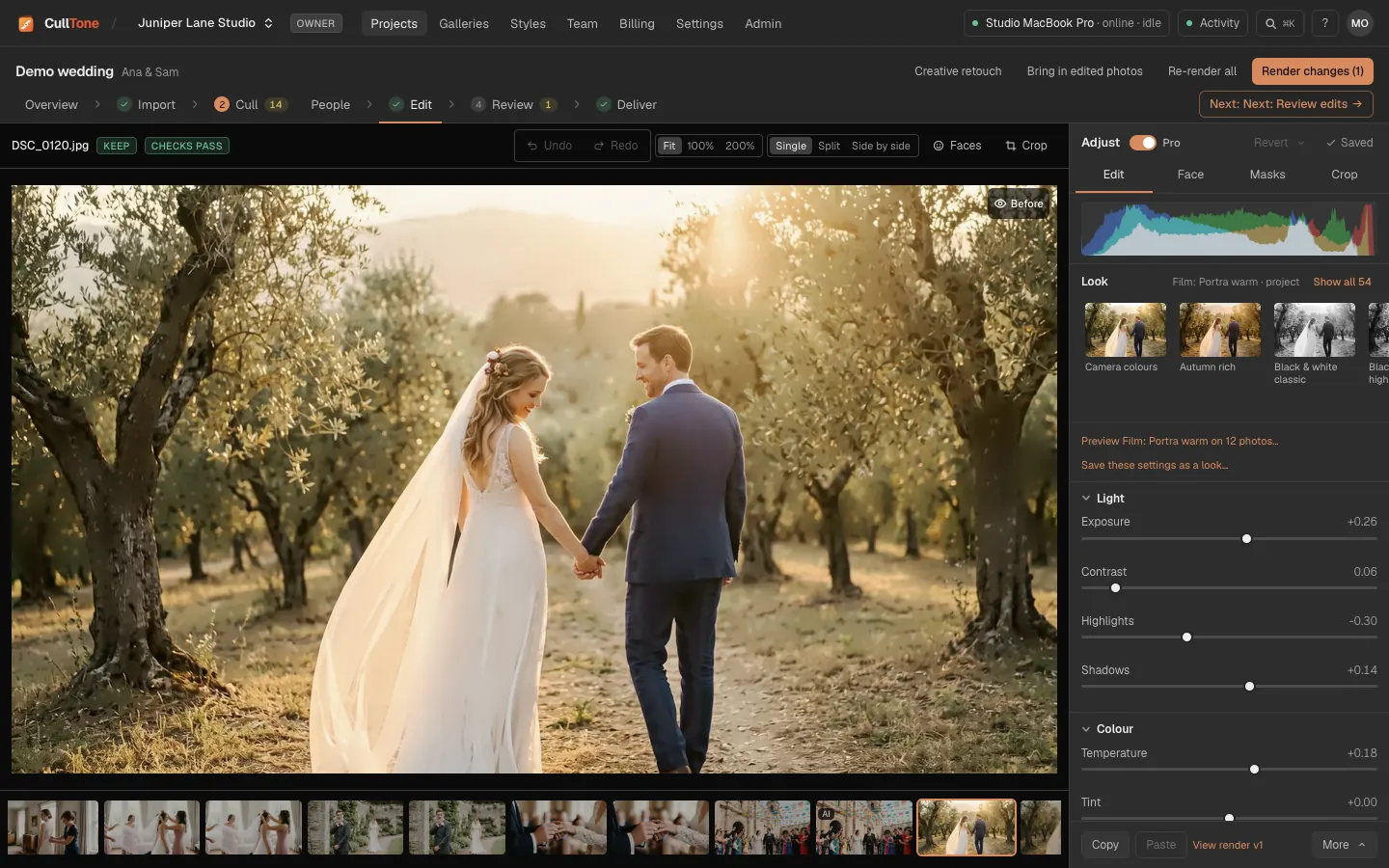
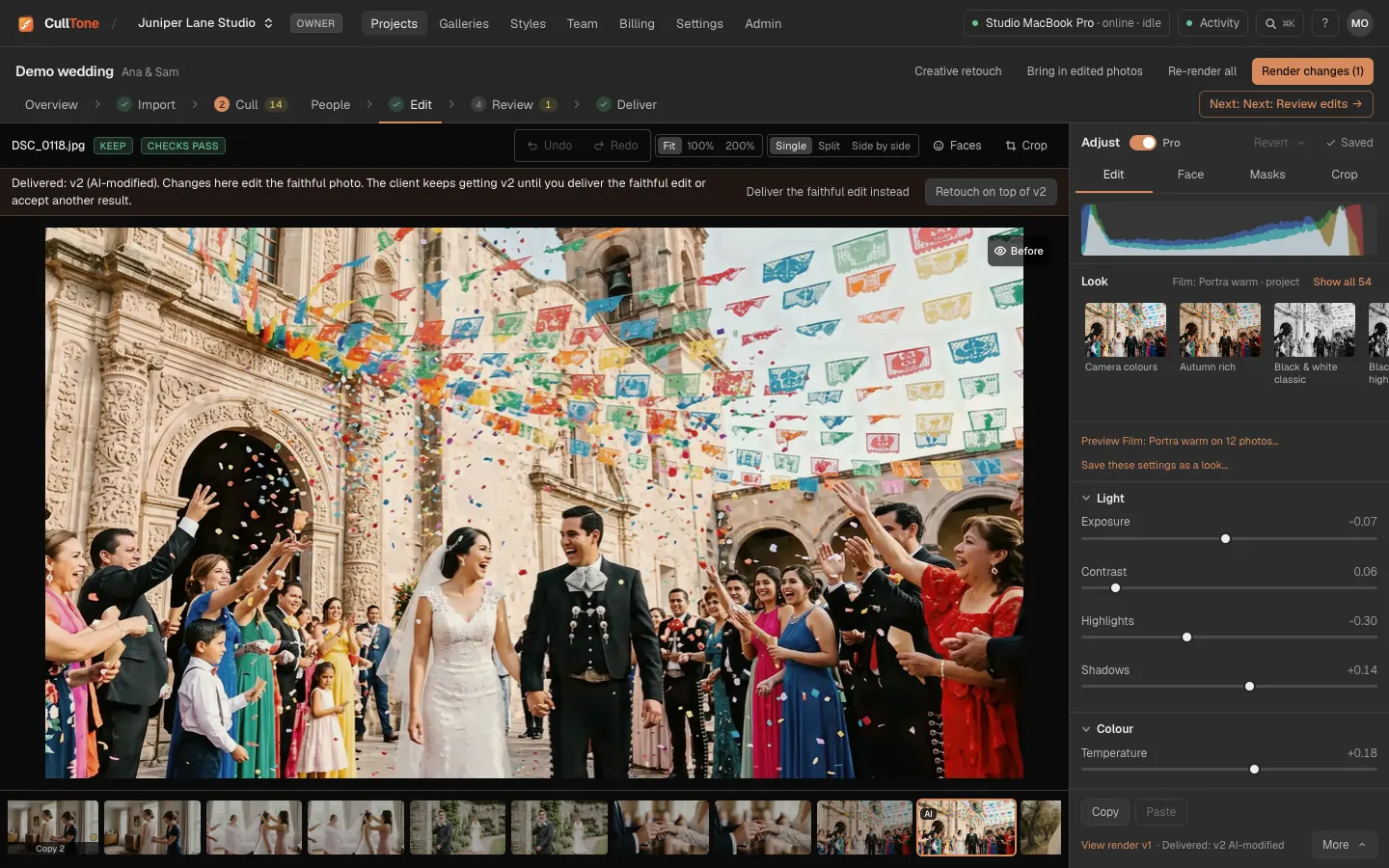
The photo fills the middle, the keeps run along the bottom and the Adjust panel is on the right with four tabs: Edit, Face, Masks and Crop.
-
Light, colour and curves
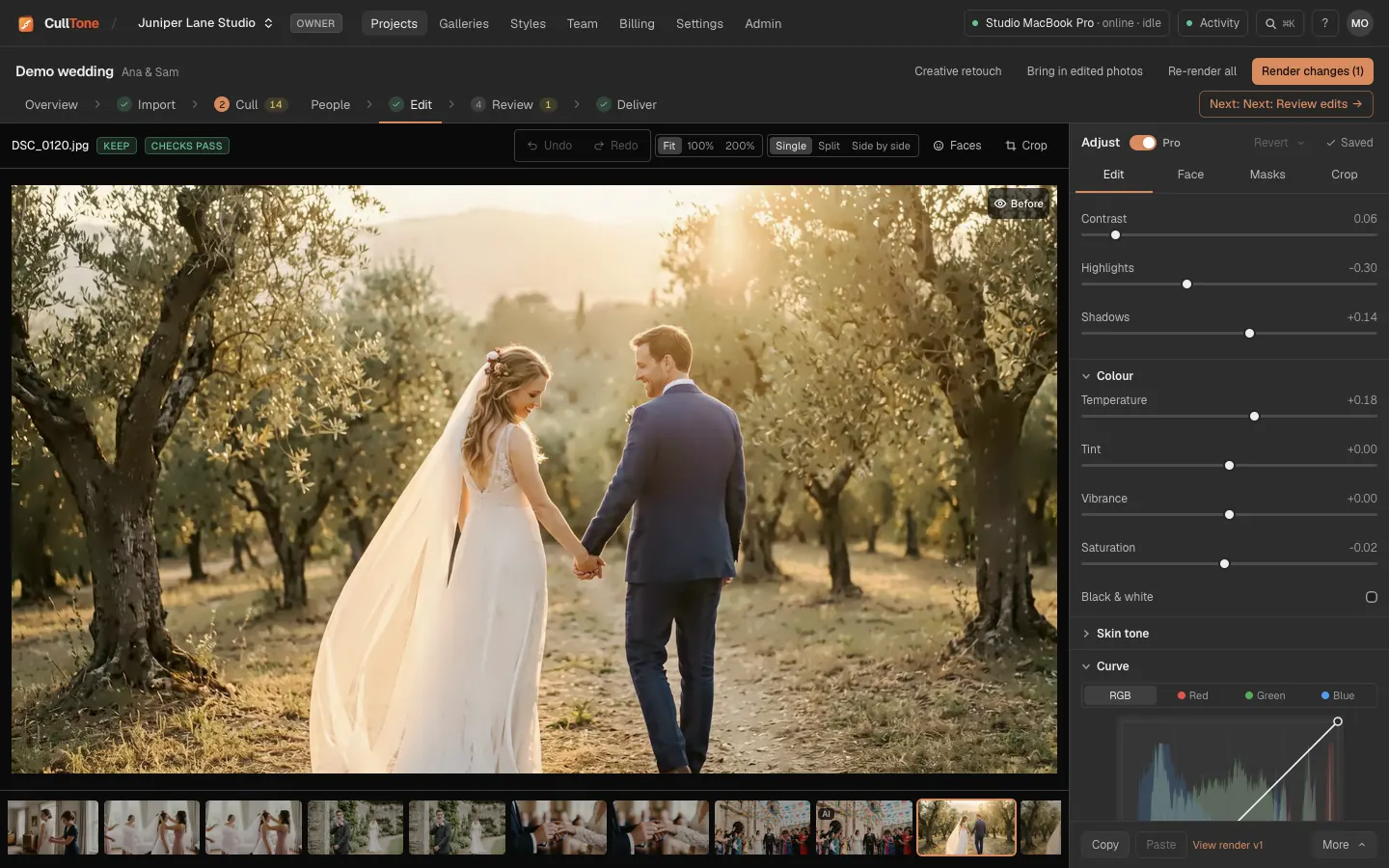
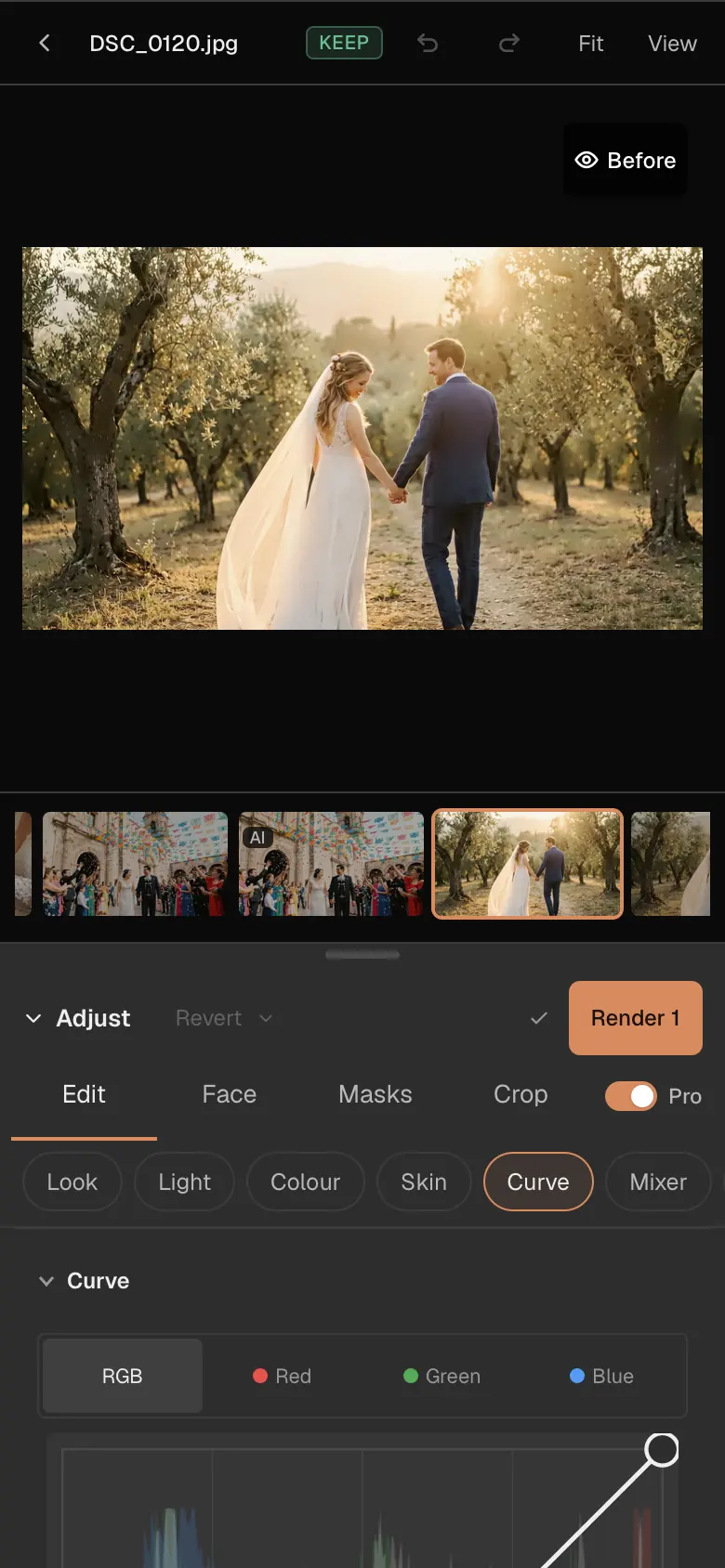
Exposure, Contrast, Highlights, Shadows, Temperature, Tint, Vibrance and Saturation sit under the histogram. Below them: Curve, Colour mixer, Colour grading and Effects. . and , move between sliders and + − nudge the one you are on.
-
Compare with the original
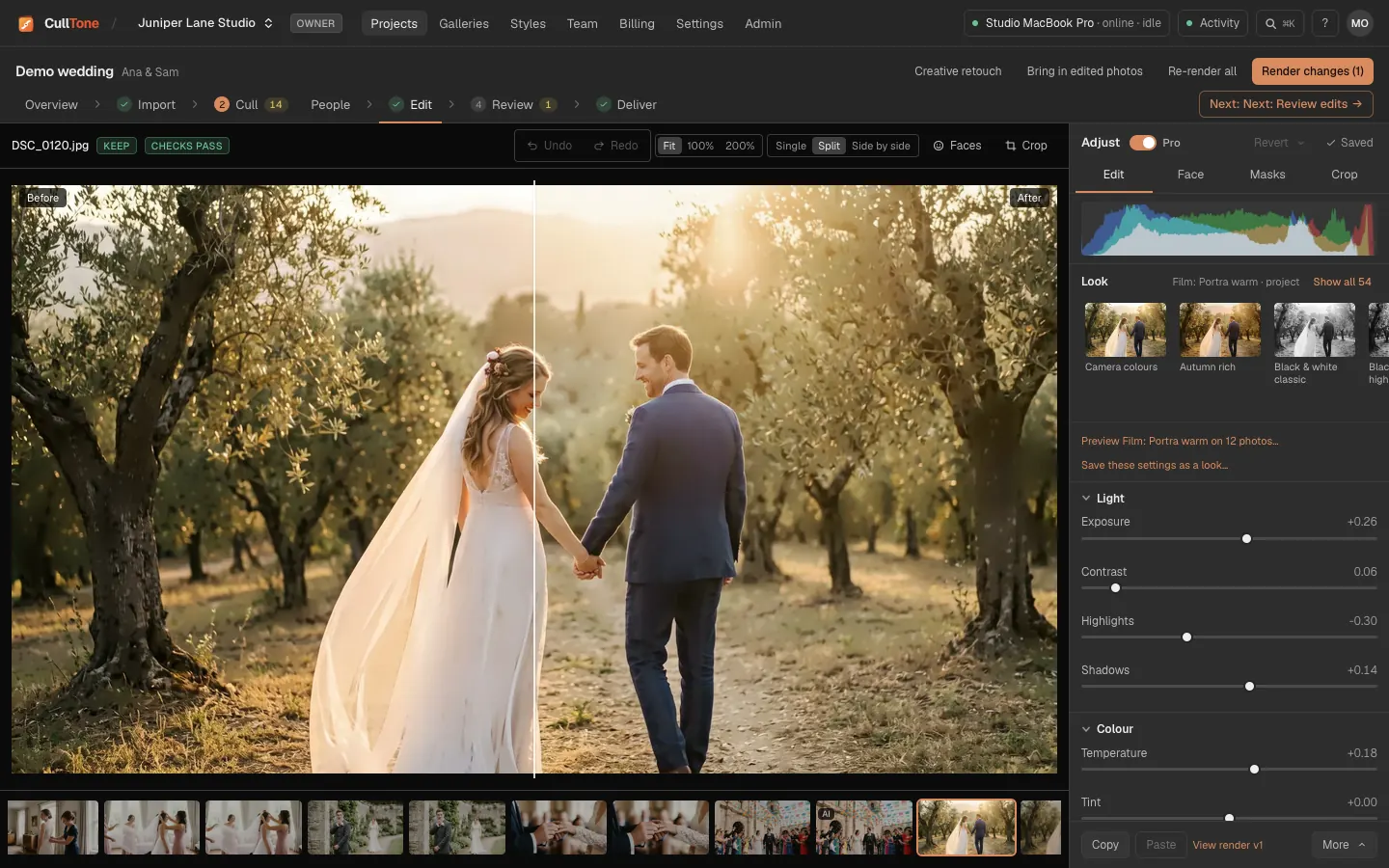
The eye button in the photo's top corner shows Before, the camera original: hold it (or hold O or \) to see it while held, or click it to keep Before on until you click again. On a phone, touch and hold, or tap. Split puts a divider across the photo and Side by side shows both. Press Z for 100%.
-
Add a mask
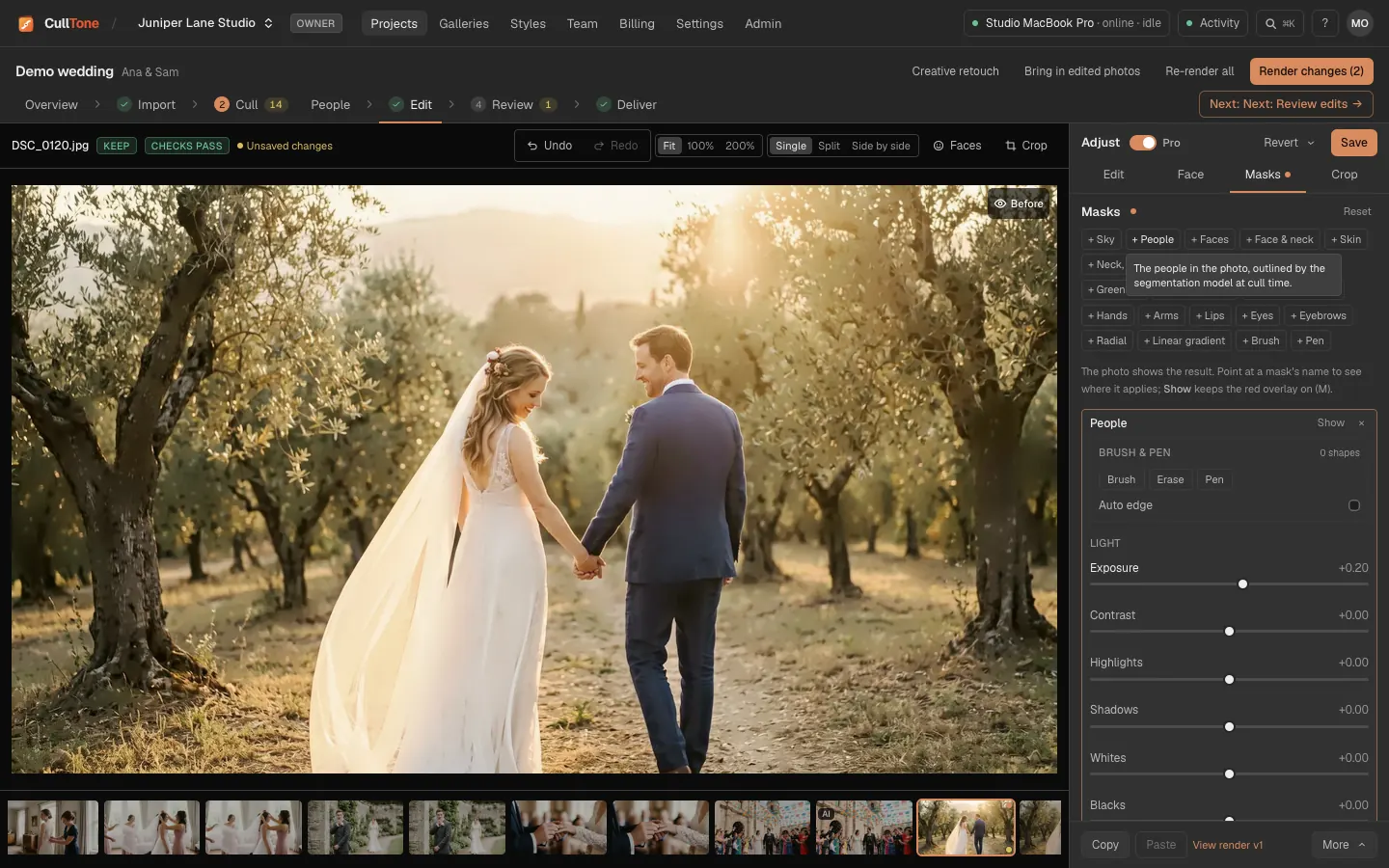
On Masks, pick what to change: People, Sky, Faces, Skin, Hands, Hair, Water, Greenery and more are found for you, or draw a Radial, a Linear gradient, a Brush or a Pen shape. Each mask has its own sliders. Up to 8 per photo.
-
Retouch faces gently
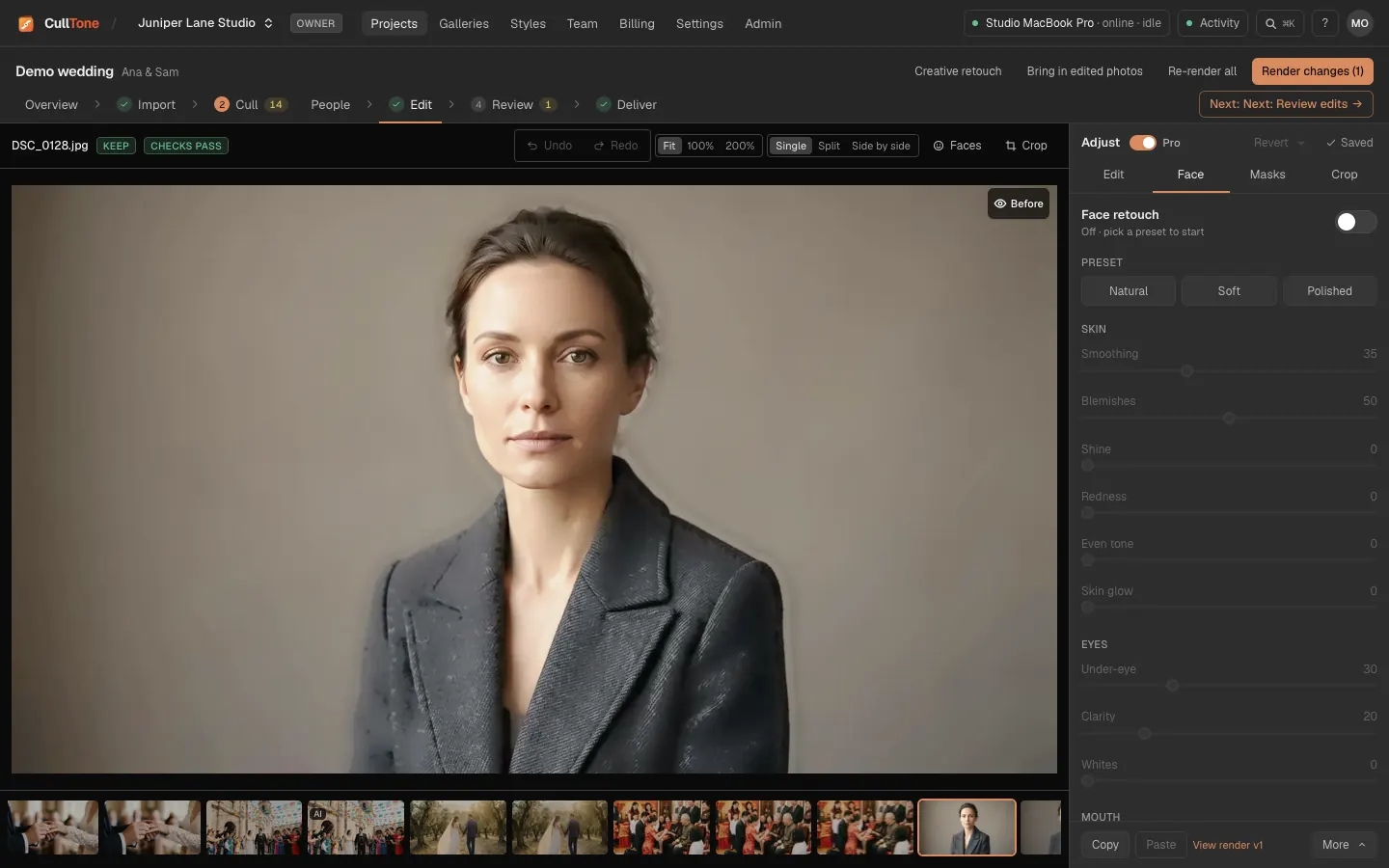
Face is off until you choose Natural, Soft or Polished. Polished gives visibly smoother skin with pores still there at 100%, and a face in profile gets skin smoothing too. Skin colour never shifts, and moles, bindis and nose pins are kept as they are. There is no reshaping or slimming. Under-eye softens dark circles and bags; lashes, kohl and skin texture stay. Skin glow brightens skin like better light and keeps the person's own skin colour, so it never whitens. It starts at 0 and no preset changes it, so it only applies when you move it, for all faces or one face in the face list.
-
Crop and straighten
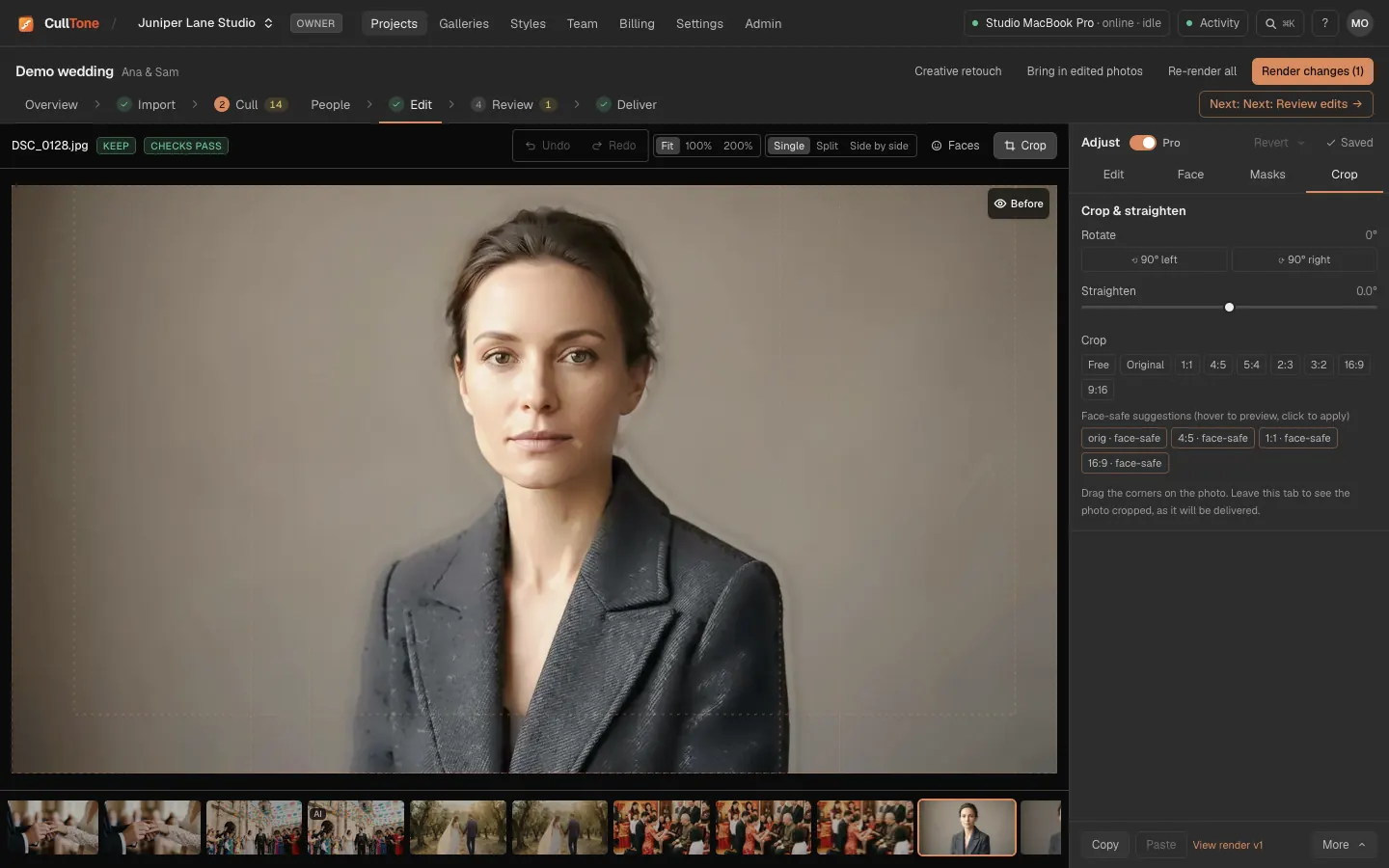
Press C or open Crop. A suggested straighten is offered, never applied for you.
-
Copy, paste and duplicate
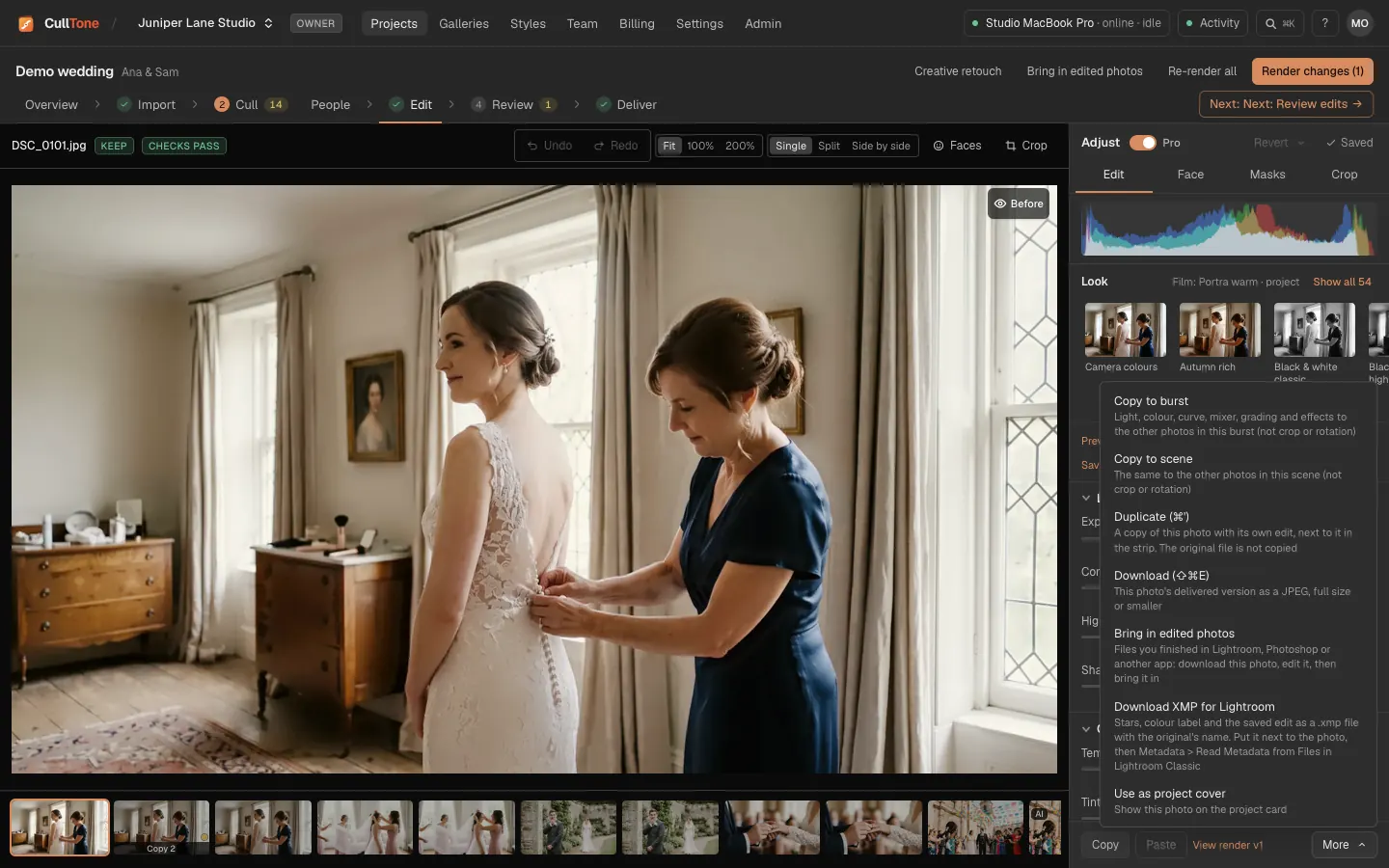
⌘C and ⌘V copy a look, sliders and masks to other photos (never the crop). More copies to the whole burst or scene, makes a Duplicate with its own edit, or sets the project cover.
-
Render
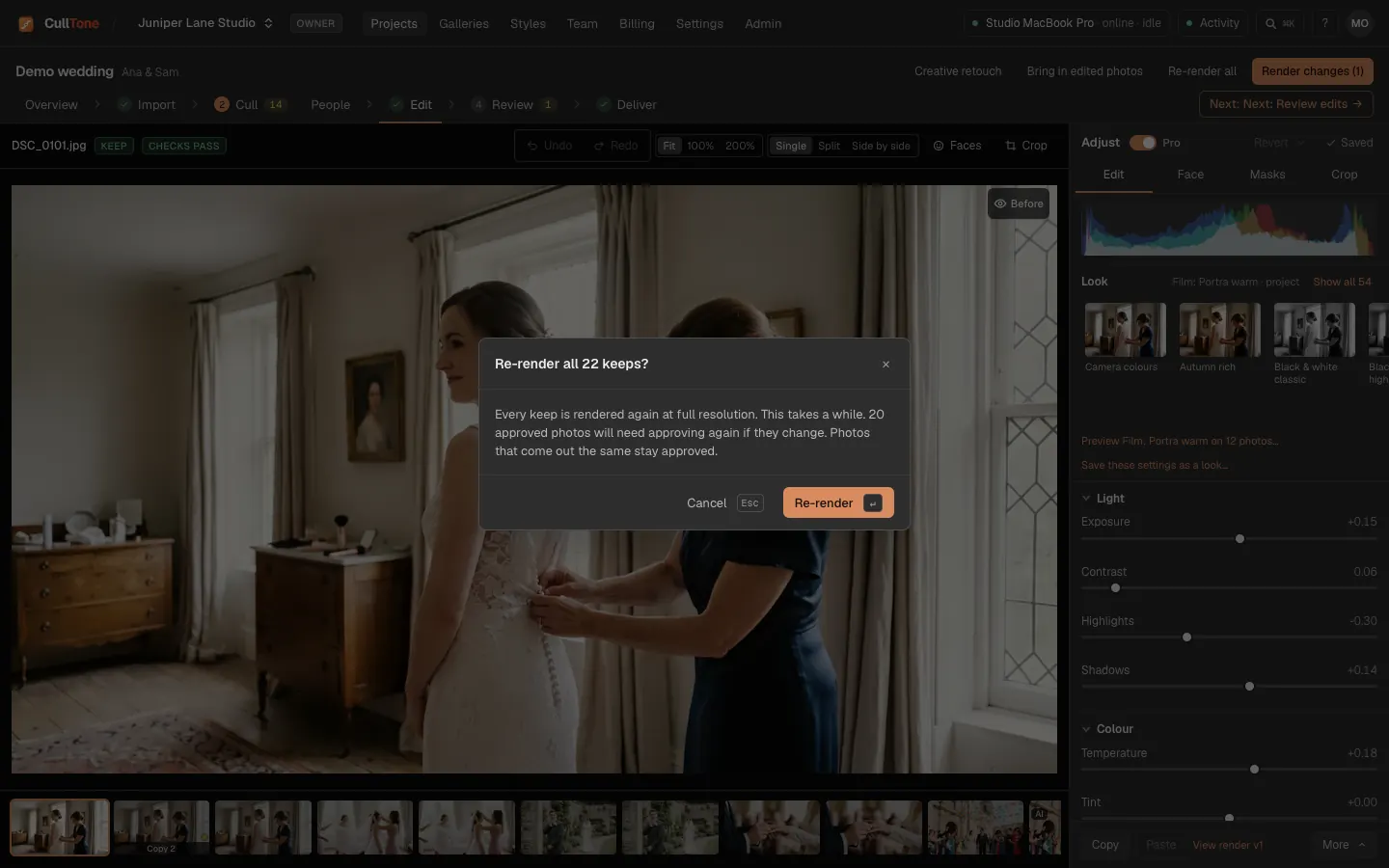
Render changes makes full-size JPEGs of only the photos you changed. Re-render all redoes every keep, for example after changing the project's look, and asks first. Rendering runs on the computer that holds the originals. Only keeps are rendered: a photo you open from Cull that is in Review or Archived shows a line saying it isn't rendered or delivered until you keep it, with a Keep button. View render under the sliders opens the last render; its Before / after view has the same eye button, or choose Slider under the photo for a wipe (remembered in this browser).
-
Download a photo
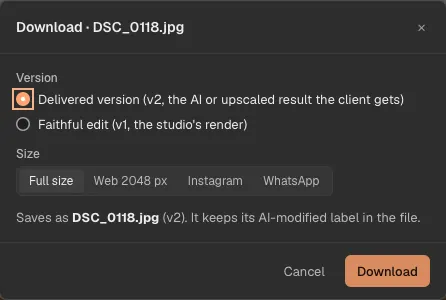
More → Download (⇧⌘E) saves the photo's delivered version as a JPEG: full size, Web 2048 px, Instagram or WhatsApp. It is named like the original (DSC_0101.jpg) and has no watermark. When an AI or upscaled result is delivered you can take the faithful edit instead. If you changed the photo since its last render, CullTone says so and offers the last render or Render and download. On a phone the button reads Save to Photos. Select several photos in the strip or in Cull for Download (3), a ZIP.
-
A photo delivered as a retouch result
When a creative retouch result is the delivered version, a line over the photo says so. The sliders still edit the faithful photo, and the client keeps getting the result until you press Deliver the faithful edit instead or accept another result. Retouch on top of v2 opens creative retouch on that result.
Simple mode and Pro
New accounts start in Simple mode. Switch with Pro in the Adjust panel's header, or Pro tools in the account menu.
-
Simple mode
Pick what you shot, then a suggested look drawn on this photo. Preview on 12 photos shows it on a varied set of your keeps before anything renders.
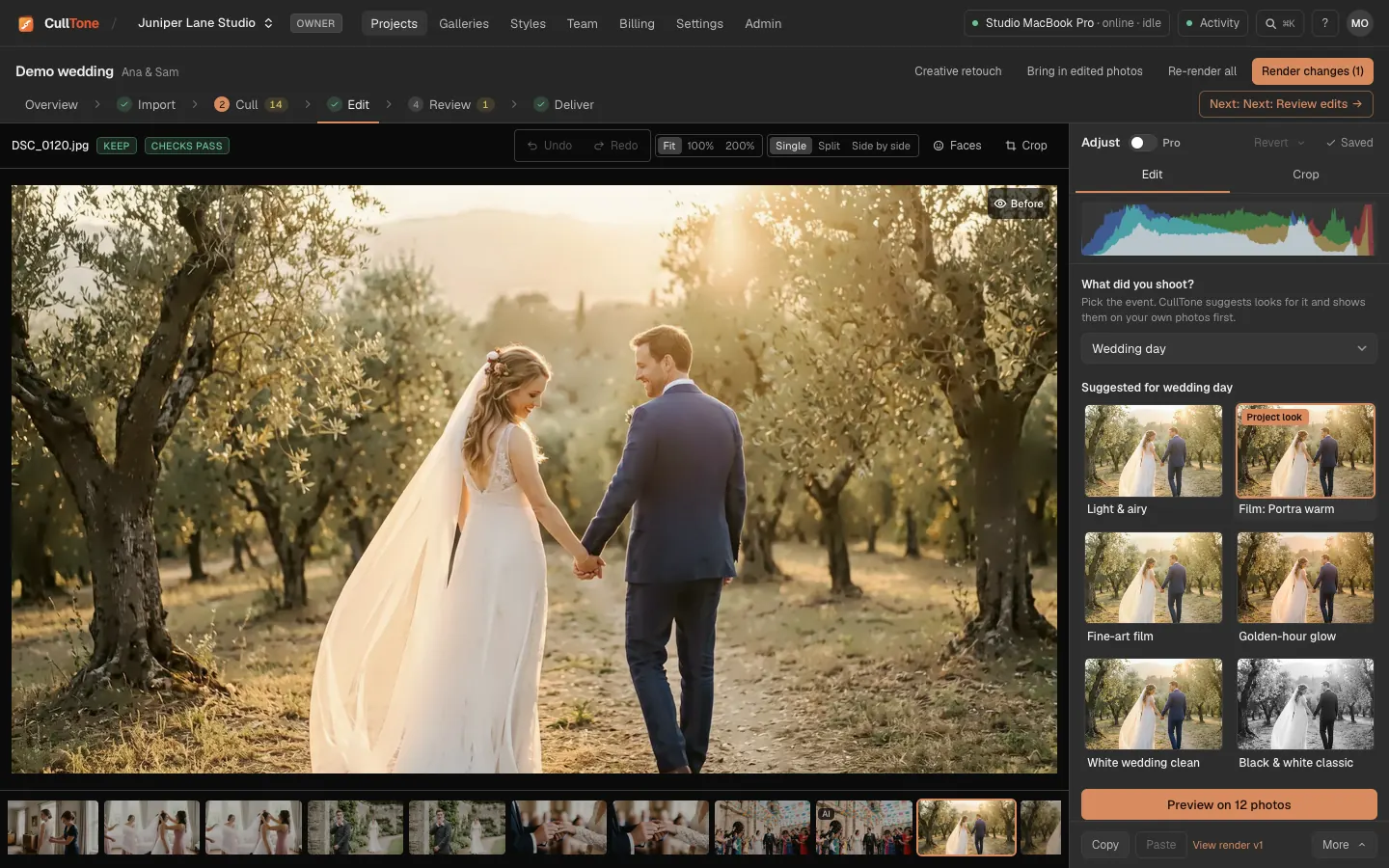
- Simple shows only the Edit and Crop tabs: the event type, 4 to 6 looks that suit it and the project's look.
- Pro: every slider, the curve, colour mixer, grading, masks and face retouch, as on this page.
- Event types come in groups: weddings and events, other shoots, weddings around the world, then Indian weddings by region.
On a phone or iPad
-
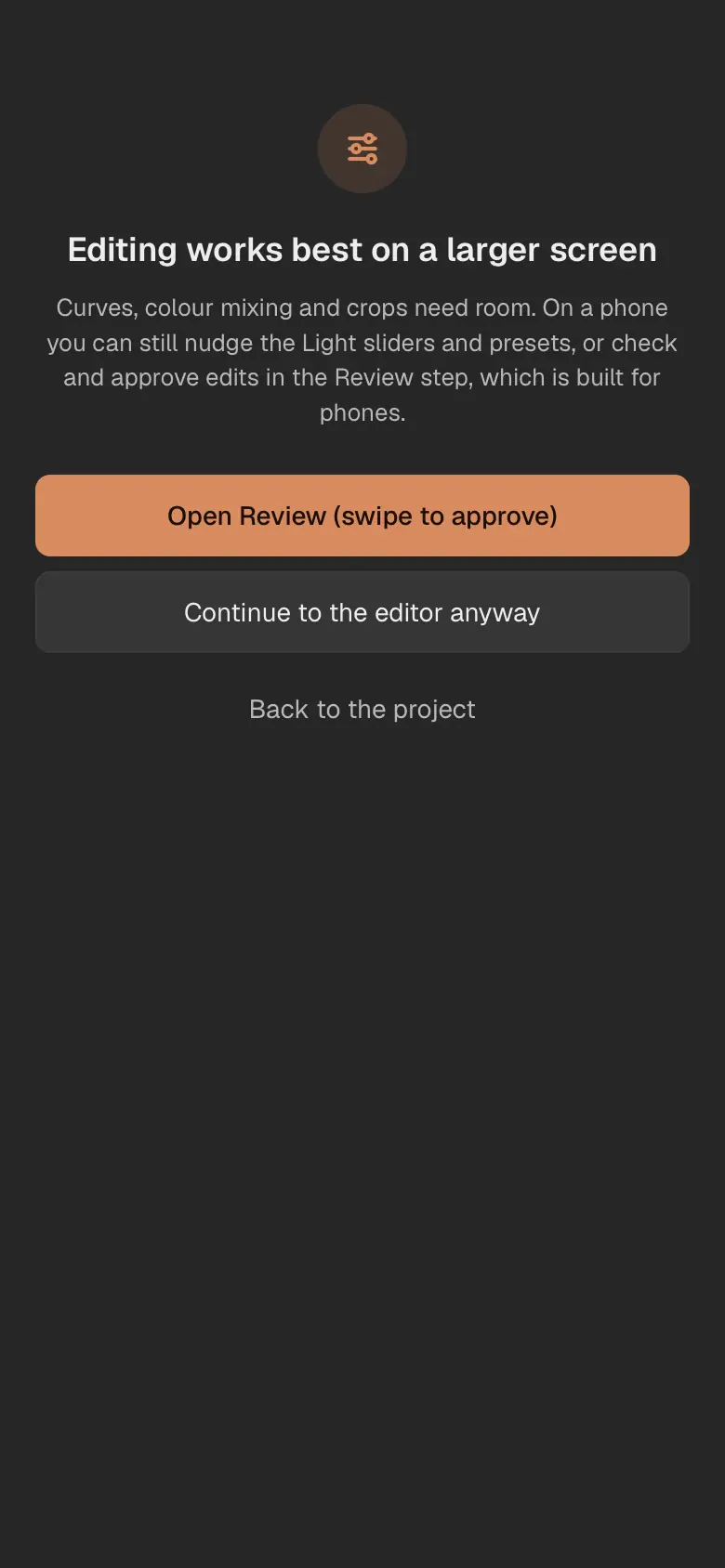
It works best on a bigger screen
The studio says so first. Tap Continue to the editor anyway.
-
Photo on top, tools below
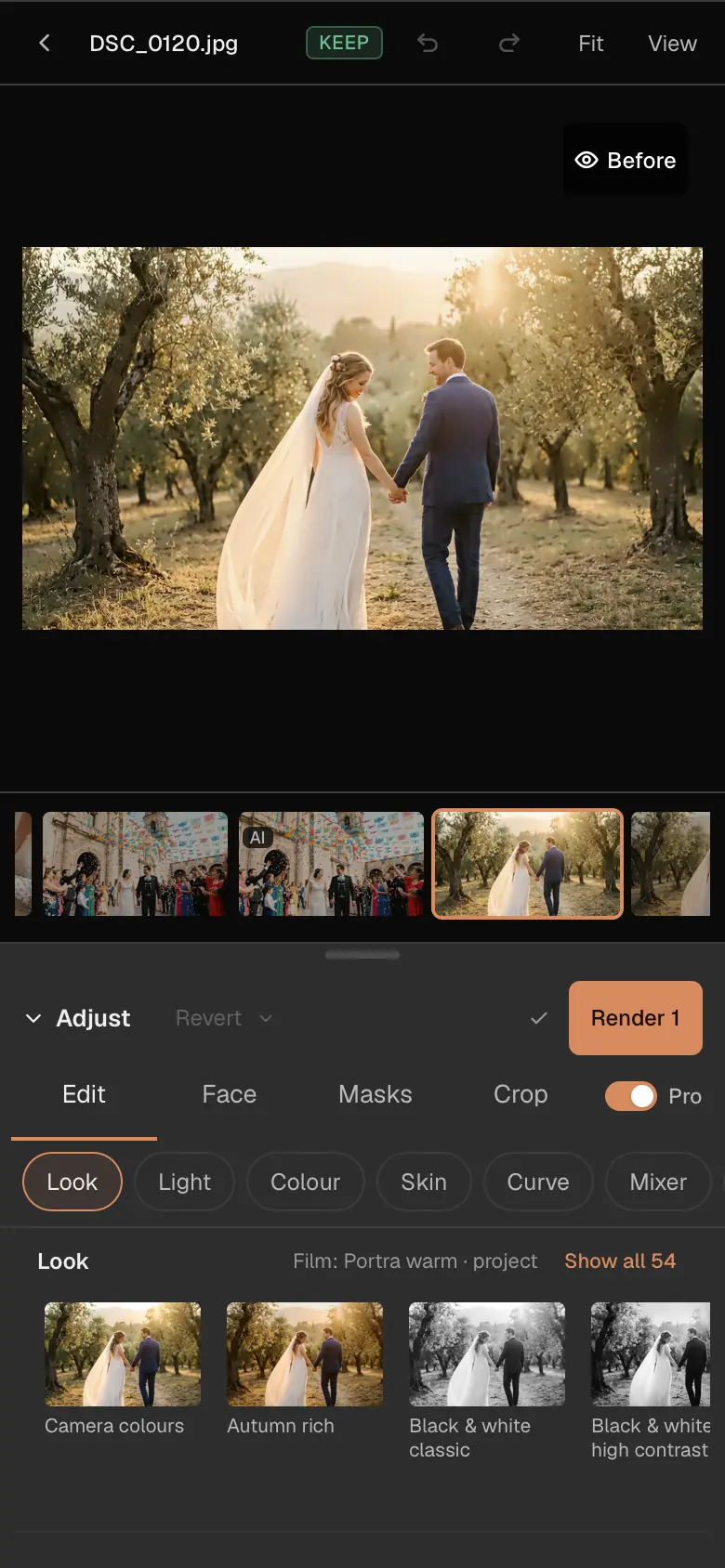
The chips under the Edit tab (Look, Light, Colour, Curve, Mixer, Grading, Effects) jump to a section. On phones, Render is always in the panel's bar.
-
Make the panel bigger
Drag the grab bar on the panel header up or down, or tap it. Sliders move only with a sideways drag, so scrolling past one never changes it; double-tap resets.
Noise reduction for high-ISO photos
Receptions, sangeet nights and stage shows push the ISO up, and a RAW file then shows grainy speckle and coloured blotches in the dark parts. The Noise section of the Adjust panel has two sliders, 0 to 100 like Lightroom.
- Noise reduction smooths the grainy speckle and keeps edges: eyes, jewellery and the border of a sari stay crisp. Higher values look softer. Skin keeps some of its own texture, so faces do not turn waxy.
- Colour noise removes the coloured blotches. CullTone starts every RAW file at 25, as Lightroom does.
- The automatic edit sets both from the ISO and the exposure: no Noise reduction up to ISO 1600, then more as the ISO rises (10 at ISO 3200, 20 at ISO 6400, 30 at ISO 12800). A photo the edit brightens counts as a higher ISO. The section's reset goes back to these values.
- JPEG, TIFF and PNG files get none by themselves: the camera or app that made them has already reduced their noise. Move the sliders if one needs it.
- The preview shows the photo as it looks at the preview's size, so judge fine noise in View render at 100%.
- Noise reduction is part of the photo's edit: Copy and Paste carry it, and the XMP files for Lightroom carry it as Luminance and Color. It is not part of a look, Simple mode sets it automatically, and mask layers have no noise control.
Tips
- Even skin tone (Skin section, and in each mask) brings red, yellow or blotchy patches of skin toward the photo's own skin colour. Only skin moves: clothes, decor and wood keep their colour.
- Undo and redo: ⌘Z and ⇧⌘Z (Ctrl+Z and Ctrl+Y on Windows). Esc never throws an edit away; leaving with unsaved changes asks first.
- Revert takes the photo back to how it was when you opened it, or to CullTone's automatic edit (to the camera's own colours in a project set to Edits: None).
- When a photo's AI masks were drawn by an older version, the Masks panel says so and offers Analyse again (free). The Overview shows the same hint for the project.
- More → Show in Finder (Explorer on Windows) opens the folder with this photo's final selected, the JPEG in the project's Finals folder, or its original when it has no render yet. The other file is the next item, and both are in ⌘K. This works in CullTone Desktop on the project's main computer; anywhere else the menu says which computer to open.
- In CullTone Desktop, More → Edit in Photoshop (⌘E) opens the delivered version in your other app, and each save comes back as a version tagged Edited outside. See Edit in another app.
- A strip tile with an amber dot has settings that are not rendered yet.
- Select several tiles in the strip to paste, decide or render them together.
- With an event chosen under the tabs, Render changes and Re-render event work on that event's keeps only. With All they work on every keep.
- A mask of people (faces, skin, hair, clothes and so on) works on everyone, or on chosen people only: in the mask, under Who, press Choose people, tap the faces on the photo, then Done. Match faces on the Neck, hands & arms mask sets their exposure to match the faces.
- Someone else saved this photo while you had it open? Save doesn't overwrite their edit: CullTone asks Load their version (yours is dropped) or Keep mine (yours replaces theirs).
What is free and what is not
- Everything in the studio, including masks, face retouch and rendering, is free.
- Creative retouch (removing things, prompt edits) lives on its own screen; see Creative retouch.