Keyboard shortcuts
The same keys mean the same thing everywhere: K keeps, R sends to review, A archives, F goes full screen, Esc lets go. On Windows and Linux, read Ctrl for ⌘ and Alt for ⌥. Phones and tablets use touch instead: swipes, taps and pinches.
- Mac
- Windows and Linux
Anywhere in CullTone
-
The command box
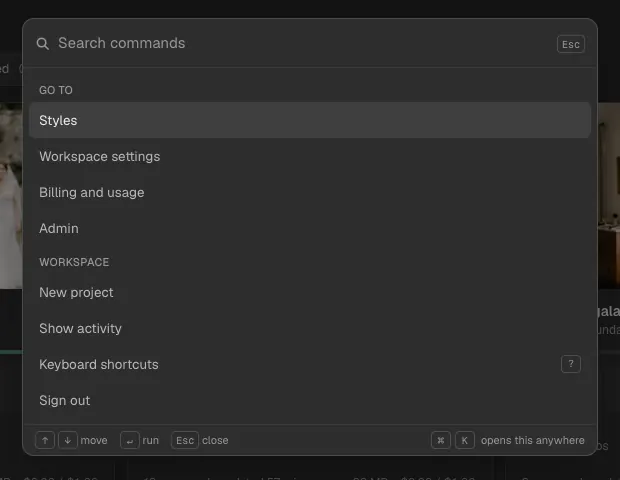
⌘K (Ctrl+K) lists every action of the screen you are on, by name, with its key. Arrows move, Enter runs, Esc closes.
-
This screen's keys
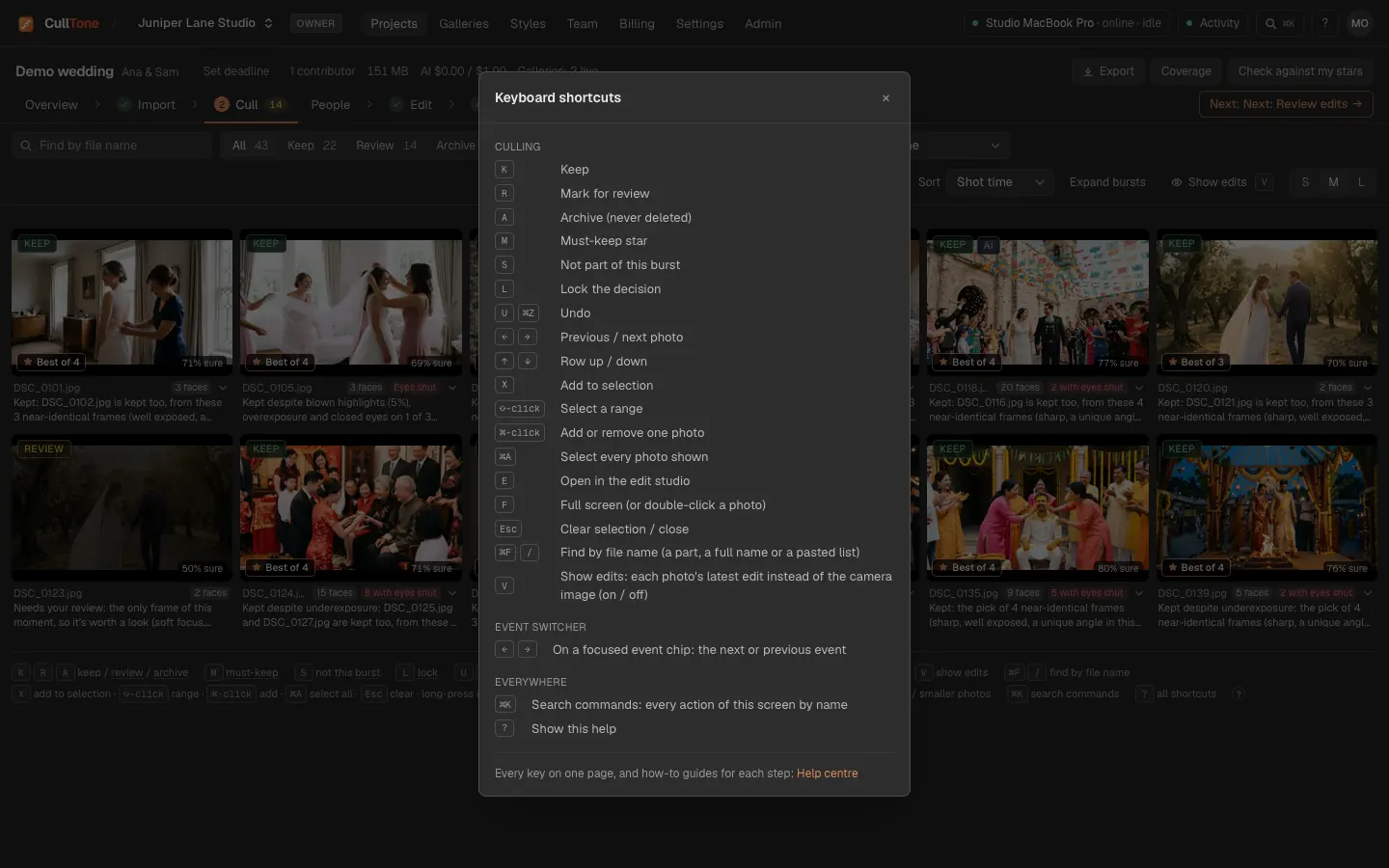
? shows the keys of the screen you are on.
Culling
| Key | What it does |
|---|---|
| K | Keep |
| R | Mark for review |
| A | Archive (never deleted) |
| M | Must-keep star |
| S | Not part of this burst |
| L | Lock the decision |
| U | Undo |
| ⌘F or / | Find by file name (Ctrl+F on Windows) |
| ← → | Previous or next photo |
| ↑ ↓ | Move inside a burst |
| X | Add to selection |
| ⇧-click | Select a range |
| ⌘-click | Add or remove one photo |
| ⌘A | Select every photo shown |
| E | Open in the edit studio |
| F | Full screen (or double-click) |
| V | Show edits on or off: each photo's latest edit instead of the camera image |
| ← → (on an event chip) | The next or previous event, in Cull, Edit, Review and Deliver |
| Esc | Clear the selection or close |
The Review step
| Key | What it does |
|---|---|
| A | Approve |
| R | Request a redo |
| Z | 100% loupe on and off |
| F | Full screen |
| B | Full screen: edit or camera original |
| O or \ (hold) | See the camera original in the detail |
| ← → | Previous or next |
| ⇧-click, ⌘-click, ⌘A | Select a range, one, or all |
| Esc | Clear the selection or close |
Edit studio
| Key | What it does |
|---|---|
| ← → | Previous or next keep |
| O or \ (hold) | See Before, the camera original (click the eye on the photo to keep it on) |
| Y | Compare: single, split, side by side |
| Z | Zoom to 100% and back |
| C | Crop and straighten |
| F | Show faces |
| ⌥1 to ⌥4 | Edit, Face, Masks, Crop tabs |
| . , | Next or previous slider |
| + − (or ↑ ↓) | Nudge the slider; ⇧ for 10 steps, ⌥ for a tenth |
| 0–9, Enter | Type an exact value |
| ⌫ | Reset the slider |
| [ ] | Previous or next section (brush size while painting) |
| L | Look picker |
| K R A | Keep, Review or Archive this photo |
| N | Add a mask |
| I | Invert the mask |
| ⌘⌫ | Delete the mask |
| B, ⇧B, P | Brush, Erase, Pen |
| ⌘S | Save |
| ⌘Z, ⇧⌘Z | Undo, redo |
| ⌘C, ⌘V | Copy and paste settings |
| ⌘' | Duplicate this photo |
| ⇧⌘E | Download this photo (or the selected ones as a ZIP) |
| ⌘E | Edit in Photoshop or your other app (CullTone Desktop) |
| ⌘Enter | Render changes |
| ⇧⌘Enter | Re-render all (asks first) |
| Esc | Close, let go, clear; never discards |
Creative retouch
| Key | What it does |
|---|---|
| [ ] | Brush size |
| E | Erase from the mask, or paint again |
| ⌘Z, ⇧⌘Z | Undo, redo |
| ⇧-click, ⌘-click, ⌘A | Select keeps for the same change |
| Esc | Clear the selection |
| O or \ (hold) | See what a result was made from (click the eye on the result to keep it on) |
Zooming a photo
| Key | What it does |
|---|---|
| ⌘= (or +) | Zoom in |
| ⌘− | Zoom out |
| ⌘0 | Fit the photo |
| ⌘1 | 100% |
| ⌘-scroll or pinch | Zoom around the pointer |
CullTone Desktop menus
In CullTone Desktop on a Mac, the menu bar adds these keys. The keys above work too. See the menus.
| Key | What it does |
|---|---|
| ⌘N | New Project |
| ⌘I | Import from Card or Folder |
| ⇧⌘I | Import from Camera or Phone |
| ⌥⌘I | Import Edited Files |
| ⌥⌘1 | Go to Projects |
| ⌥⌘2 to ⌥⌘6 | Go to the open project's Import, Cull, Edit, Review or Deliver |
| ⌘[ ⌘] | Back, Forward |
| ⌥⌘0, ⌥⌘=, ⌥⌘− | Page size: actual, larger, smaller |
| ⌘R | Reload |
| ⌘, | Settings |
| ⌘W | Close the window (CullTone stays in the menu bar) |
| ⌘Q | Quit (asks first while work runs) |
On Windows and Linux
- ⌘ is Ctrl, ⌥ is Alt and ⇧ is Shift: Ctrl+K opens the command box, Ctrl+Z undoes.
- Redo is Ctrl+Y or Ctrl+Shift+Z.
- Duplicate is Ctrl+'.
- CullTone Desktop runs on Macs only for now; in a browser on Windows or Linux every key above works with Ctrl.