Bring in edited photos
Sometimes a photo needs work in another app: a careful skin retouch in Photoshop, a crop and grade in Lightroom, a quick fix on your phone. Bring the finished files back and CullTone puts each one with its photo, as a new version tagged Edited outside. Deliver it and it goes to galleries, albums, slideshows and your Finals folder like any other version.
- Free
- Your files are never changed
Bring in edited photos
-
Open Bring in edited photos
In Edit, press Bring in edited photos in the studio toolbar, or press ⌘K (Ctrl+K) and type edited. It is also on the album page (Add photos edited elsewhere), in Deliver when you make a new gallery (Finished some photos in another app? Bring them in) and, in CullTone Desktop, in Project settings → Finals.
-
Choose the files
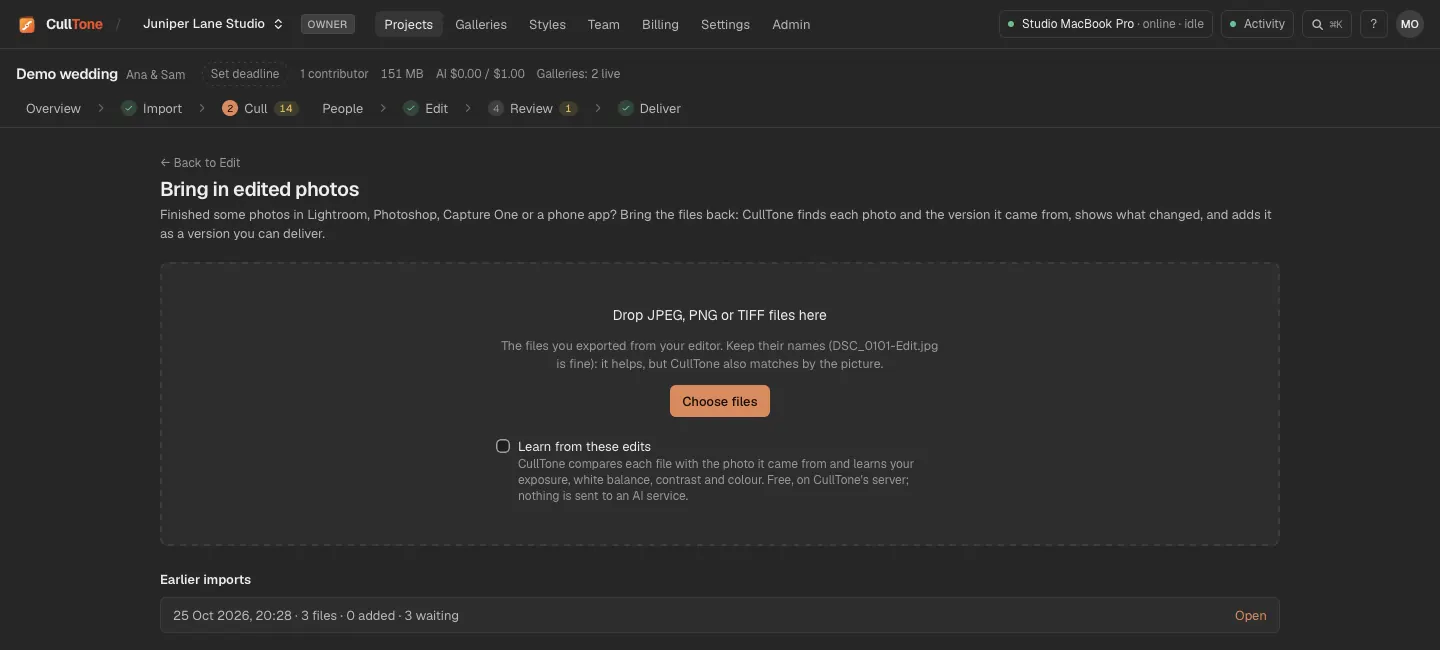
Drop JPEG, PNG or TIFF files on the page, or press Choose files. On CullTone Desktop, From a folder on this computer takes every edited file in a folder, and the menu bar has Import edited files…. Keep the names your editor gave them (DSC_0101-Edit.jpg is fine): it helps, but CullTone also matches by the picture.
-
Let CullTone check them
The files go up and CullTone checks each one, free, in CullTone Desktop on the project's main computer (any of your studio's computers for a project of finished photos; started in a browser, the check waits until that computer is on): which photo it is, which version it was made from, and what changed. Files CullTone exported itself are matched exactly. A file developed from the RAW in Lightroom is matched to its photo and compared with the faithful edit.
-
Review the table
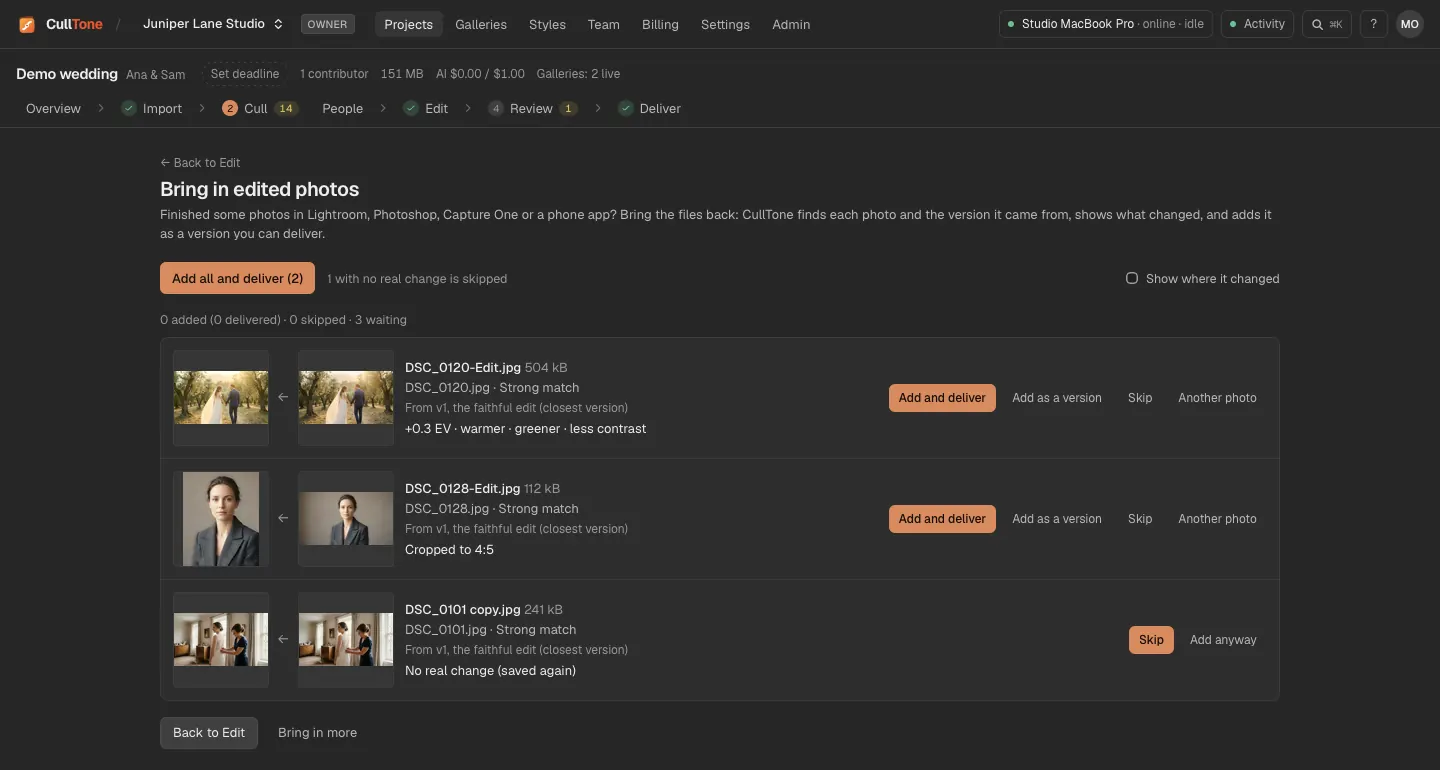
Each row shows your file next to the version it came from, how sure the match is (Exact, Strong or Best guess) and what changed, for example "Cropped to 4:5 · +0.3 EV · warmer · retouched 3 areas, 4%". Tick Show where it changed to see the changed areas in red.
-
Add and deliver
Press Add and deliver on a row, or Add all and deliver for every file that matched. Add as a version keeps what the client gets now. A file that was only saved again is skipped. A very different file (black and white, a composite, a very tight crop) asks first: a version of its photo, or a new photo.
When a file is not matched
- Another photo lets you choose the photo it belongs to, by file name. It is added as a version of that photo.
- Add as a new photo adds it to the project on its own, kept and ready to deliver, in albums and galleries. It has no RAW, so CullTone can't render it again.
- A camera RAW is refused: export the edited photo from your editor as a JPEG or TIFF first.
Finals changed on your computer
- With CullTone Desktop, a project's finals are in its Finals folder. When you edit one of them in another app and save over it, Project settings → Finals says "N files in Finals were changed on this computer".
- Use my edited versions brings them all in, each matched exactly to its photo and to the version it replaced. Use mine next to a file brings in just that one.
- Rendering a photo again never writes over a final you changed. Your file stays, and Project settings → Finals says its new render is waiting. Replace with the new render puts it in place and keeps your file next to it as DSC_0101 (my edit).jpg.
- Until you choose Replace, CullTone only reads your files. It never deletes them.
Edit in another app
- This works in CullTone Desktop only. Choose your app once in Settings → This computer: Photoshop, Affinity Photo, Pixelmator Pro, GIMP, Capture One, or any other app with Another app….
- In Edit, press Edit in Photoshop (the More menu, the studio's header, ⌘E or Ctrl+E, or ⌘K). In creative retouch, each result has its own button, so you can edit an AI result further. The photo opens in your app as a working copy of that version.
- Choose Deliver it when I save (on at first) or turn it off to add each save as a version only. The working copy is a JPEG at full quality, or a 16-bit TIFF if you plan heavy changes.
- Save in your app. Each save comes back by itself, matched exactly to the photo and version, and every open CullTone window says so: "Saved from Photoshop: DSC_0101 v5 · retouched 2 areas", with Undo. A save with no real change adds nothing.
- One version per editing session: a later save replaces the version your last save made, unless that one was approved in Review or is in a client gallery. Then the new save is added next to it.
- PSD files can't be read. If you keep layers, also save a copy as TIFF or JPEG in the same folder, with the same name at the start.
- The studio shows "Editing in Photoshop: DSC_0101 · waiting for a save". Press Done editing when you are finished; editing also ends after a day without a save. Saves made offline come in when you are connected again, and editing carries on after CullTone restarts.
- The working copies stay on your computer until you press Free up space after editing ended. Your originals and Finals are never changed. In a browser, download the photo, edit it, then bring the file in as above.
Colour and learning
- Files in Adobe RGB, Display P3 or ProPhoto RGB are converted to sRGB for galleries and previews. The file as it came is kept with the version.
- Tick Learn from these edits before you start: CullTone compares each plain edit with the photo and learns your exposure, white balance, contrast and colour into the style "Your finish (from edited files)" in Styles. Use it as the project look in Edit. Nothing is sent to an AI service.
- Each version CullTone exports carries a small ID in its metadata, so a file that comes back later is matched to the exact version.