Creative retouch: clean up, remove, describe a change
Creative retouch is for changes a slider cannot make: a guest's elbow in the corner, an exit sign, a sky. It works on the rendered edit, never on your original, and every result is saved as a separate version labelled as changed with AI.
- Clean up and Remove · free
- Prompt edits · paid, price first
Retouch a photo
-
Open creative retouch
In the studio, press Creative retouch. The keeps run along the top; the photo is in the middle; the options are on the right.
-
Clean up: tap what should go
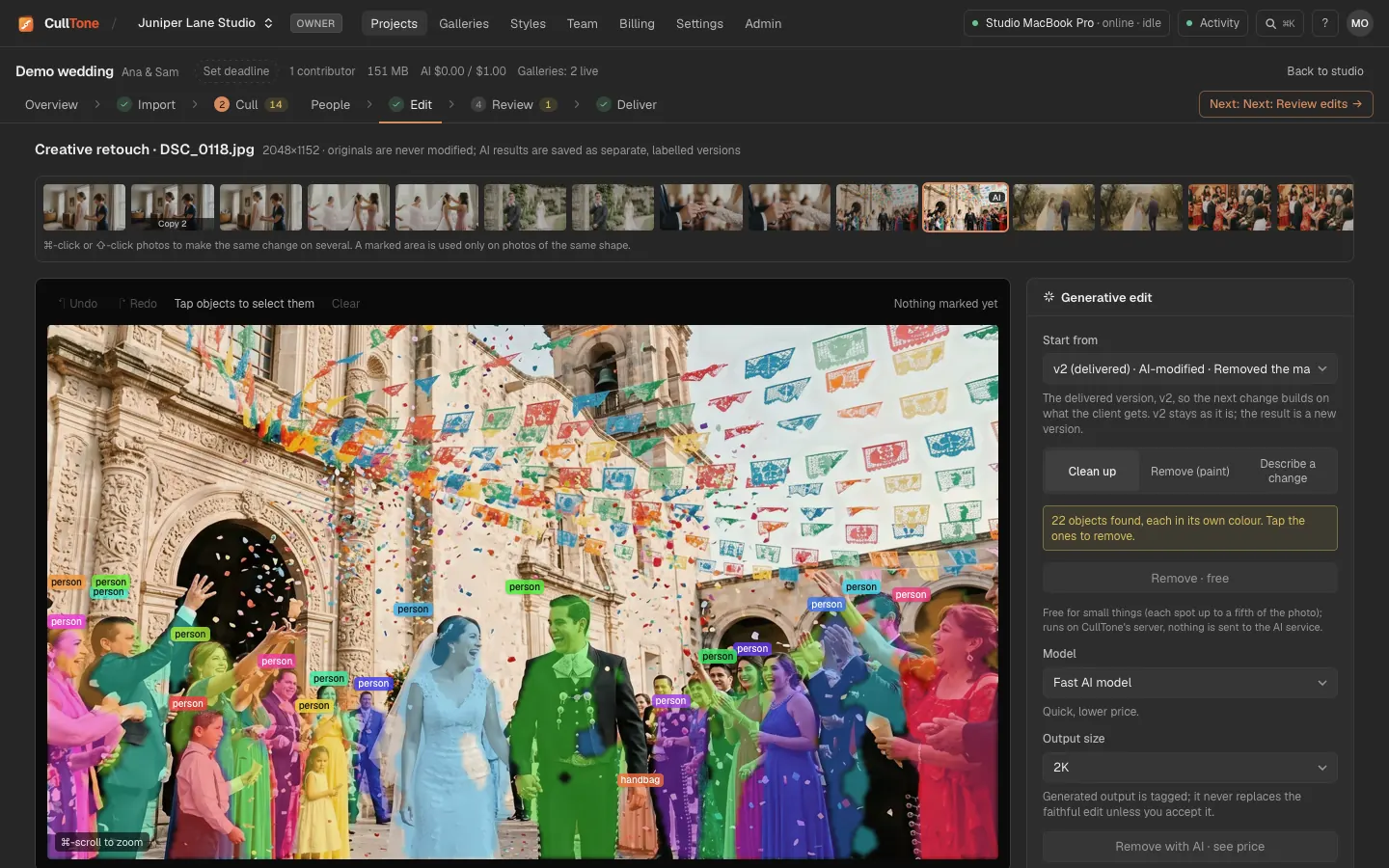
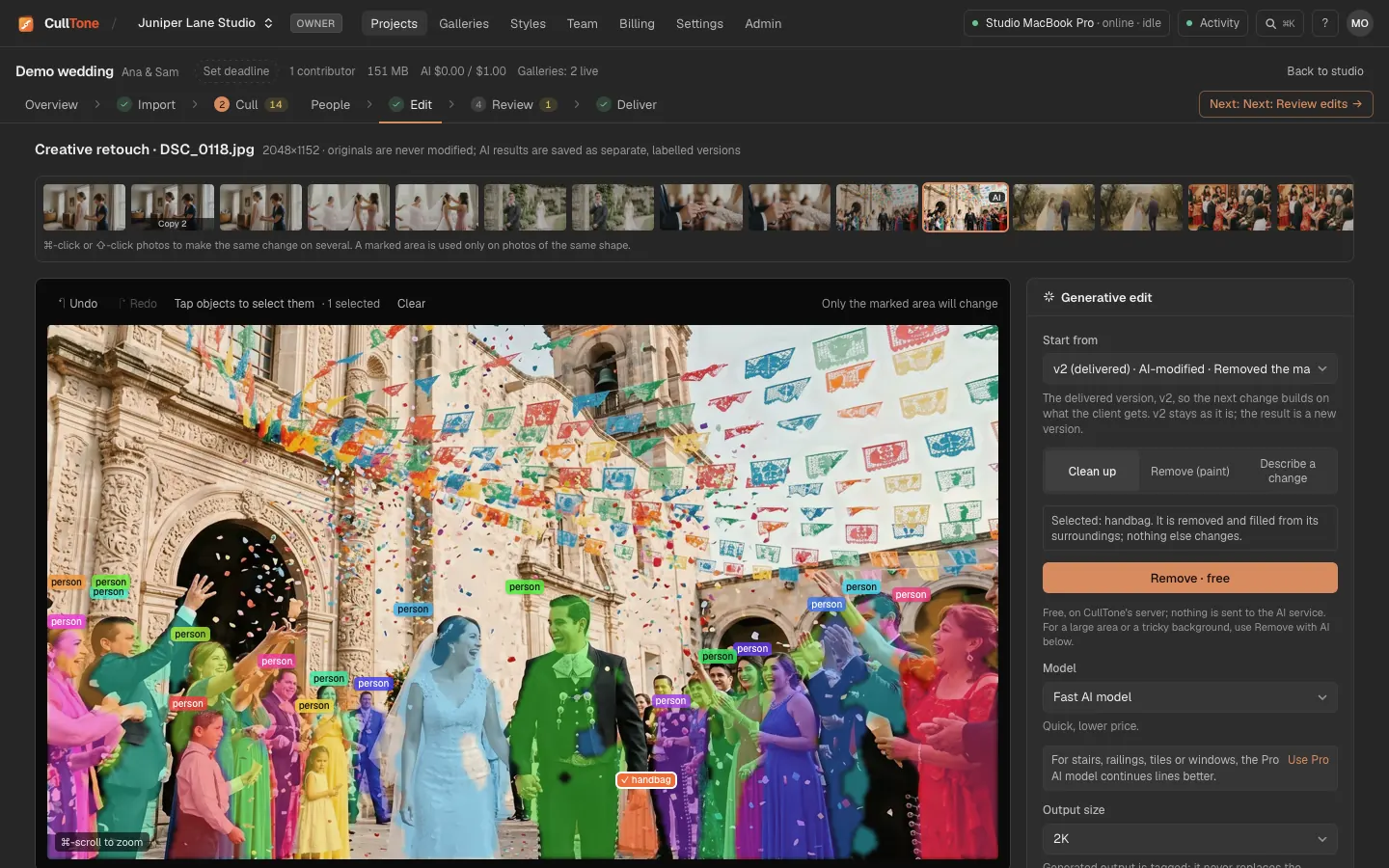
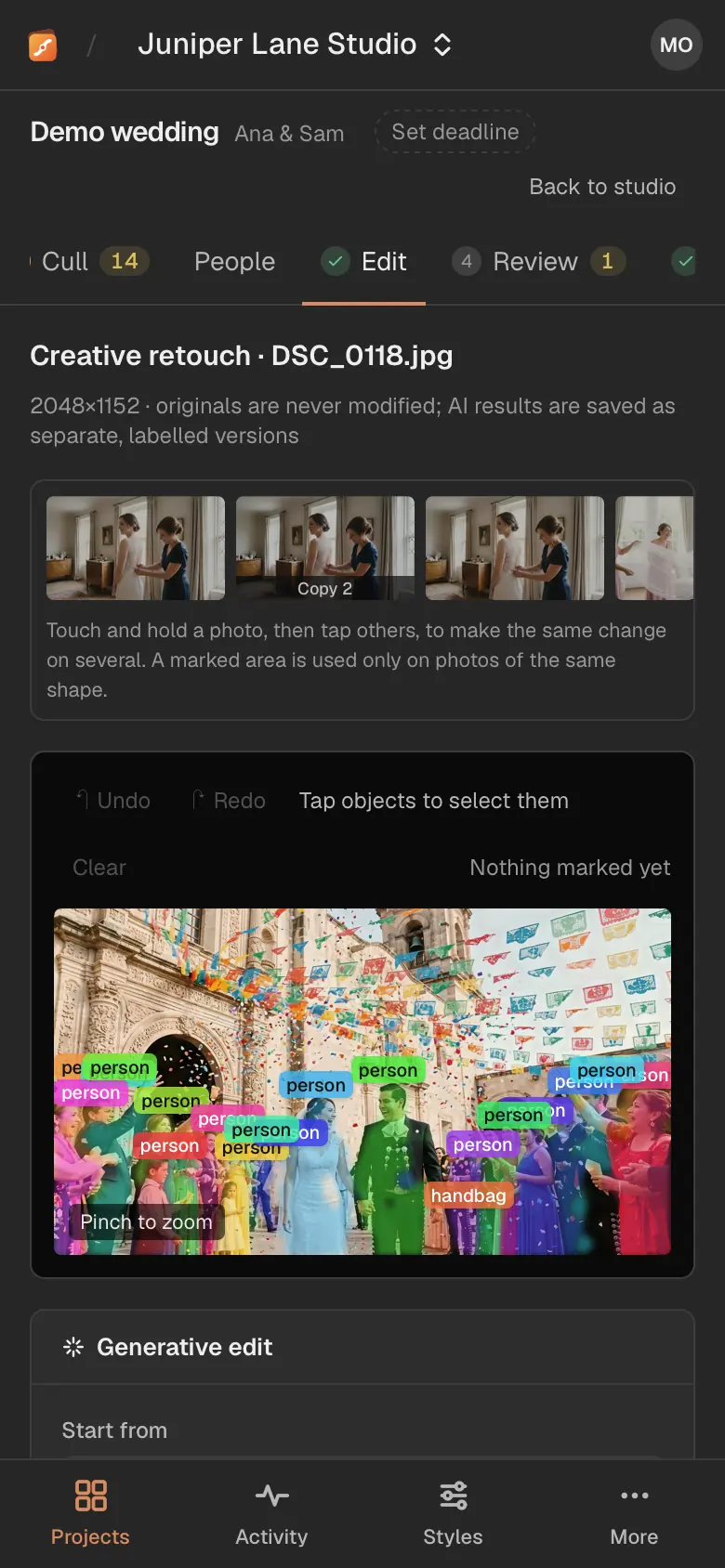
Choose Clean up. CullTone finds the things in the photo (people, bottles, chairs and so on) and washes each in a colour. Tap the ones to remove. Choosing a person warns you first. Finding the objects is free and runs in CullTone Desktop on your computer.
-
Remove: paint over a spot
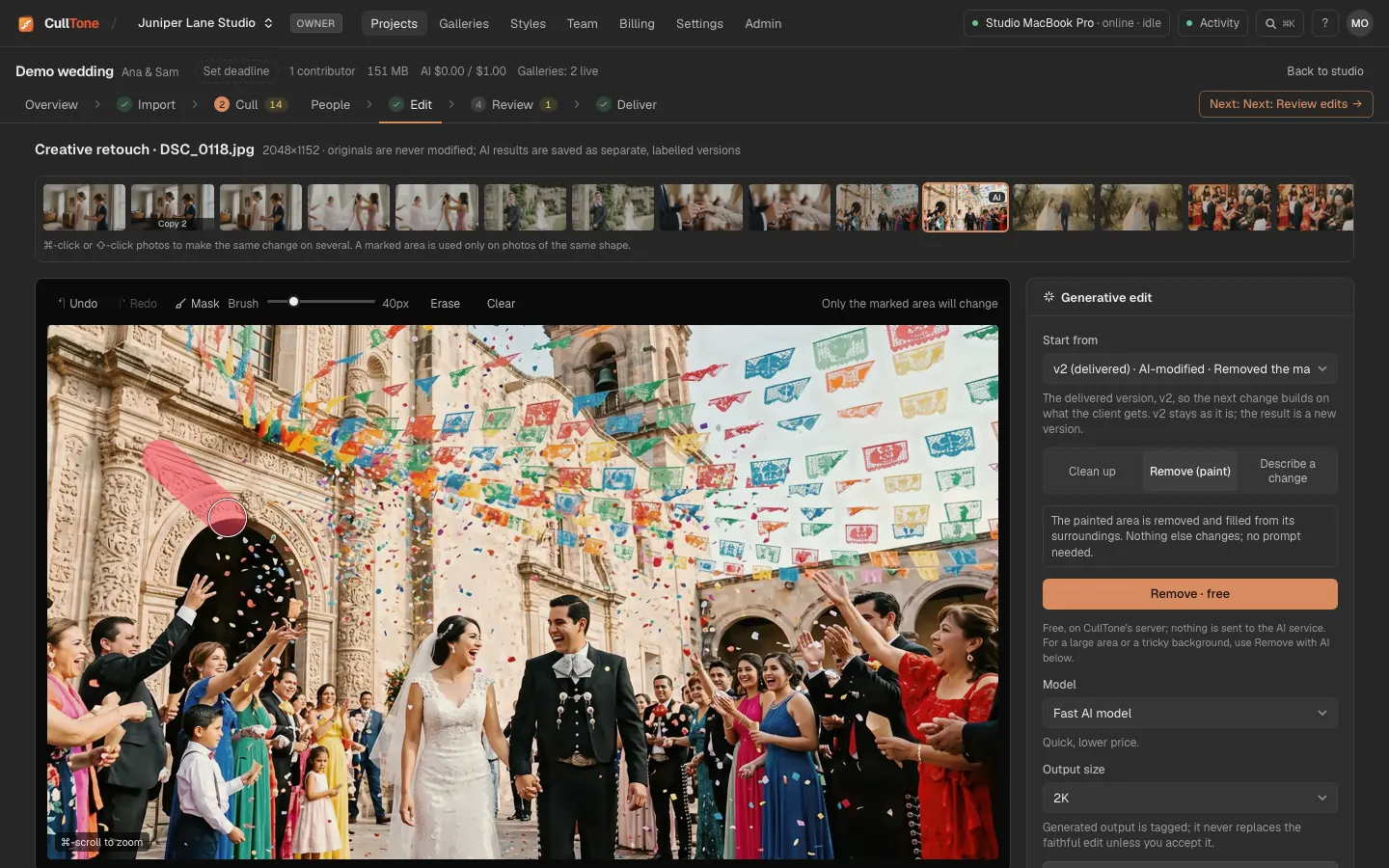
Choose Remove (paint) and paint over a small distraction ([ and ] change the brush size). Remove · free runs a model in CullTone Desktop on your computer at no cost; Remove with AI is paid and shows its price.
-
Describe a change, or use a template
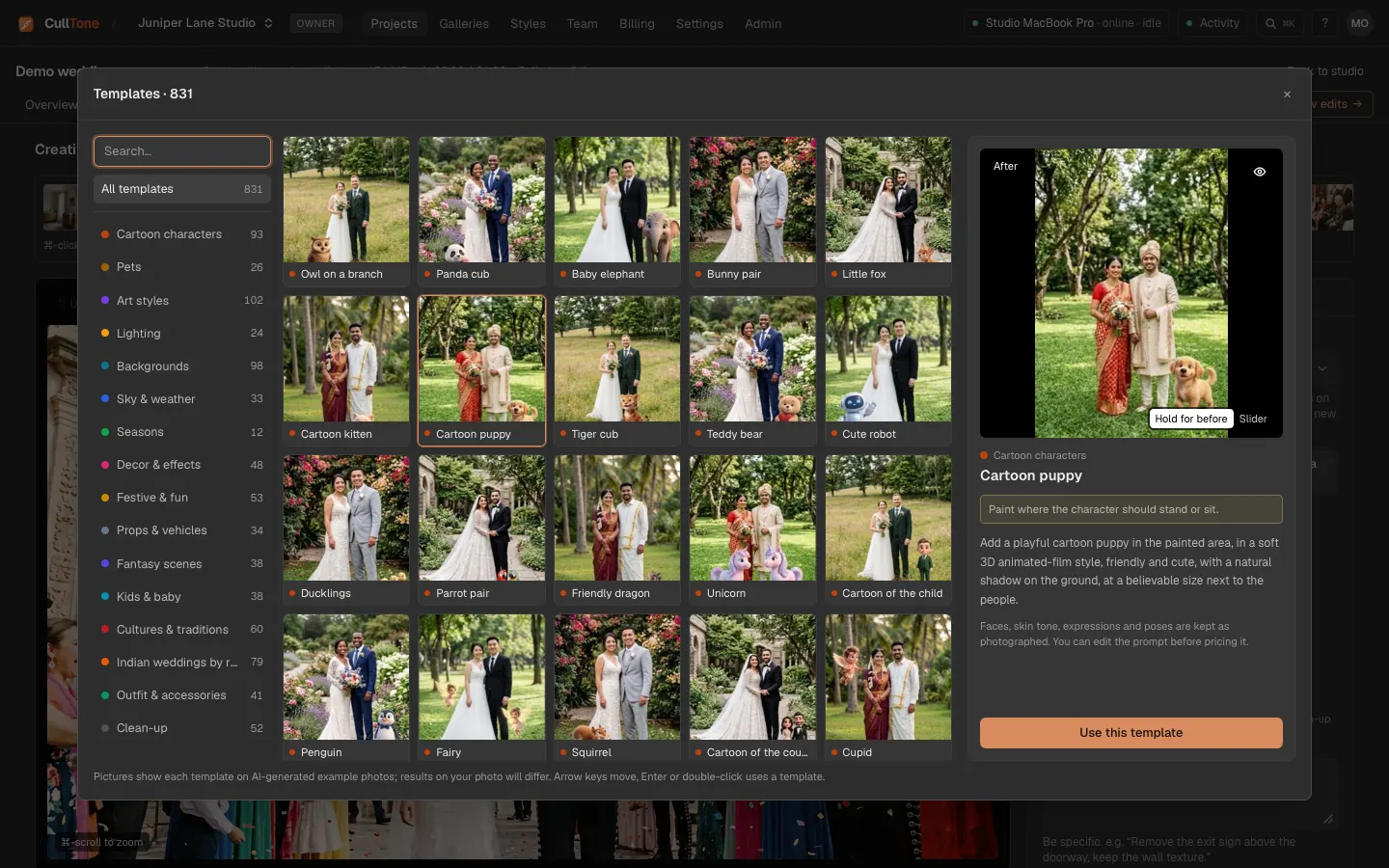
Choose Describe a change and write what should change, tap a common task (Remove a person, Remove a photobomber, Tidy the background, Blue sky, Golden hour light and more), or press More templates for 831 ready prompts in 16 groups, each with a before and after example.
-
Check the price, then decide
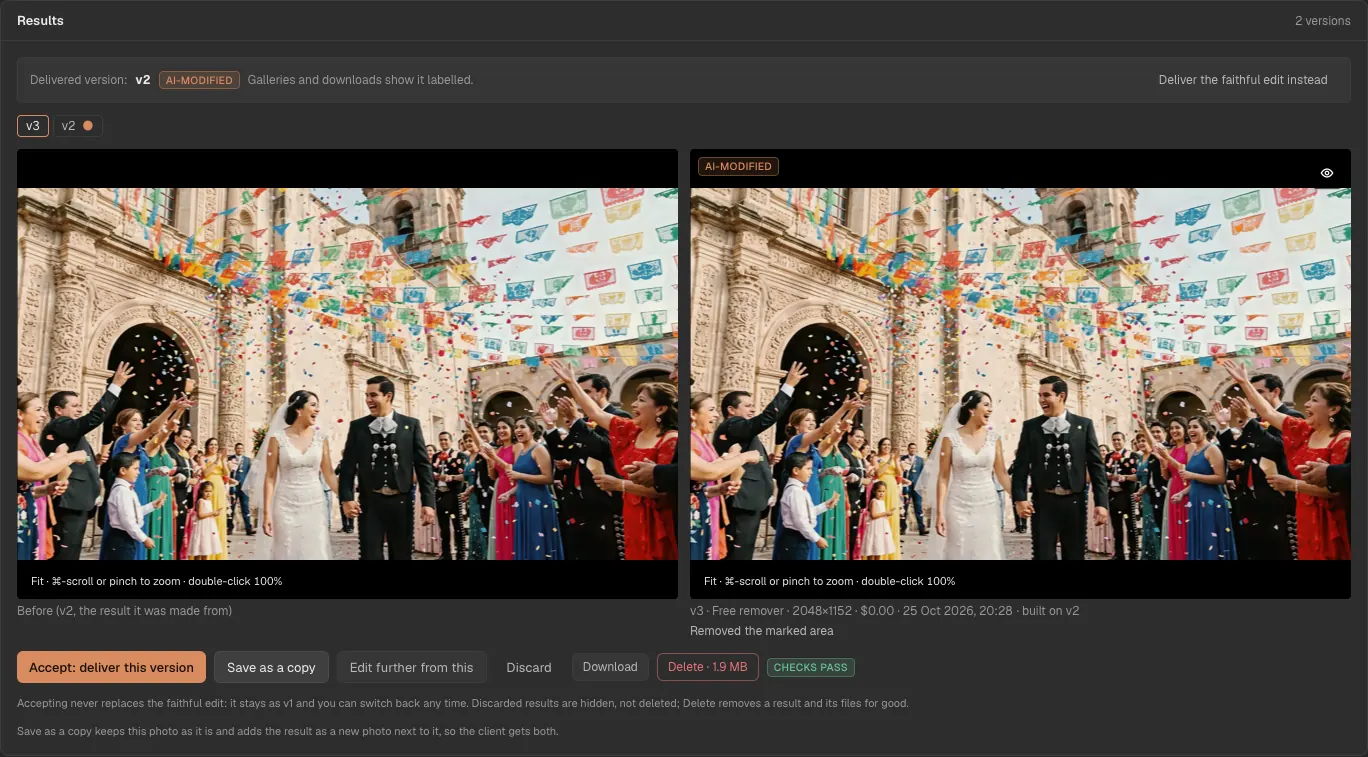
Press Estimate cost. The price shows before anything runs; the edit runs only when you approve it. Results appear as versions you can accept, save as a copy, blend again, discard or delete (see below). The eye button on a result shows what it was made from in its place: hold it (or hold O or \), or click it to keep it on. The template examples work the same way.
-
Download a result
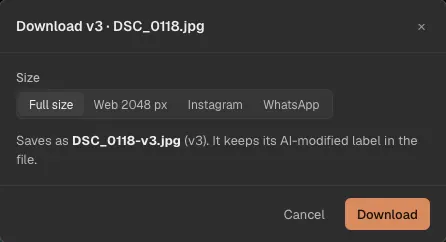
Download on a result card saves that version, accepted or not, as DSC_0118-v3.jpg. It keeps its AI-modified or upscaled label in the file.
On a phone
-
Retouch with your thumb
Pinch and double-tap to zoom; paint with a finger.
What to do with a result
Each result is a card under the photo. Before on a result shows the image it was made from, so you can compare the two.
- Accept: deliver this version makes it the version the client gets for this photo. Cull, the studio strip, Review, Deliver and albums then show it, tagged AI or Upscaled. Deliver the faithful edit instead switches back.
- Save as a copy keeps the photo as it is and adds the result as a new photo next to it (for example DSC07556, copy 2). The client gets both. Press Open it in the message to work on the copy.
- Blend again · free fits the AI's answer into the photo once more, without sending anything or paying again. It shows on results made since 24 Oct 2026, whose answer CullTone kept.
- Delete removes a result and its files for good to save space; the card shows how much it frees. Next to Show discarded you can delete all discarded results, or all except the delivered one. The delivered version, a version in an open client gallery and one a running job uses can't be deleted. The faithful edit is never deleted here.
- For stairs, railings, tiles or windows, the Pro AI model continues lines better. The card says so and offers Use Pro.
What is free and what is not
- Clean up and Remove · free cost nothing.
- Every retouch runs in CullTone Desktop: on the project's main computer, or on any of your studio's computers for a project of finished photos. Paid edits are sent to the AI service through CullTone and charged at the price you approved. If you start a retouch on a phone or in a browser, it waits until that computer is on with CullTone Desktop open.
- Prompt edits, templates, Remove with AI and Extend use the model you pick under Model: Fast AI model (quick, lower price) or Pro AI model (better for lines, tiles and busy backgrounds). They are paid per image (about $0.10 to $0.14 at 2K). The price is shown first and nothing runs without your approval. A finished result is never paid for twice.
- Paid edits use the workspace's AI credit. The confirm shows what it uses and what is left, for example "Uses $0.10 · $4.62 left". When it doesn't fit the project's AI allowance or the credit left, the button stays off and the owner can buy more in Billing.
- Clients see which photos were changed with AI: the gallery and the file's metadata say so.