People: names, key people, merge and hide
CullTone groups the faces in a project by person, so you can see at a glance whether the grandmother made it into the keeps. Faces are compared inside one project only, never across projects or studios.
- Free
- Computer or phone
Work with people
-
Open the People tab
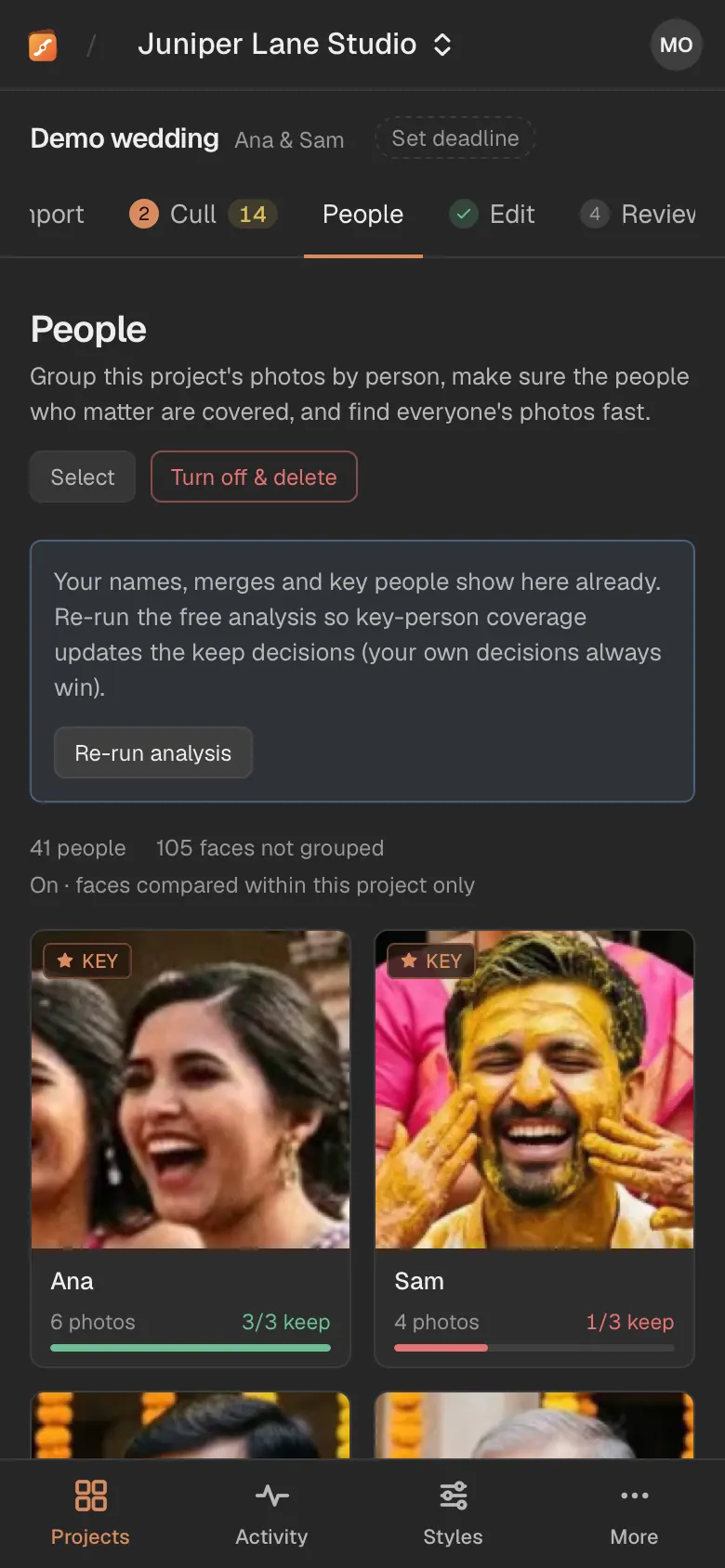
Each card shows a face, a name or "Person 7", how many photos they are in and how many are kept. A key person shows their keepers against the minimum you set.

-
Name someone and make them a key person
Click a card. Type a name, tick Key person and set at least how many keepers they need. The next analysis keeps their best Review frames to reach that number, with the reason saying so.

-
Merge two cards of the same person
Press Select, tap both cards and press Merge. Pick the name to keep. If a merge was wrong, open the person and split the faces out again.

-
Hide the people you do not need
Select guests in the background and press Hide. Hiding only tidies your view; it never changes the cull.

On a phone
-
The same cards, in two columns
Tap a person to name them or set a minimum. Long-press to start selecting.
Tips
- On the Cull tab, the Person filter shows only that person's photos.
- After naming people and setting minimums, press Re-run analysis so the keep decisions take them into account. Your own decisions are never changed. Once the project has your own picks, edits or renders, CullTone asks first and says that they stay.
- Only clear faces are grouped (big and sharp enough, not in full profile), so very small faces in a crowd stay ungrouped.
Privacy
- People is on for every project and can be turned off per project with Turn off & delete, which deletes the face data at once.
- Faces never go to AI and are never matched across projects.