Getting started: your account, your studio and your team
CullTone takes a card of RAW files to a gallery your client approves: import, cull, edit, check, deliver. This page covers the ten minutes before your first shoot: the account, the studio workspace and the people who work in it with you.
- Free trial
- Computer or phone
Set up your studio
-
Create your account
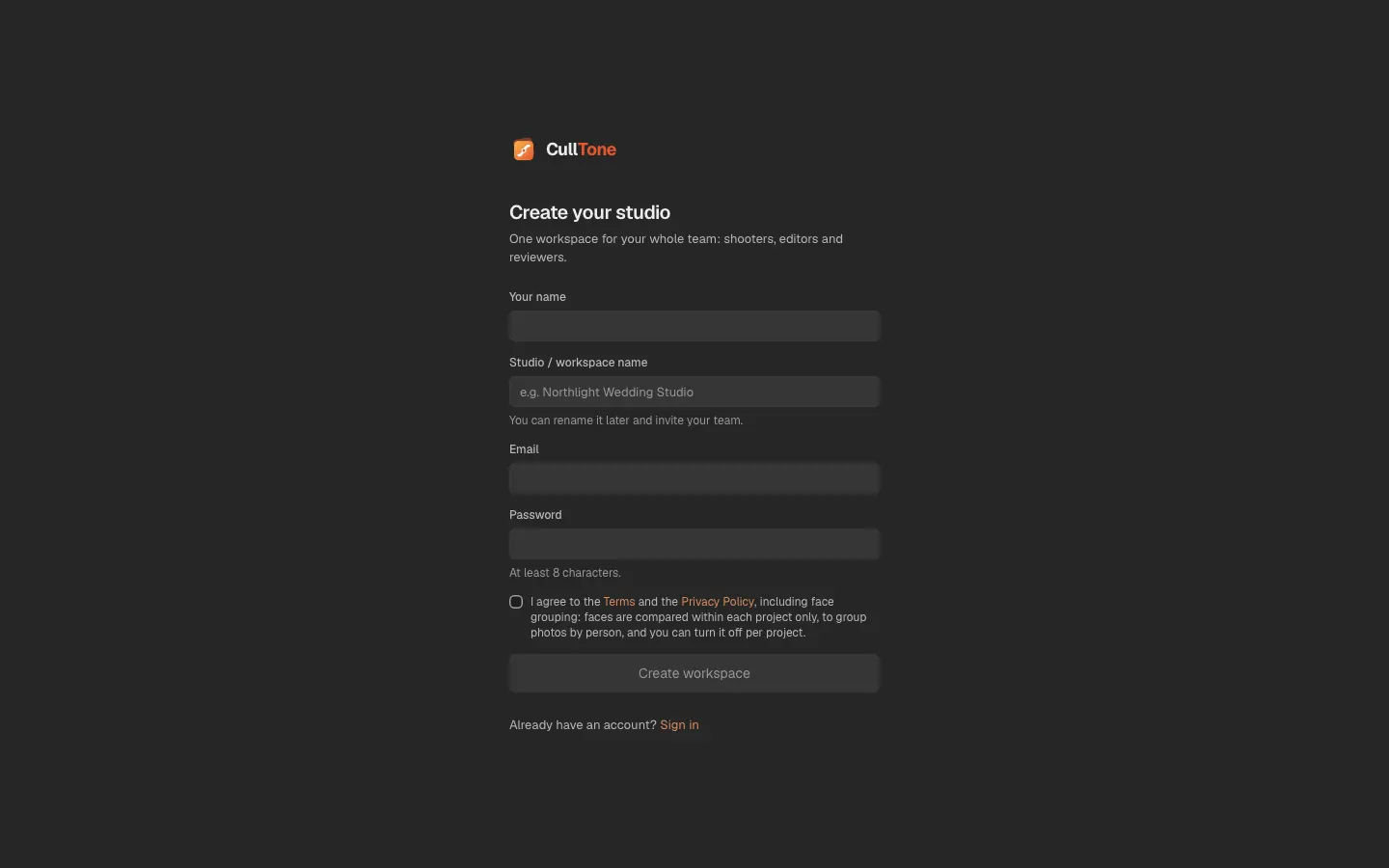
Go to culltone.com and press Start free trial. CullTone is open by invitation for now: type the invite code you were given (no code yet? write to us), then your name, email, a password (8 characters or more) and a name for your studio, tick the Terms box and press Create account. The studio name becomes your workspace: the place where your projects, looks and team live.
-
Find your way round the Projects screen
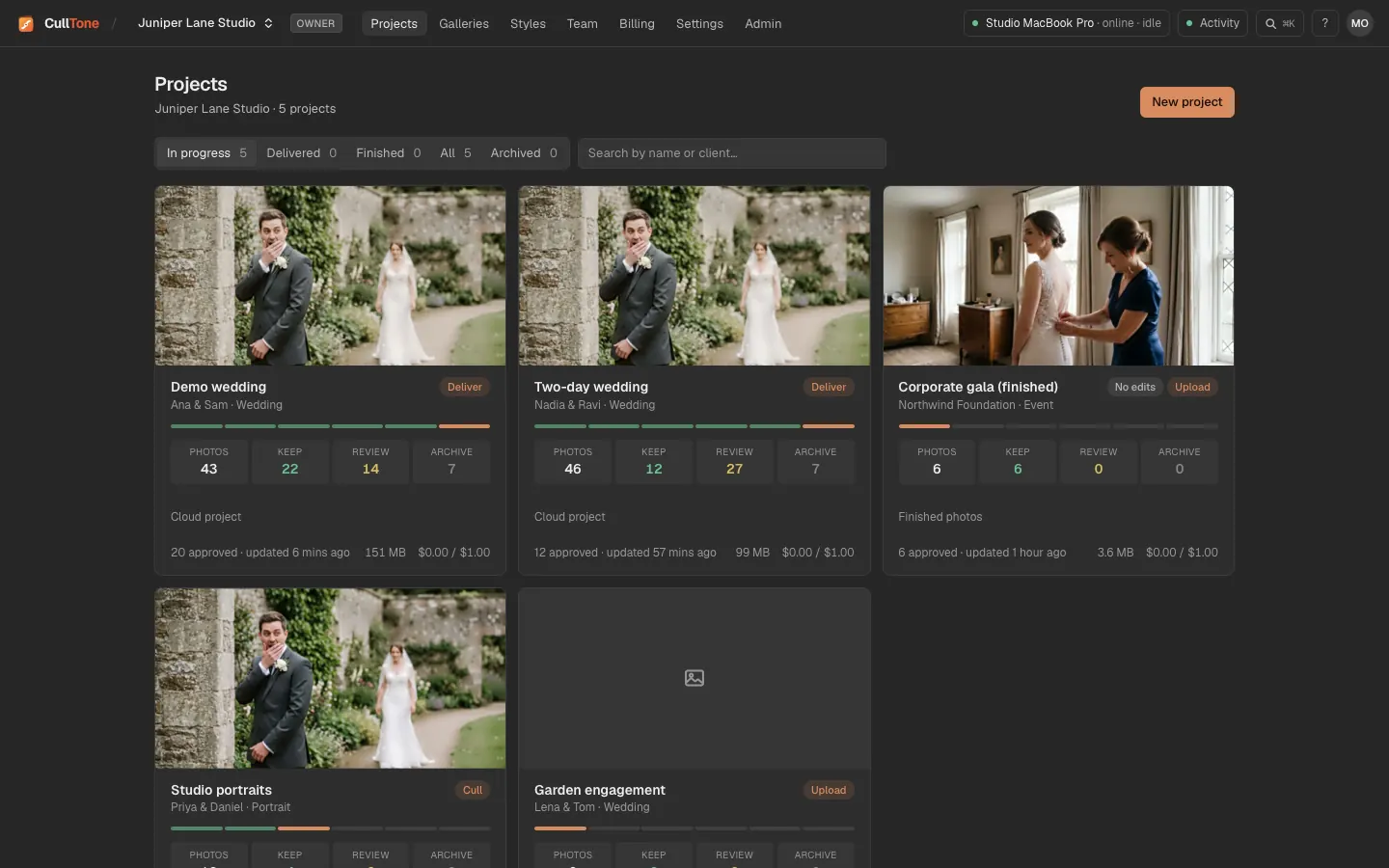
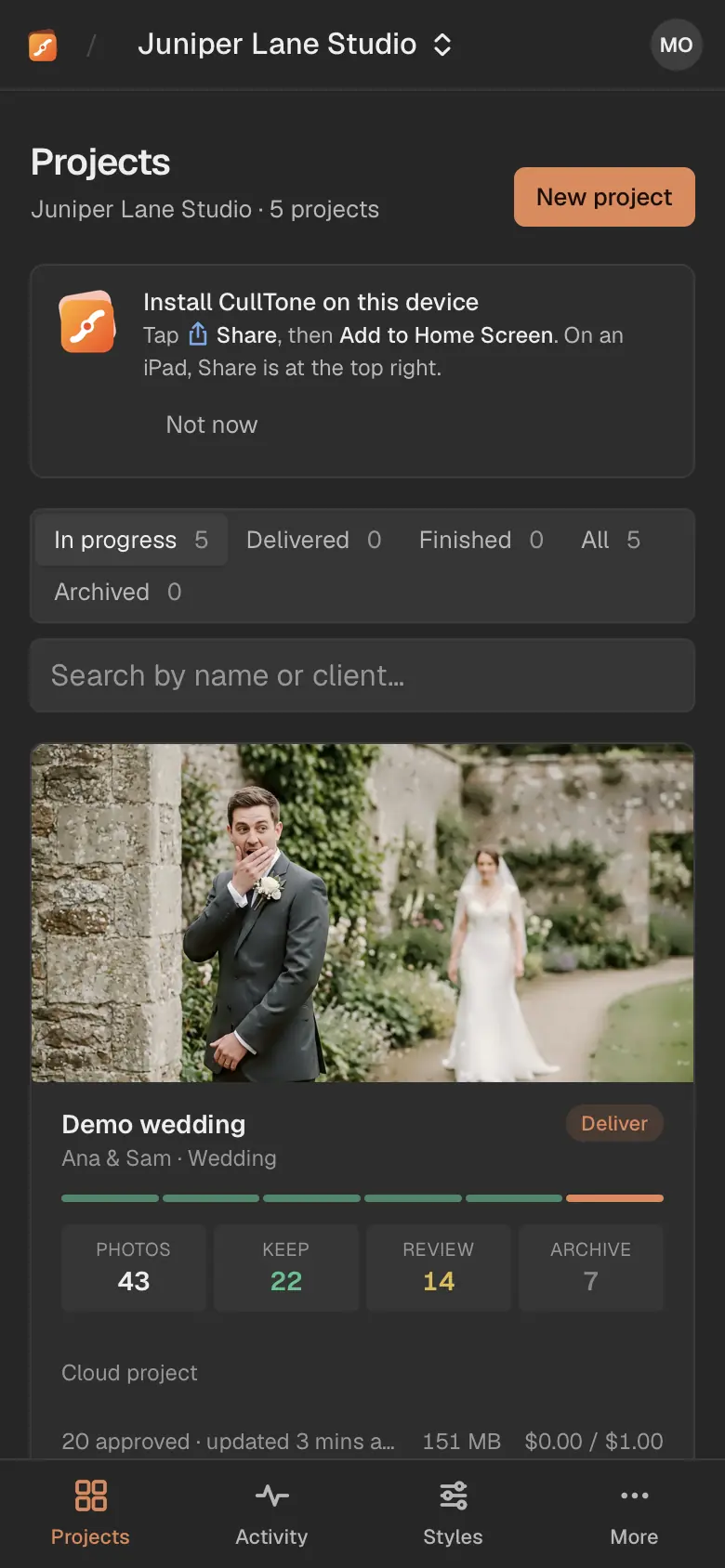
Every shoot is a project card with its cover photo, counts and stage. The top bar has Styles, Billing, Settings and Admin, the computers you have connected, Activity (everything running now) and the account menu under your initials.
-
Name the workspace and check your AI credit
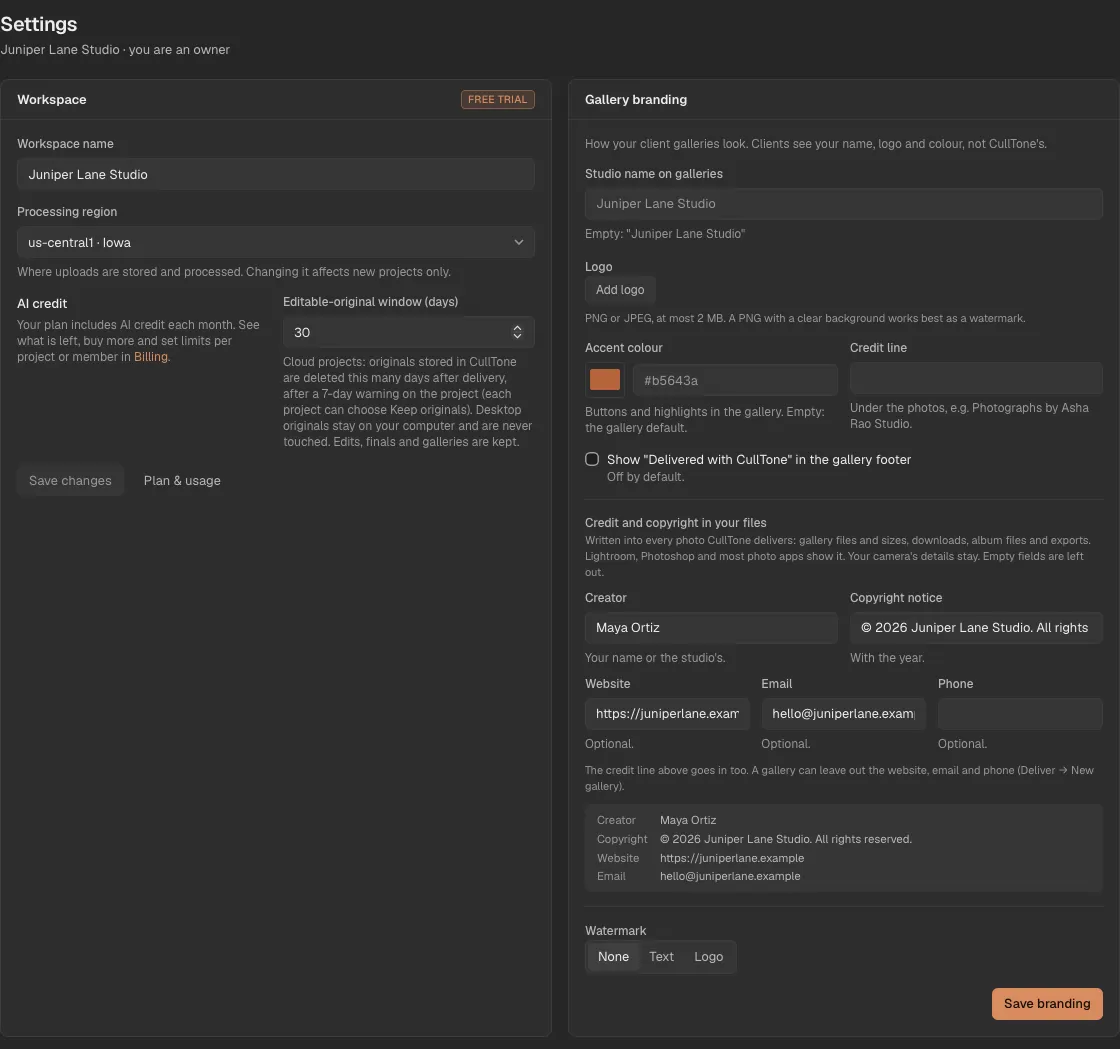
Open Settings. Under Workspace set the name and a region label, then press Save changes. Your plan includes AI credit for the optional paid steps; Billing shows what is left.
-
Invite your team
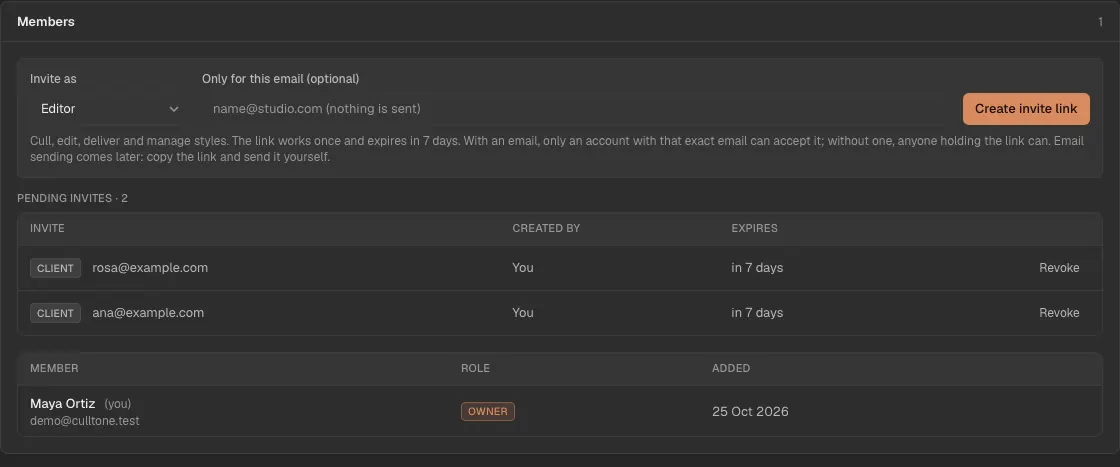
Under Members, pick a role, type an email if you like, and press Create invite link. Copy the link and send it yourself: CullTone does not send email yet. Each link works once and lasts 7 days, and the person who opens it needs no invite code.
-
Find any action by name
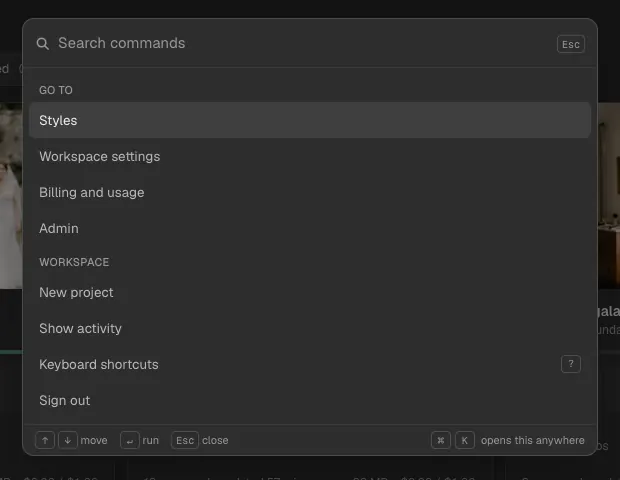
Press ⌘K on a Mac or Ctrl+K on Windows and Linux, or click the search button in the top bar. Type what you want ("new project", "archive", "render") and press Enter. It lists what the screen you are on can do.
Who can do what
Pick the smallest role that lets someone do their job. Owners, editors and reviewers count as seats on your plan; clients are free.
- Invite to this project only (on a project's Overview, in People on this project) lets a reviewer or editor see that one project and nothing else of the studio. They take no seat; up to 10 per project. Copy the link and send it yourself.
| Role | Can do |
|---|---|
| Owner | Everything, including billing, members, the audit log and deleting a project for good |
| Editor | Cull, edit, render, retouch, deliver, manage looks, connect computers, use the Admin page |
| Reviewer | Open projects and review the cull |
| Client | Gallery access only: no projects, photos, jobs, looks or budgets |
On a phone
-
The same account on your phone
Open culltone.com/app in Safari or Chrome and sign in. The Projects screen fits the phone, with tabs for Projects, Activity, Styles and More along the bottom.
-
Settings and search live under More
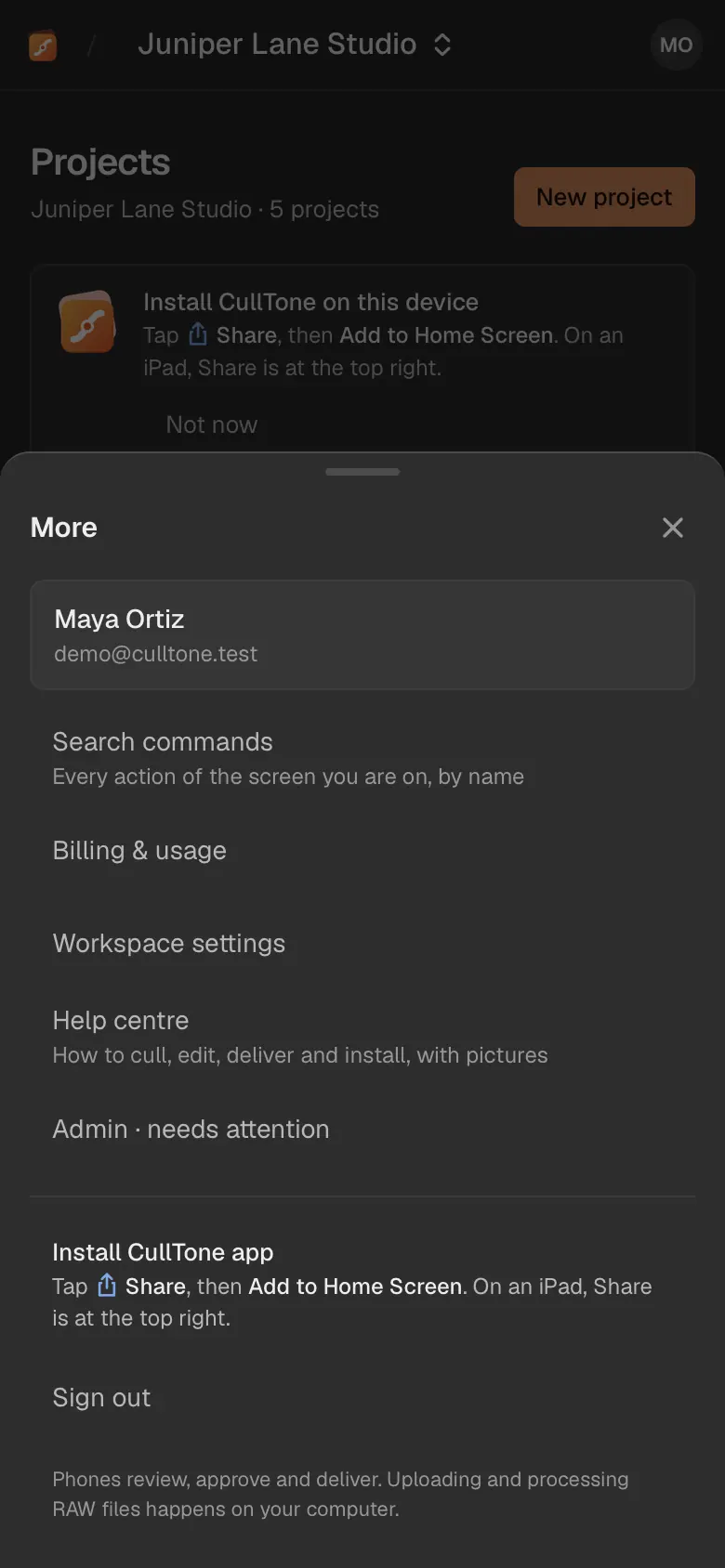
Tap More for Search commands, Billing, Workspace settings, Admin, the Help centre and Sign out.
What is free and what is not
- The free trial lasts 30 days with one seat. Plans and prices are on the pricing page; card payments are not switched on yet, so nothing is charged.
- Culling, editing, rendering, reviewing edits and galleries are part of the plan. Only the optional AI steps cost extra, and each shows its price and waits for your yes.
- Not built yet: password reset, email invites, Google sign-in and two-step sign-in.