Extend a photo
Sometimes the frame is too tight: an album page needs a few millimetres more for the bleed, or a landscape photo has to become a 4:5 post. Extend puts the photo on a bigger frame and the AI draws only the new area round it. Your photo's own pixels stay as they are, apart from a thin blend at the edges that grow.
- Paid, price first
- Your photo is kept
Extend a photo
-
Open creative retouch
In the studio, press Creative retouch. The Extend card is on the right, under the other changes.
-
Pick a size
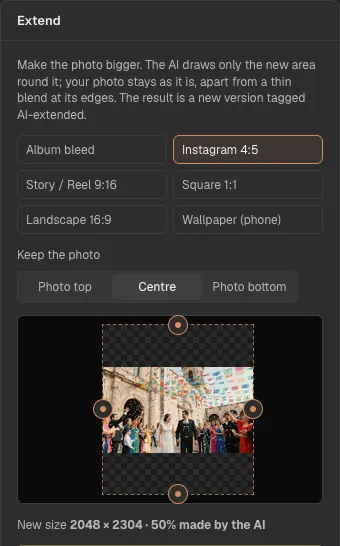
Choose Album bleed, Instagram 4:5, Story / Reel 9:16, Square 1:1, Landscape 16:9 or Wallpaper (phone). For a ratio, choose where the photo stays: in the centre, or at one side.
-
Or drag the sides
Drag a handle on the frame to add more on that side. With a keyboard, focus a handle and use the arrow keys (Shift for bigger steps). The card shows the new size and how much of it the AI makes.
-
Add a hint if you like
Leave the hint empty to continue the scene, or say what the new area should show, for example "more of the beach". For a busy background, such as a crowd, buildings or tiles, the Pro AI model continues it better.
-
Check the price, then generate
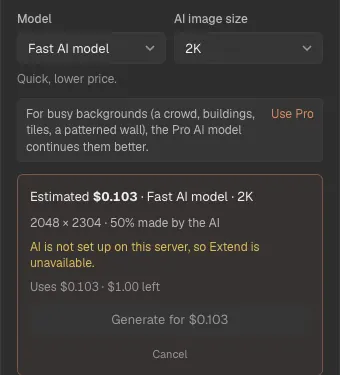
Press Extend · see price. The price and the AI credit it uses show first, for example "Uses $0.10 · $4.62 left". Nothing runs until you press Generate. The result is a new version tagged AI-extended; accept it to deliver it, or save it as a copy.
Album bleed
- When a photo at the page edge does not reach the bleed, the album page says so and offers Extend to fill the bleed. It opens Extend with that album's print size: what the photo is short of on each side at its current crop, plus 1 mm.
- Opened from anywhere else, Album bleed adds 3 mm on every side at 300 dpi.
- Without Extend, CullTone enlarges such a photo slightly so it still fills the bleed. Extend keeps the crop you chose and draws the missing edge instead.
Limits
- One run adds at most half the photo's width or height on each side. A bigger change, such as a 9:16 story from a landscape photo, takes two runs: the card says so, and you extend the result again.
- The AI makes the new area from a smaller copy of the whole frame (at most 4096 px). CullTone scales it up and matches your photo's detail and grain, but a very large new area is softer than the photo itself.
- Extend uses the AI, so it is unavailable when AI is not set up for your studio.
- Clients see that the photo was changed with AI: the gallery and the file's metadata say so.